Color inverter
Invert image colors online for a negative effect, reversed artwork or a fresh palette. Open a photo, adjust the amount and download at its original size — free, in your browser.
Image preview
Opening local files, editing and downloading are free and stay in your browser. No account or credits needed.
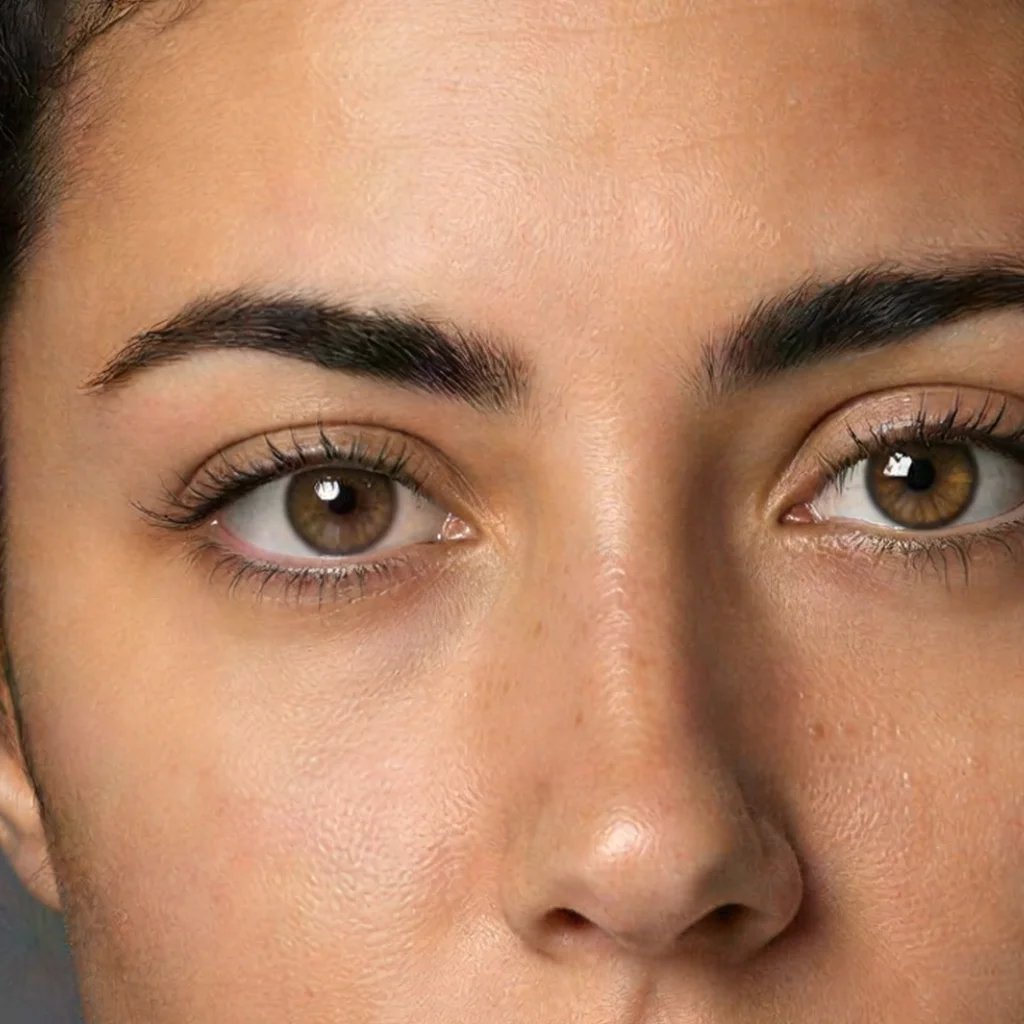
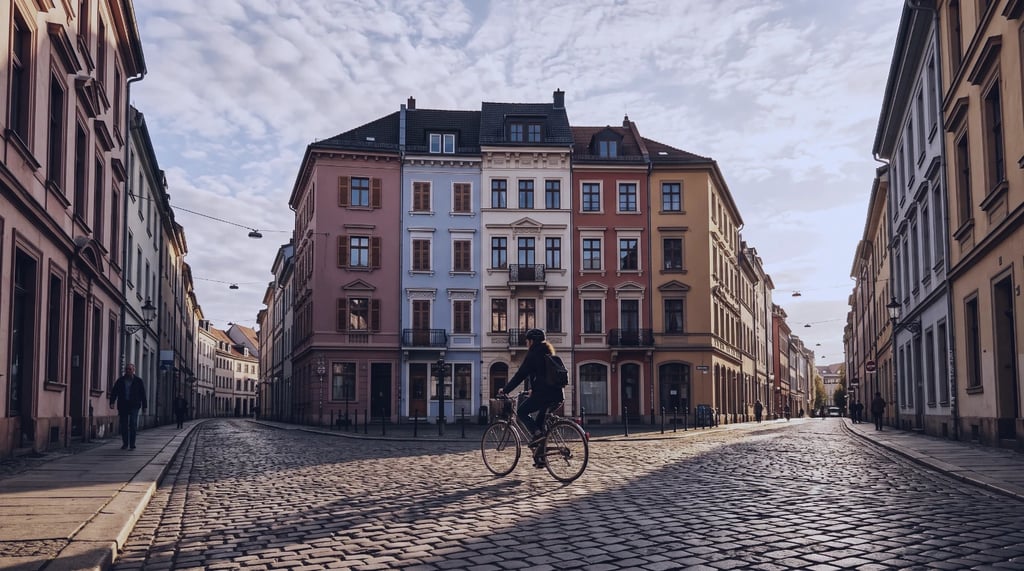
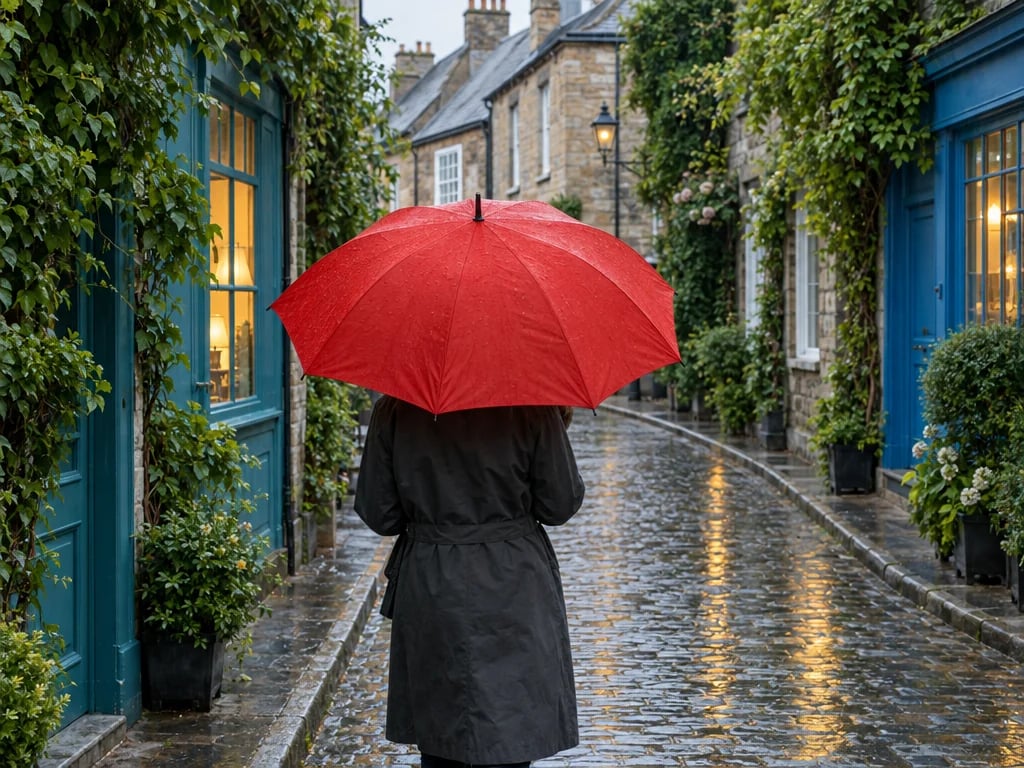
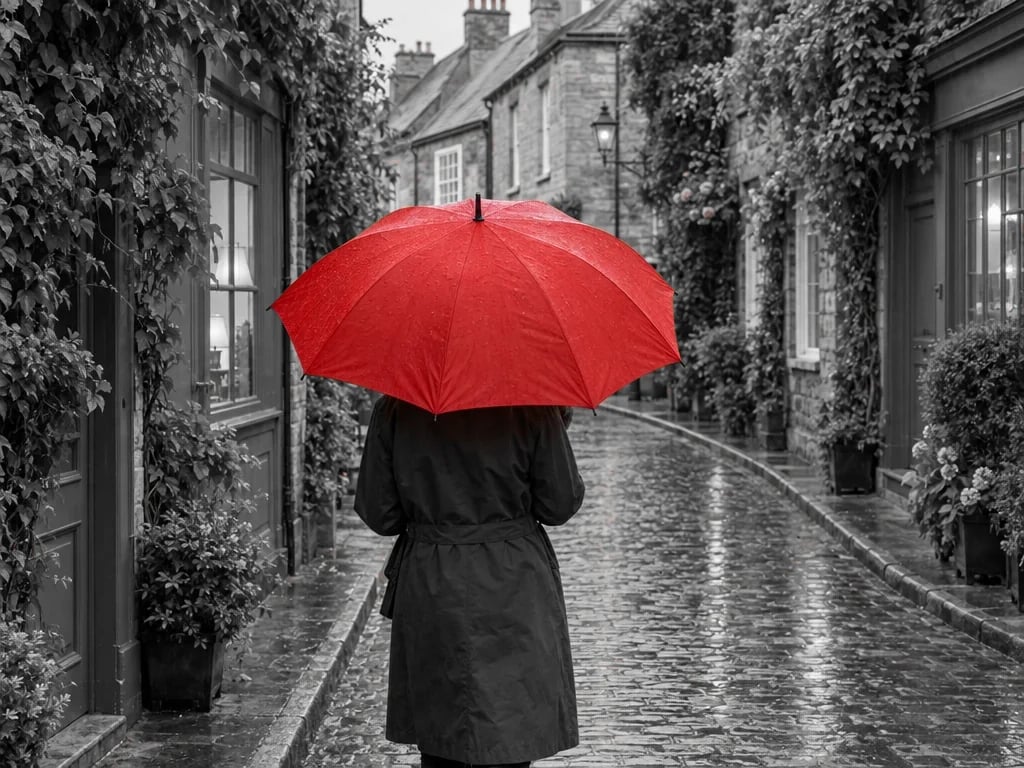
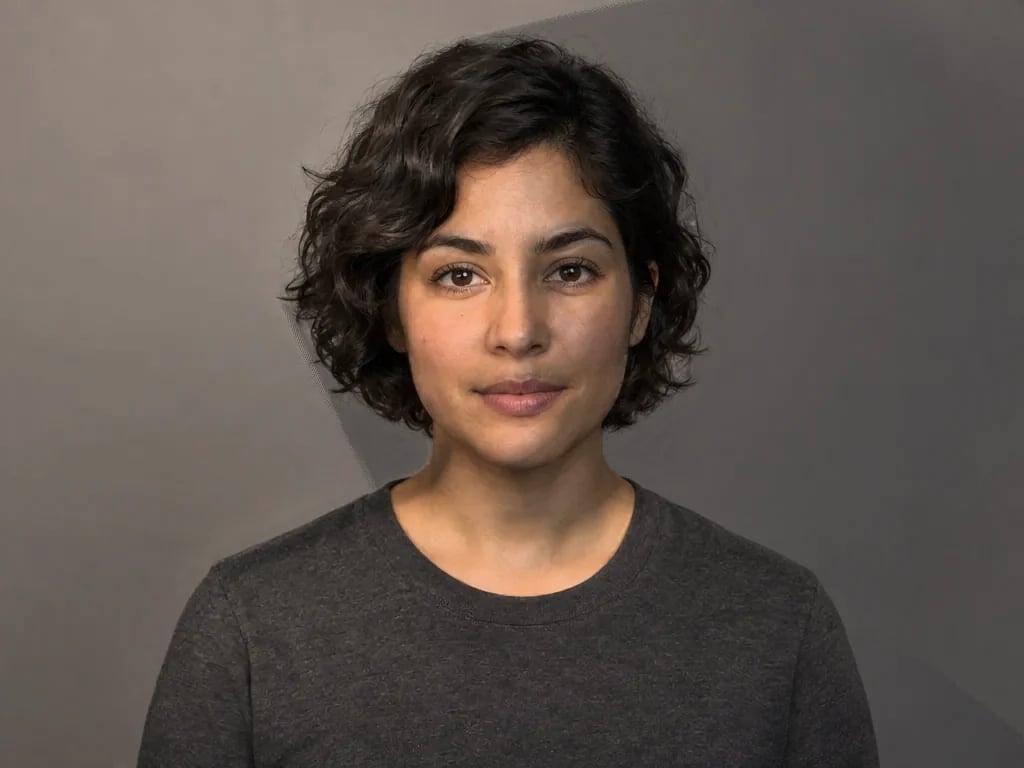
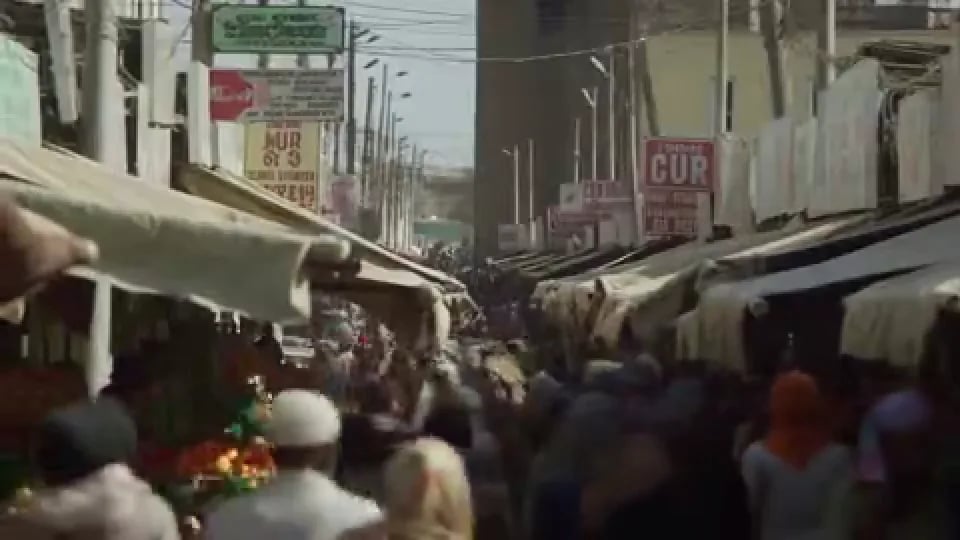
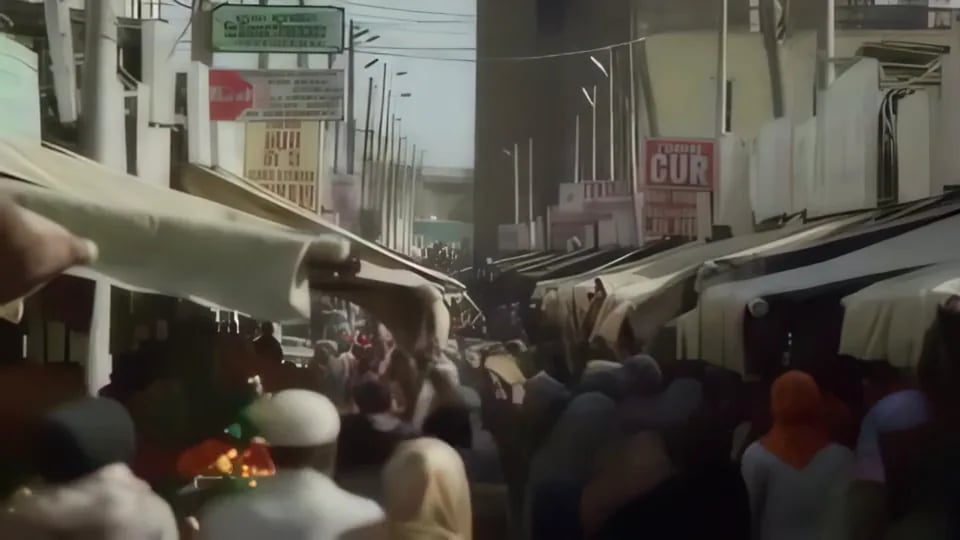
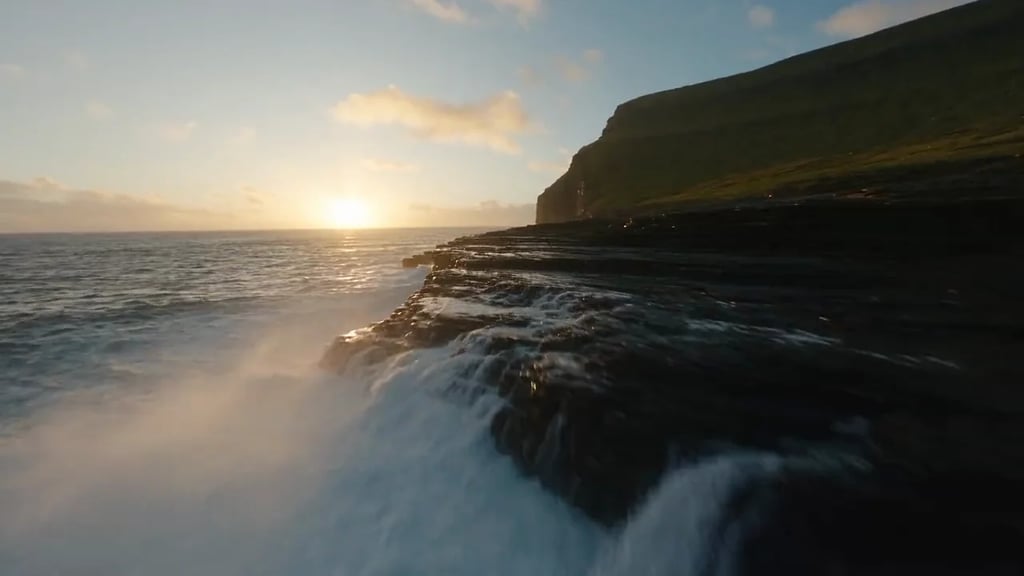
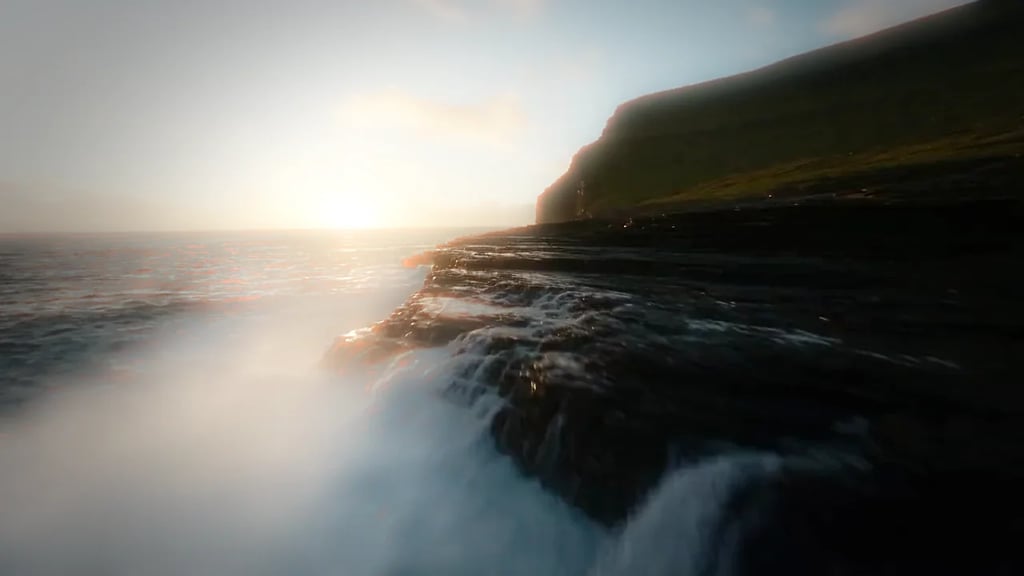
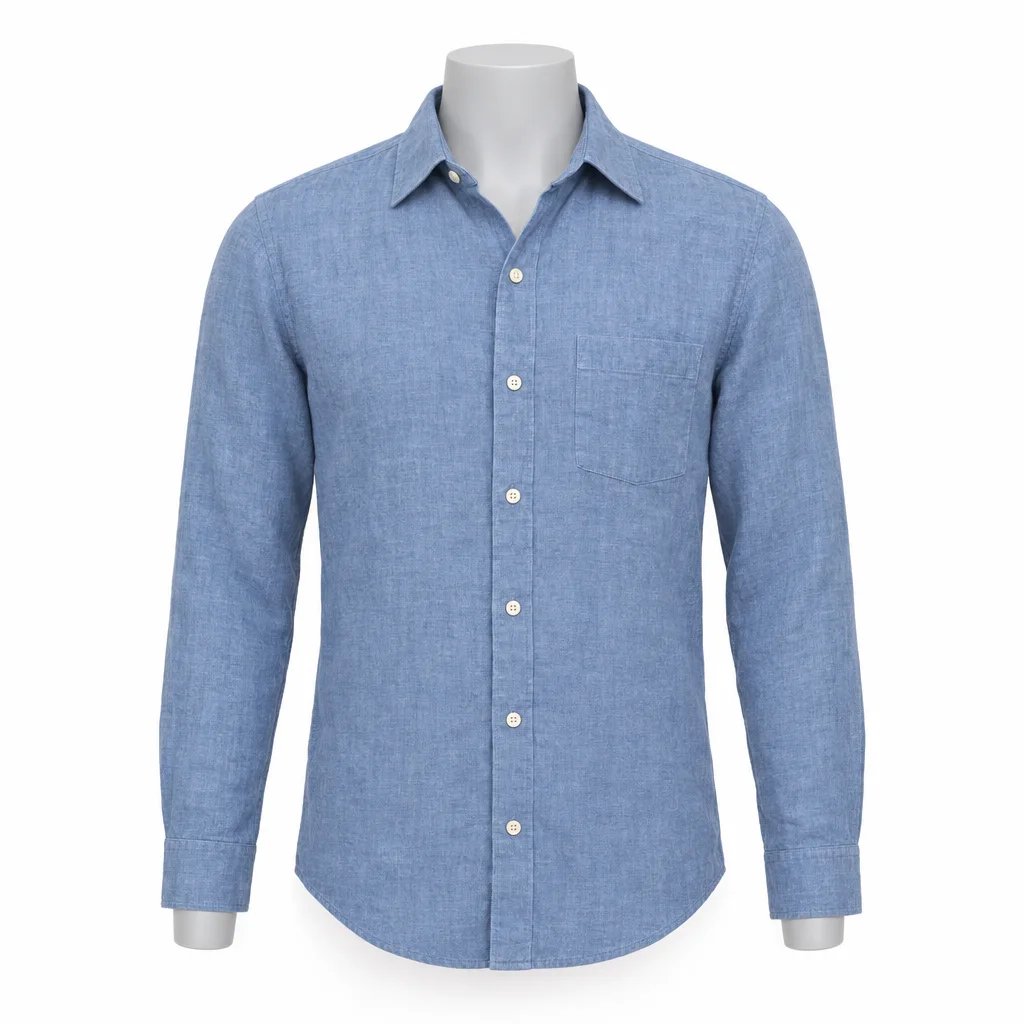
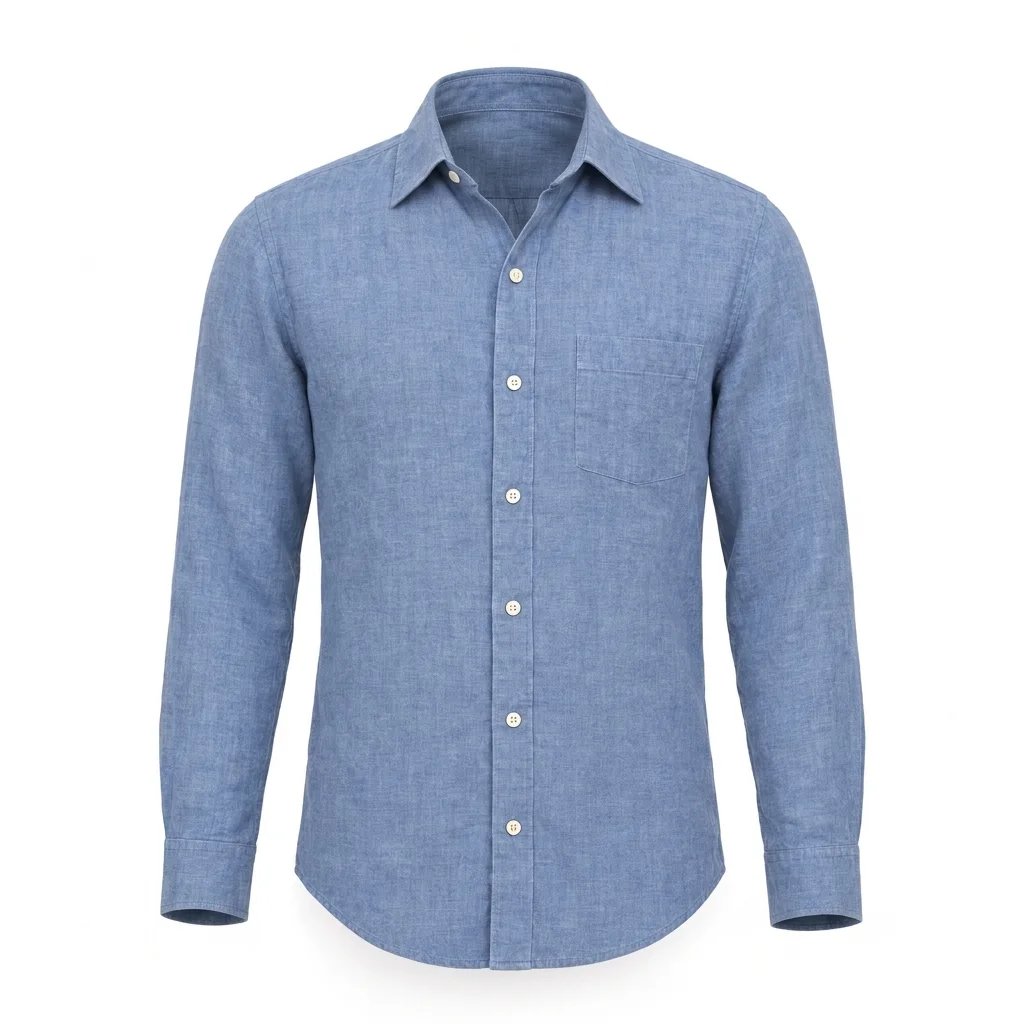
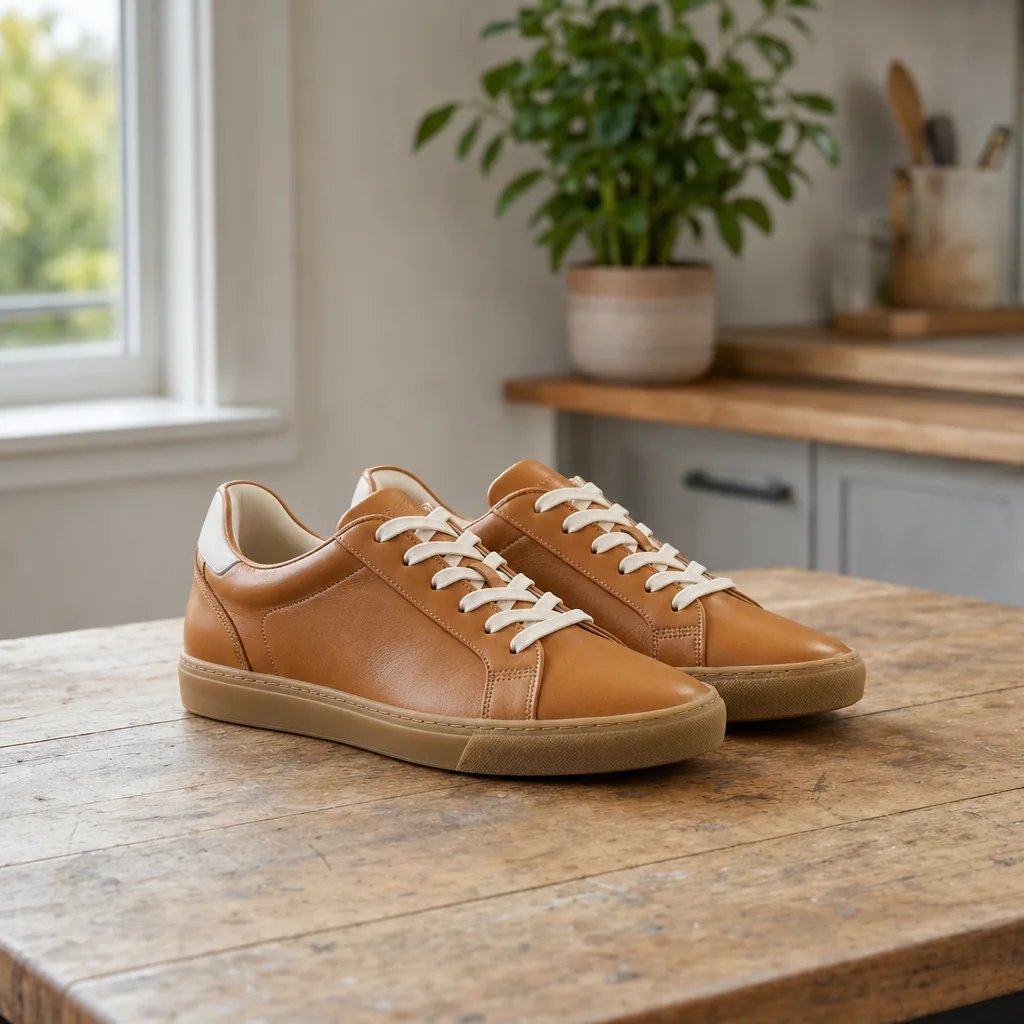
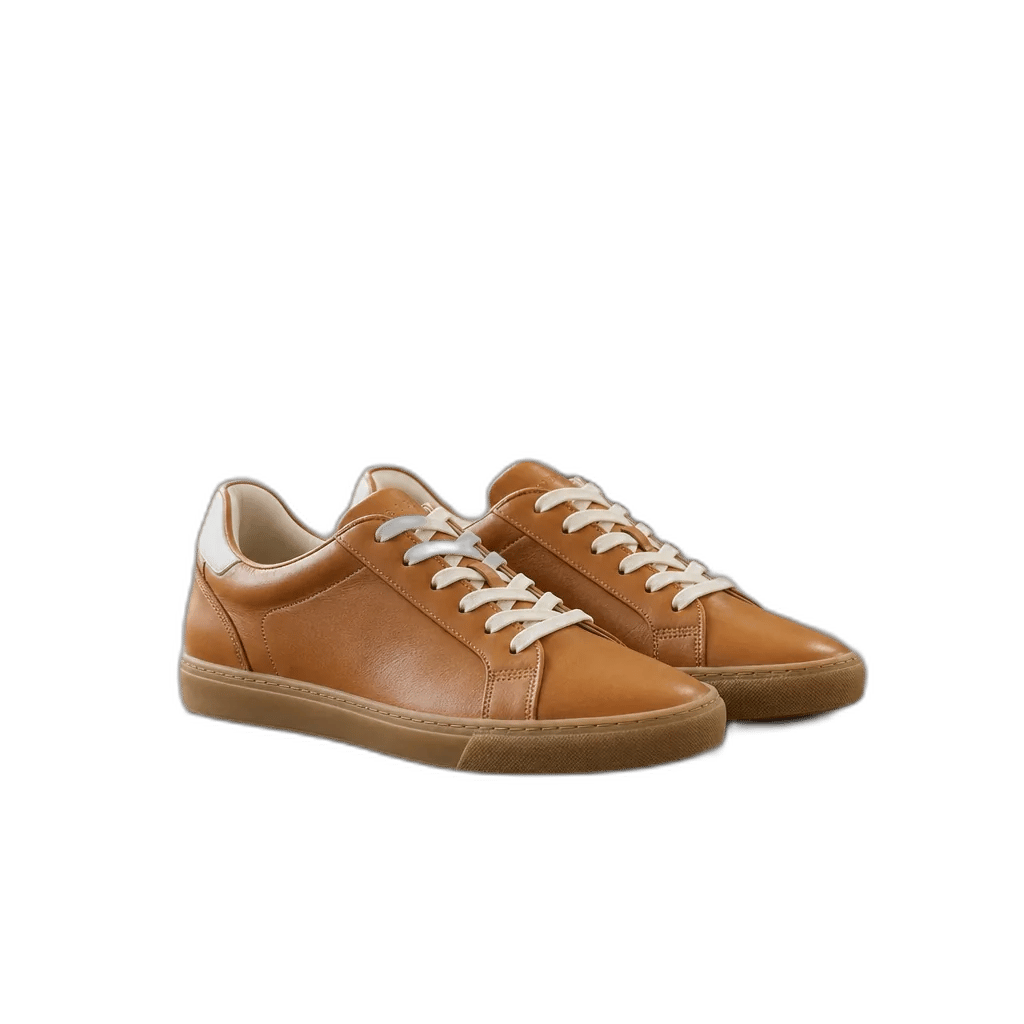
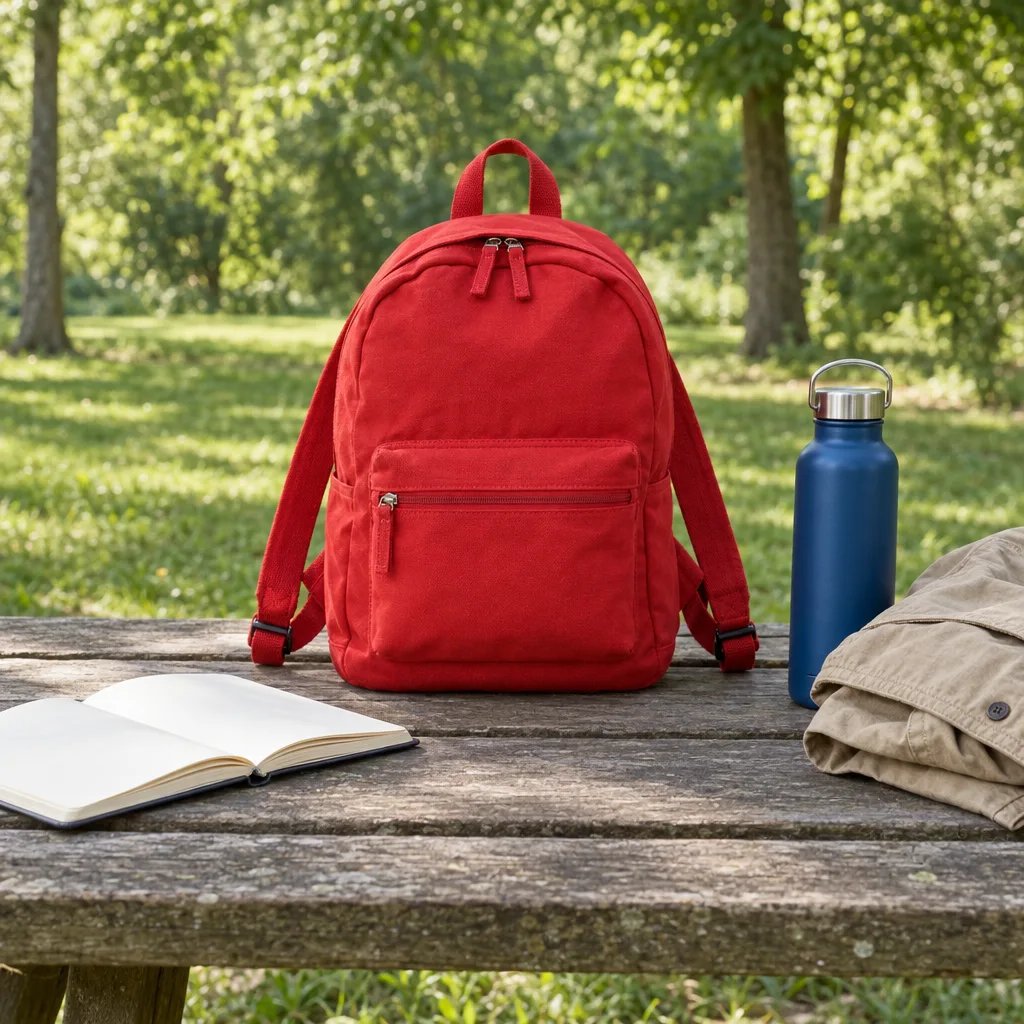
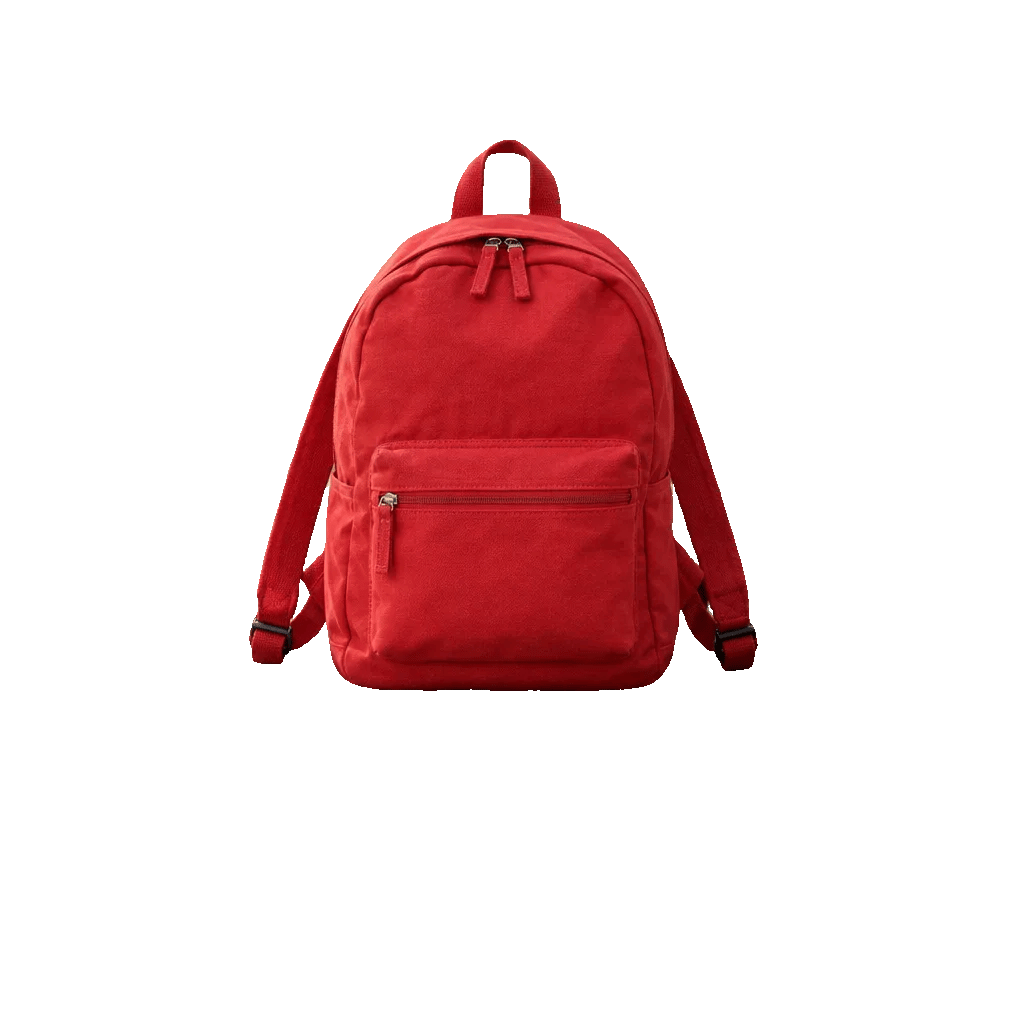
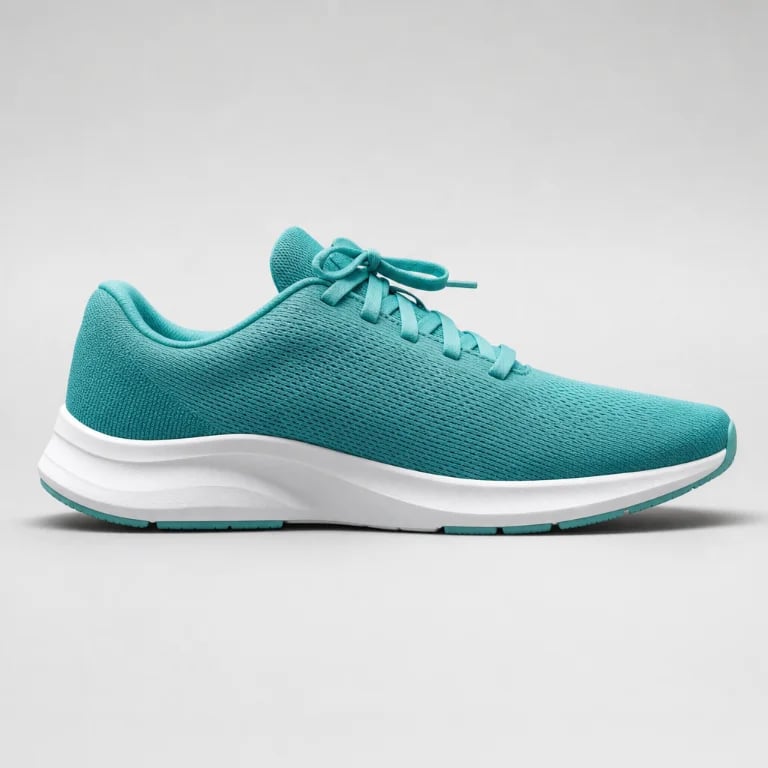
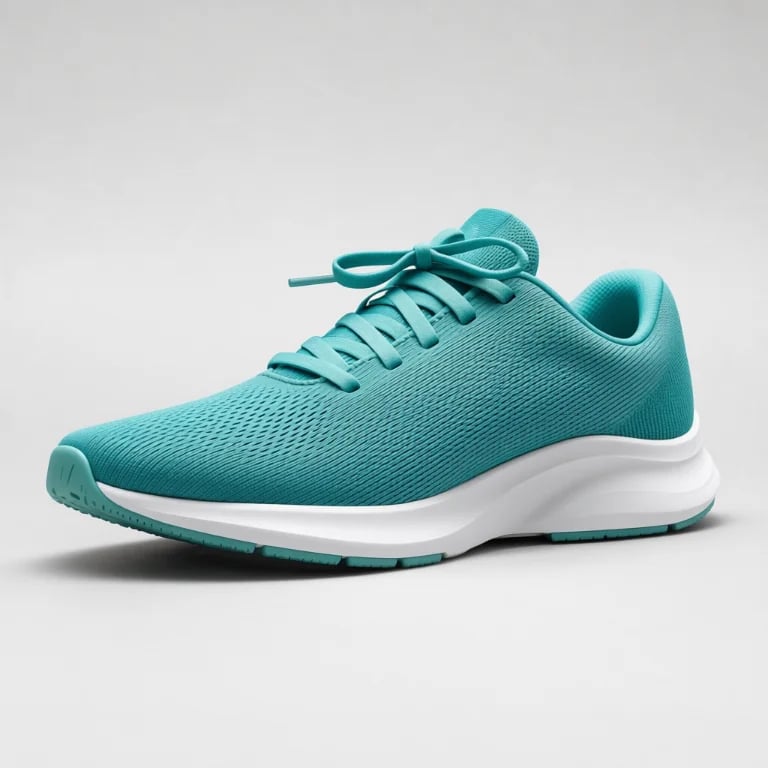
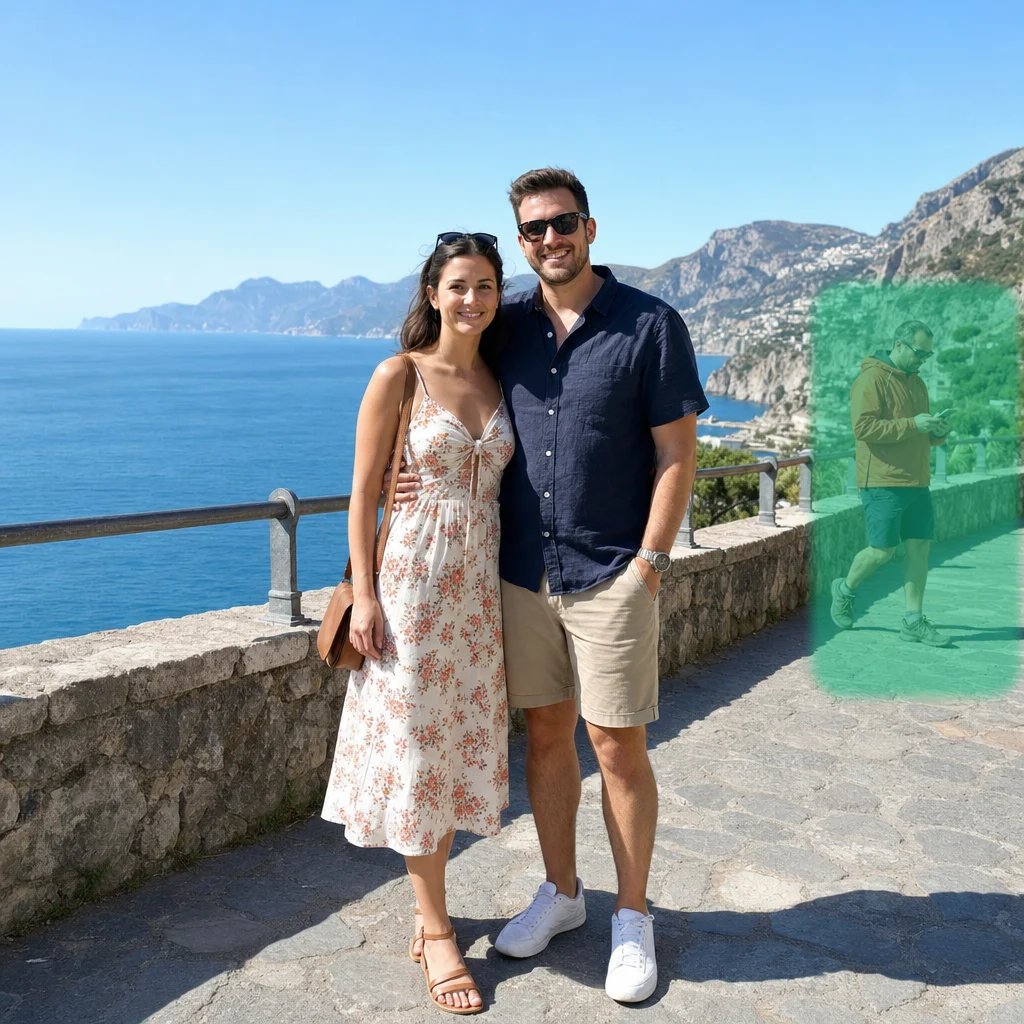
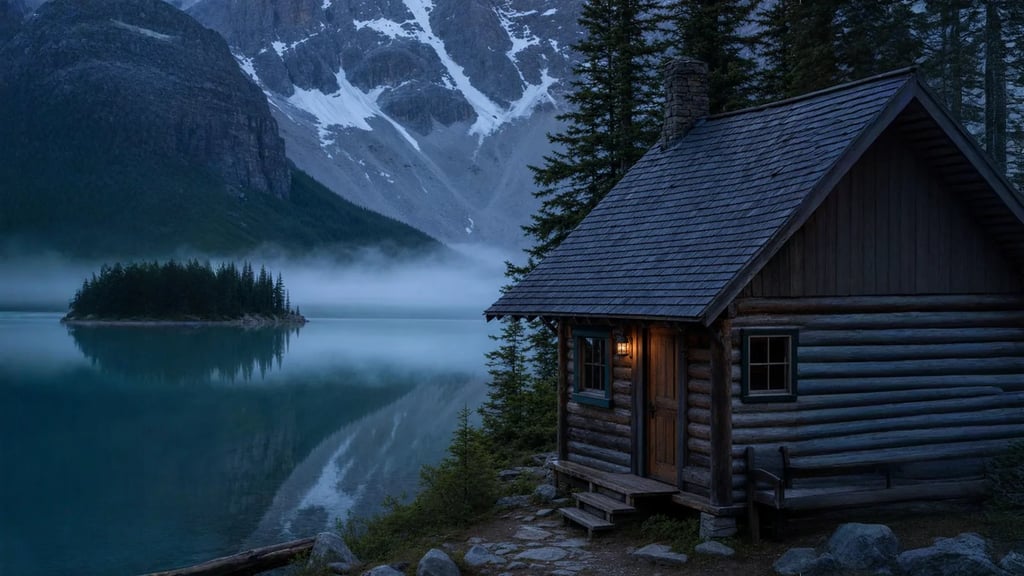
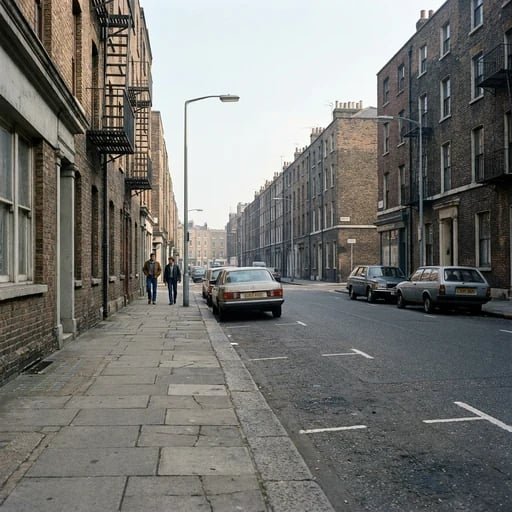
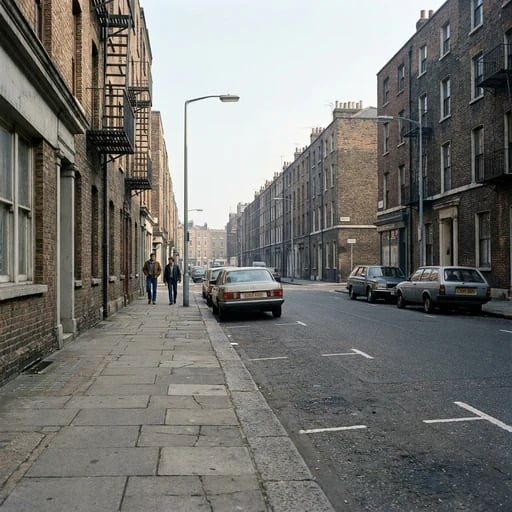
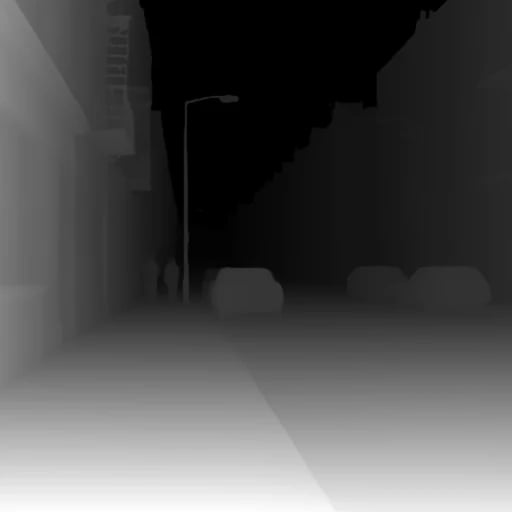
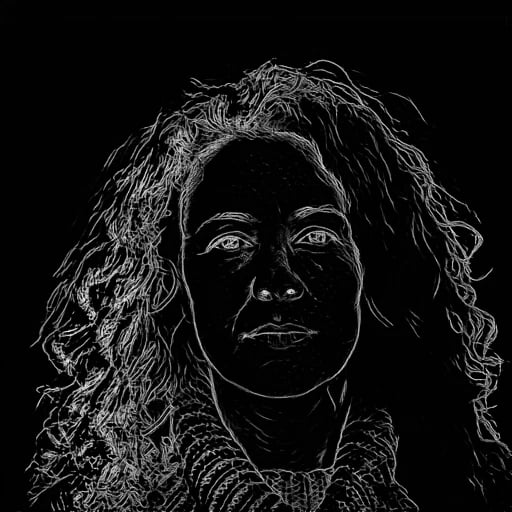
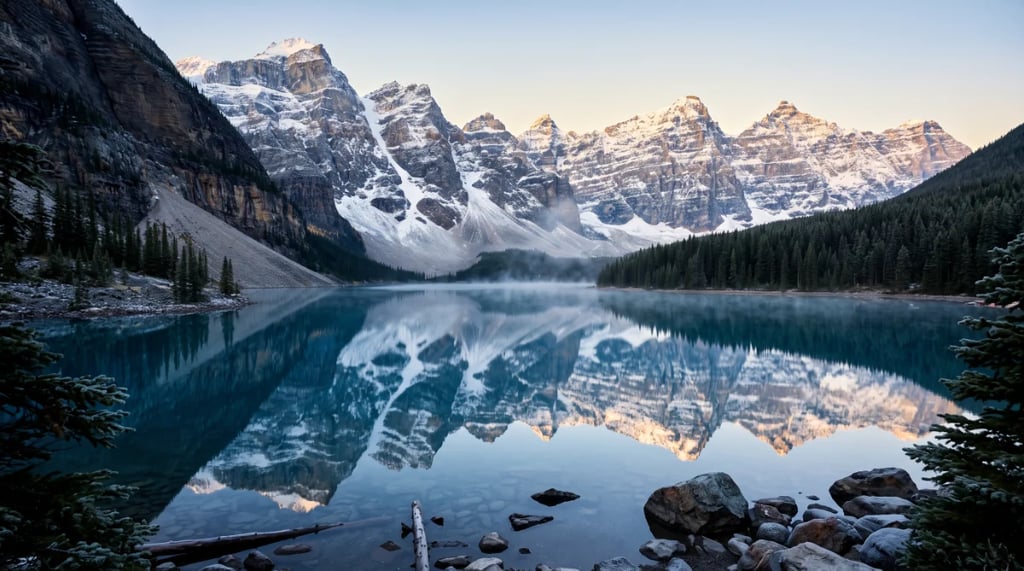
See a color inverter before and after
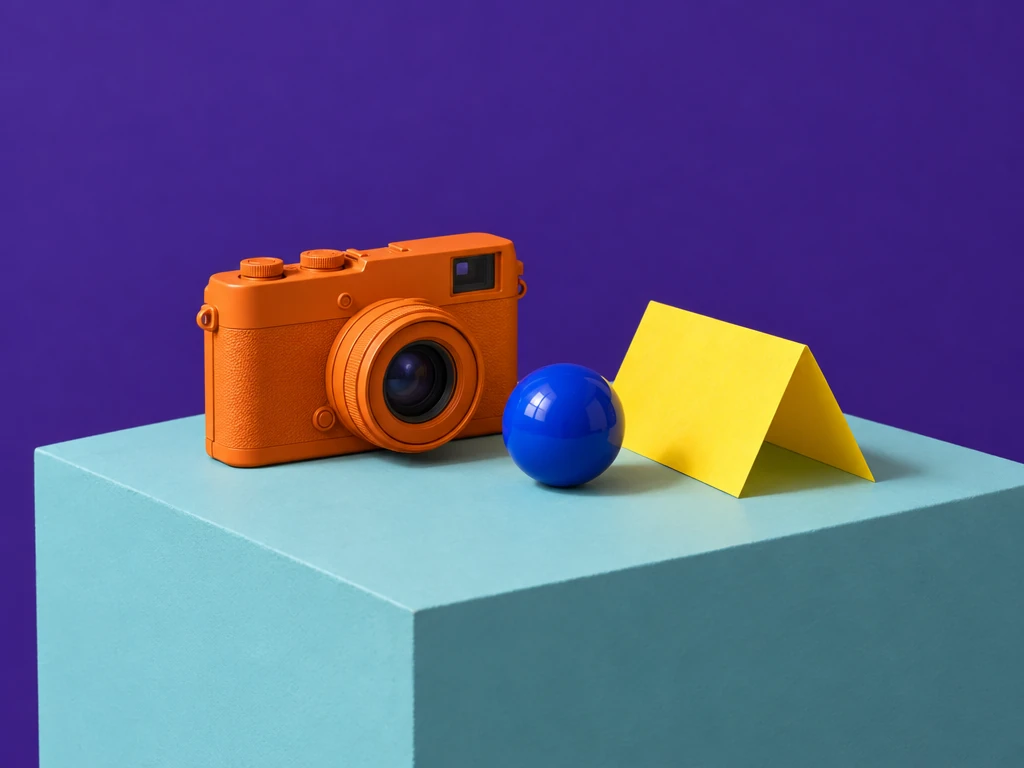
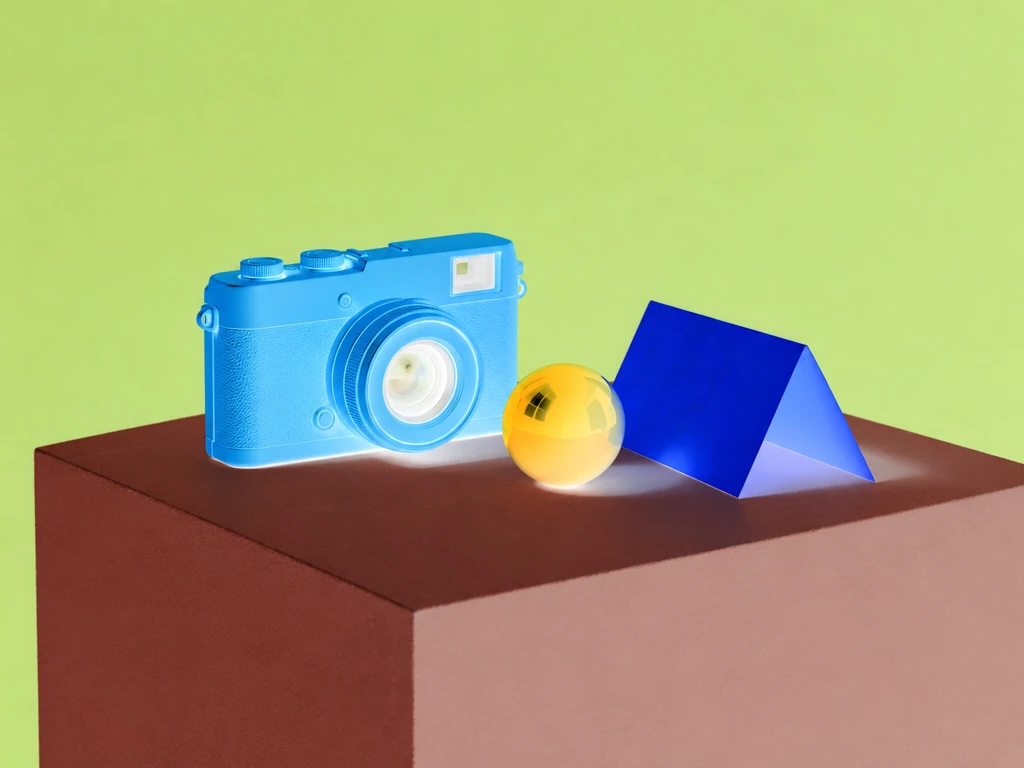
At 100%, each color becomes its RGB inverse. Compare the same objects and shadows, then open the example to try a softer blend.
How to invert image colors
Open your image
Choose a JPEG, PNG or WebP from your device, or drag it into the preview. Signed-in users can also choose an existing library image.
Choose the inversion amount
Start at 100% for a full negative. Move the amount slider for a blend, use Compare to inspect the original, or Reset to restore full inversion.
Download your result
Choose PNG for transparent or exact processed pixels, JPEG for a photo on white, or WebP for a compressed image with transparency.
Image color inversion, explained
Black becomes white, red becomes cyan, and blue becomes yellow. Each channel is reversed independently. This works for illustrations, graphics and creative photo negatives; it does not restore scanned film colors or simulate photographic development.
The amount blends the original with its inverted version. At 0% the colors stay original; at 100% they are fully inverted. At 50% channels meet near middle gray, so use either side of the midpoint when you want visible color.
The preview may be smaller for responsive editing. Downloads are processed from the original dimensions. Inversion leaves the alpha channel unchanged; choose PNG to preserve transparency without lossy encoding. Existing photo metadata is removed on export.
Color inverter questions
More tools
More image and video tools
Choose another tool to edit, enhance or transform your images and videos.