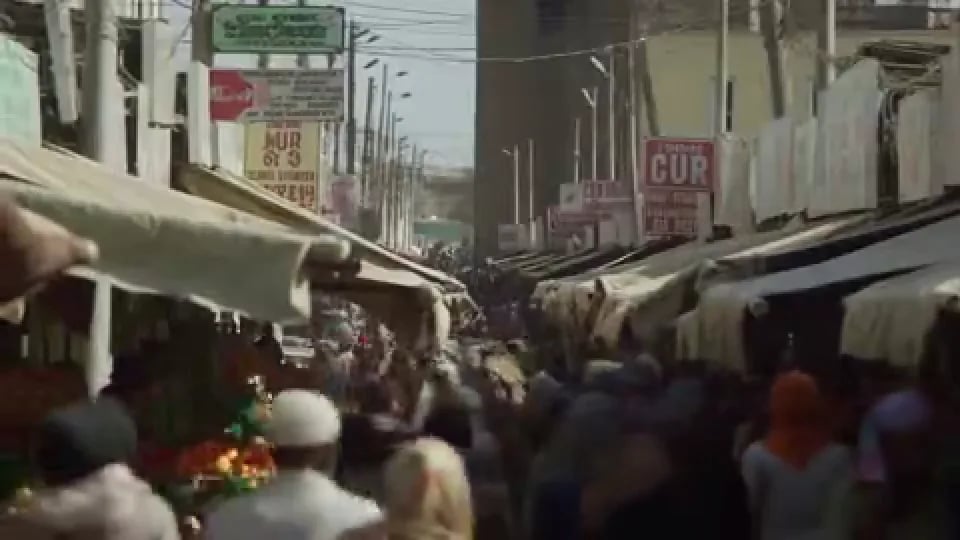
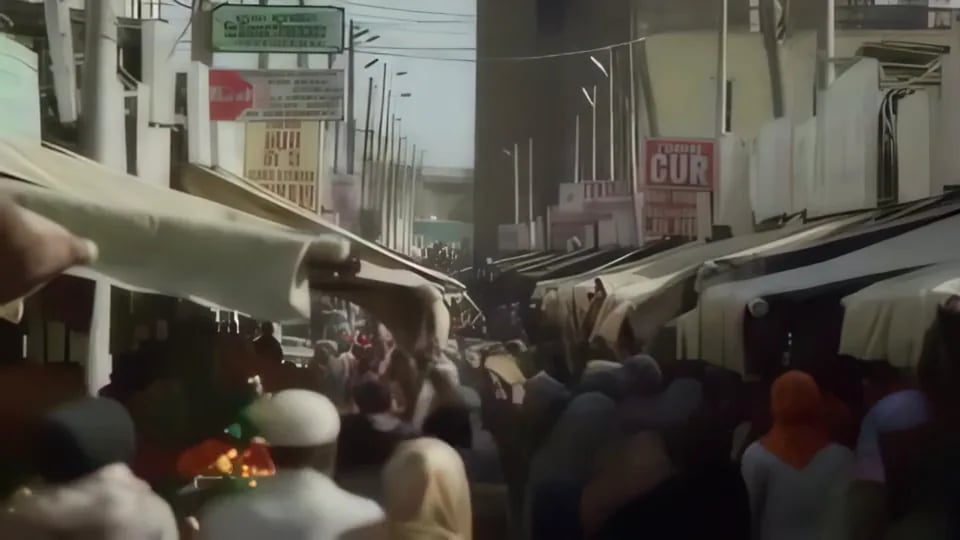
- What is an AI video watermark remover?
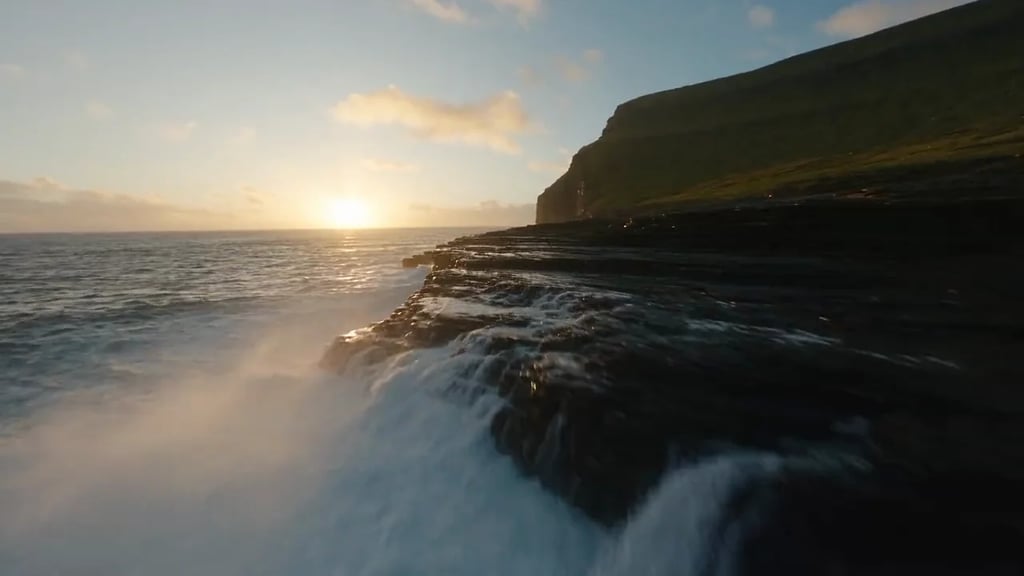
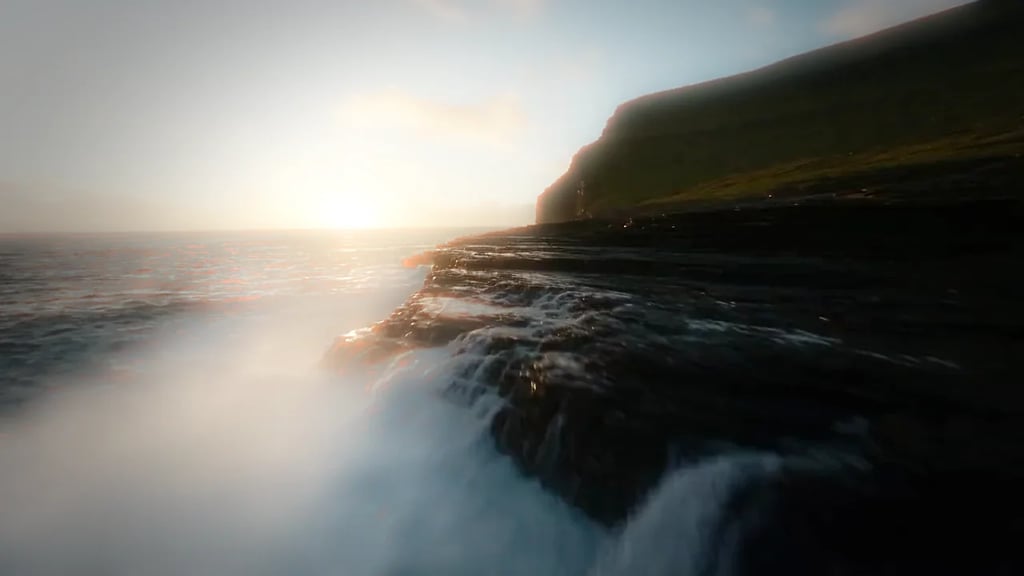
- It is a tool that finds graphics burned into a video's frames — a logo, a watermark, a caption, a lower-third, a timestamp — and reconstructs the picture that was behind them, so the frame reads as though the overlay was never there. It is not a crop and it is not a blur patch: the area is repainted from what the surrounding picture and the neighbouring frames say belongs there.
- Do I have to select or brush the watermark area?
- No, and there is no way to. This tool has no controls at all: you upload a clip and press one button. Detection is the model's job, and that is simpler than the brush-and-mask flow most tools ask for, with one honest trade. Because the model decides what counts as an overlay, you cannot tell it to leave one graphic alone and take another. If a clip carries two marks and you want to keep one of them, this is the wrong tool for that job.
- Can it remove burned-in subtitles and captions?
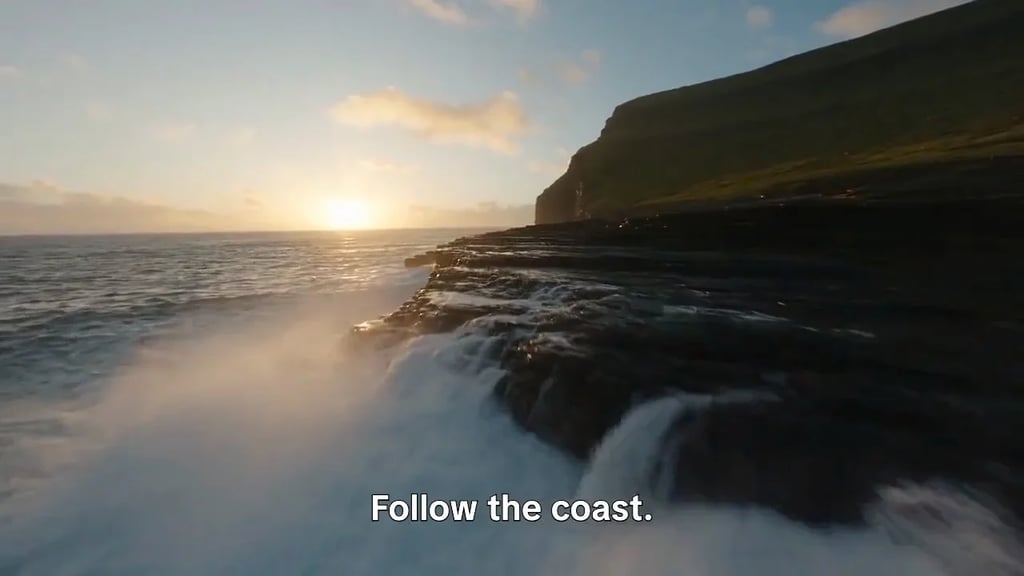
- Yes. Subtitles, captions and lower-thirds are treated like any other overlay. Burned in means the text is part of the picture rather than a subtitle track the player can switch off, which is why a caption toggle does nothing to it and why the text has to be painted out instead. Text sitting over a plain or slow-moving background comes back cleanest.
- How long and how large a video can I upload?
- The model supports clips up to ten minutes, and uploads are capped at 100 MB. The size cap is the one most people meet first, since a high-bitrate 4K clip passes 100 MB long before it runs ten minutes. If a file is refused, trimming it down to the part that carries the watermark, or exporting it at a lower bitrate, usually gets it through.
- What does it cost, and can I try it for free?
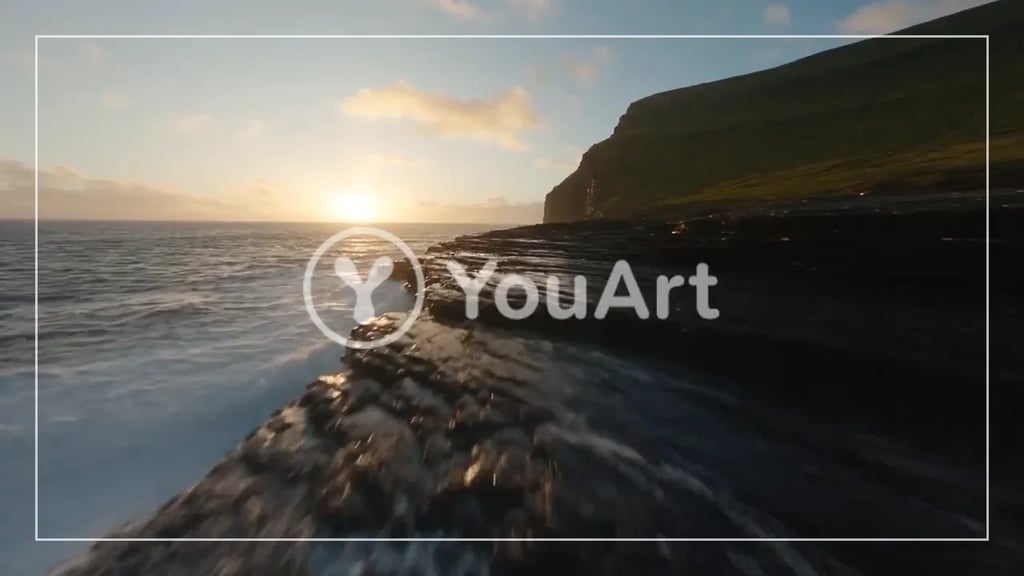
- It is billed by the length of the clip you upload, at two credits per second: a thirty-second video costs sixty credits and a two-minute one costs 240. A new account starts with free trial credits you can spend here, and after that credits come with every plan and work anywhere in the product. One thing to know before you run it: downloads on the free plan carry a YouArt watermark, and a paid plan gives you the clean file.
- What decides how good the result looks?
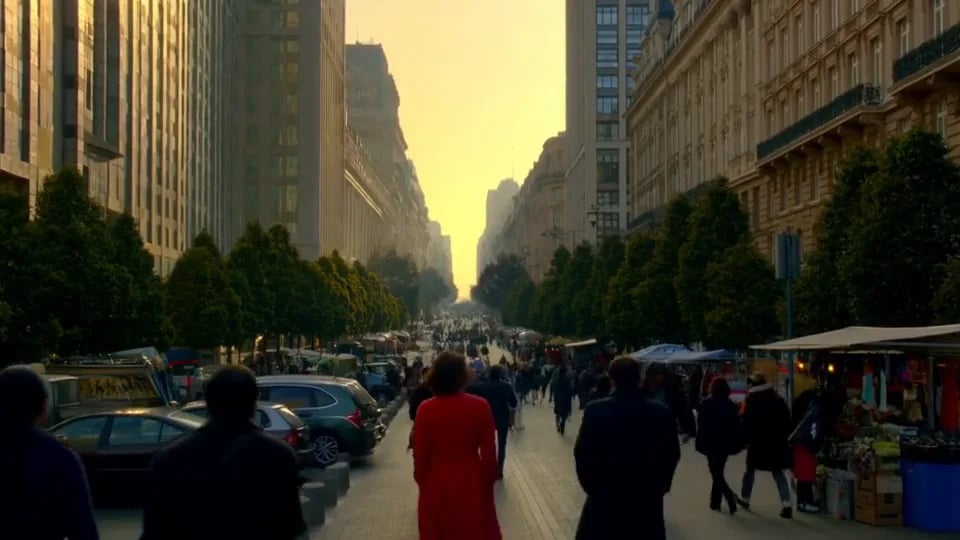
- What sits behind the overlay. A mark over a wall, a sky or another plain background is reconstructed convincingly, because there is little for the model to invent. A mark over fast, detailed motion — a crowd, moving foliage — is a much harder guess and can come back soft. There are no settings that change this, so the clip you feed it is the only lever: a shorter cut around the section that matters is often the better run.
- Which video files can I upload?
- MP4, MOV and WebM, up to 100 MB per file. One video goes in and one comes out — there is nothing else to attach and nothing else to choose.
- Whose footage should I run this on?
- Your own, or footage you hold the rights to edit. Stripping someone else's watermark from a clip you do not own is not what this is for. What you upload goes to your own YouArt account so the run can read it, and the cleaned clip opens in a session only you can see; nothing is published to the community or anywhere else unless you share it yourself.