Video tools

Add Black Bars to Video

Give your footage a cinematic frame. Choose a ratio, refine the composition and bring the bars in or out with smooth animation.

Drag or use the middle mouse button to pan. Scroll to zoom. Shortcuts work when the preview is focused.

Drop a video here

MP4, MOV or WebM · up to 60 seconds · 200 MiB

0:00 / 0:00
0

Move the picture vertically within the area concealed by the bars.

Each bar: 12.8% of the frame

Animated letterbox examples

Hover to play, drag to compare, then try the framing on the same clip.

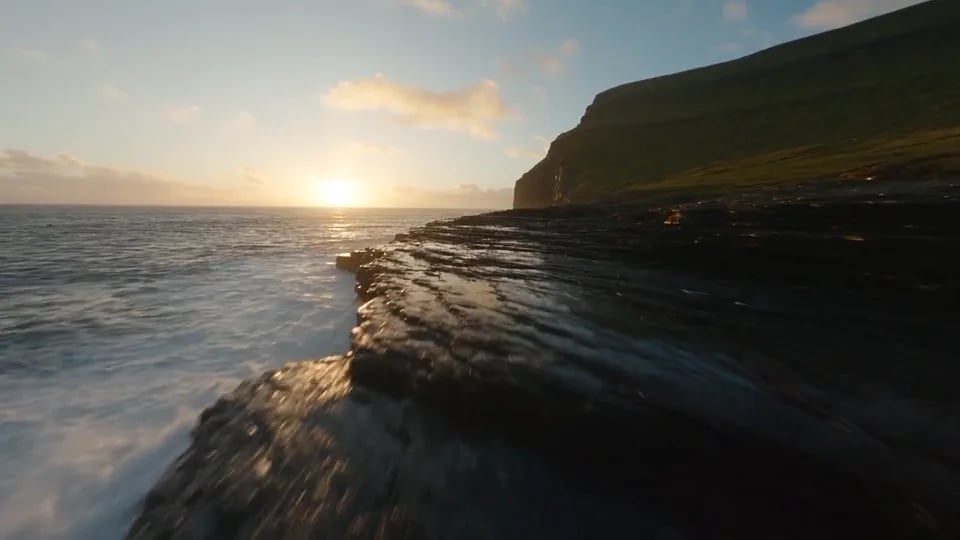
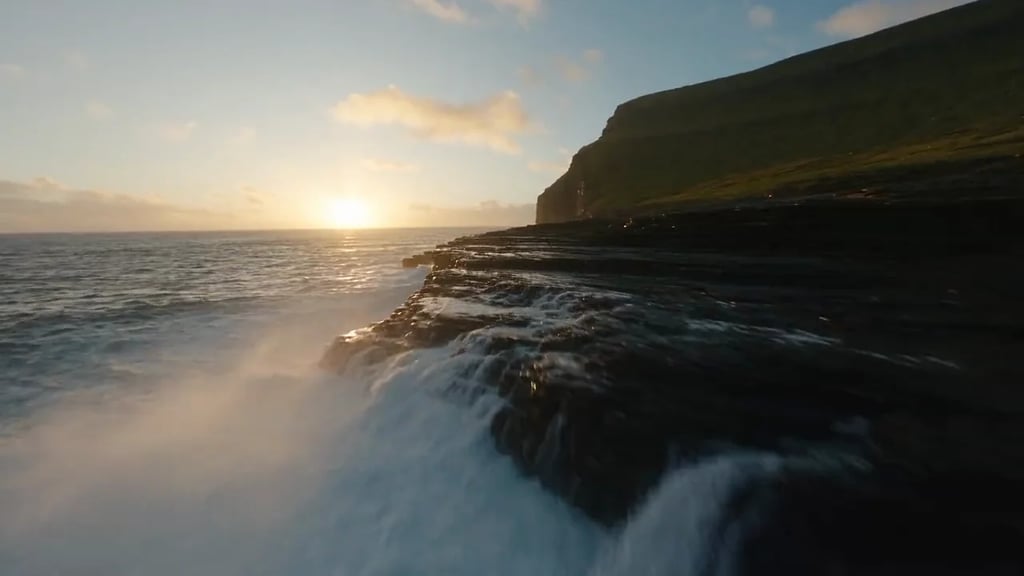
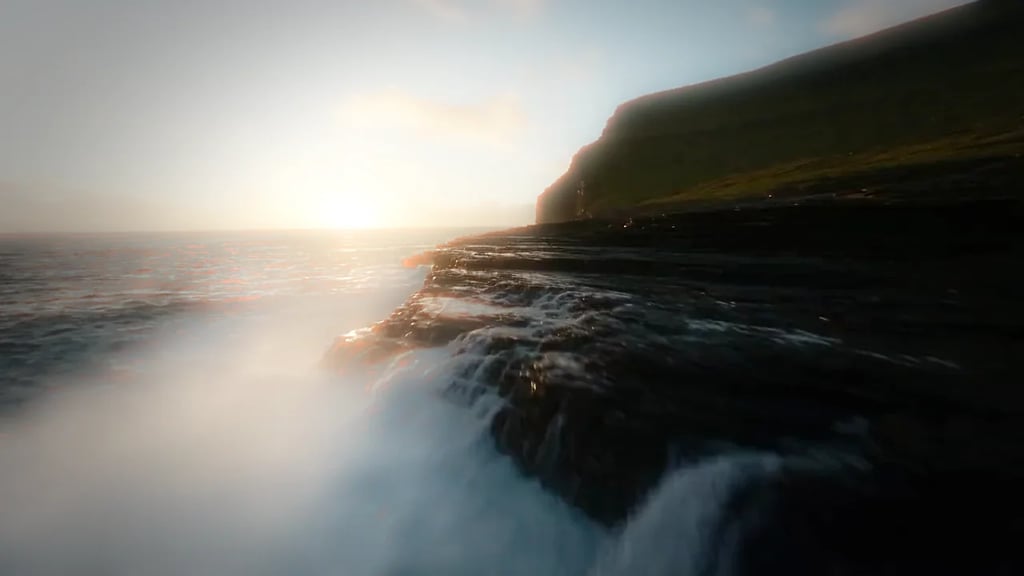
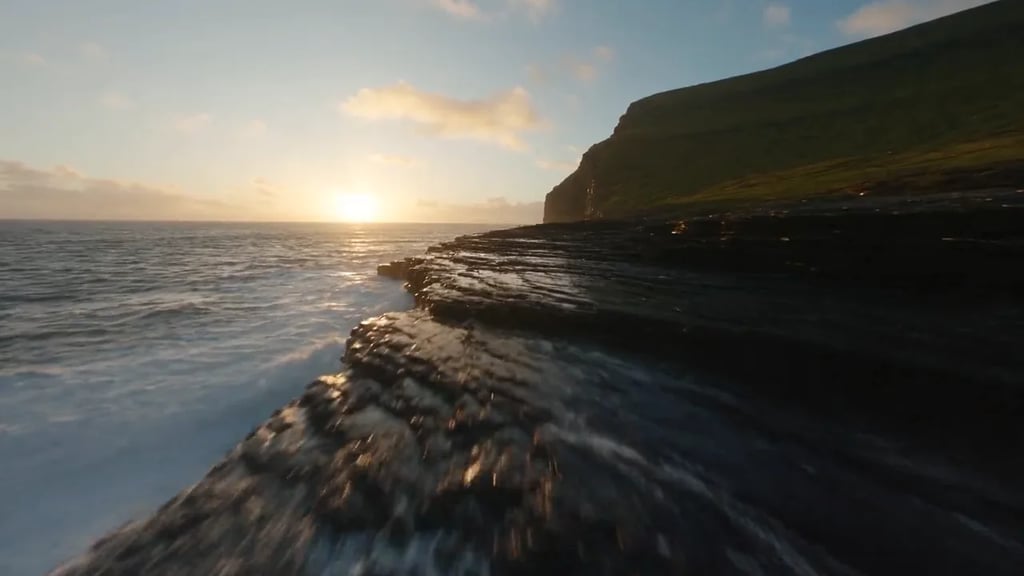
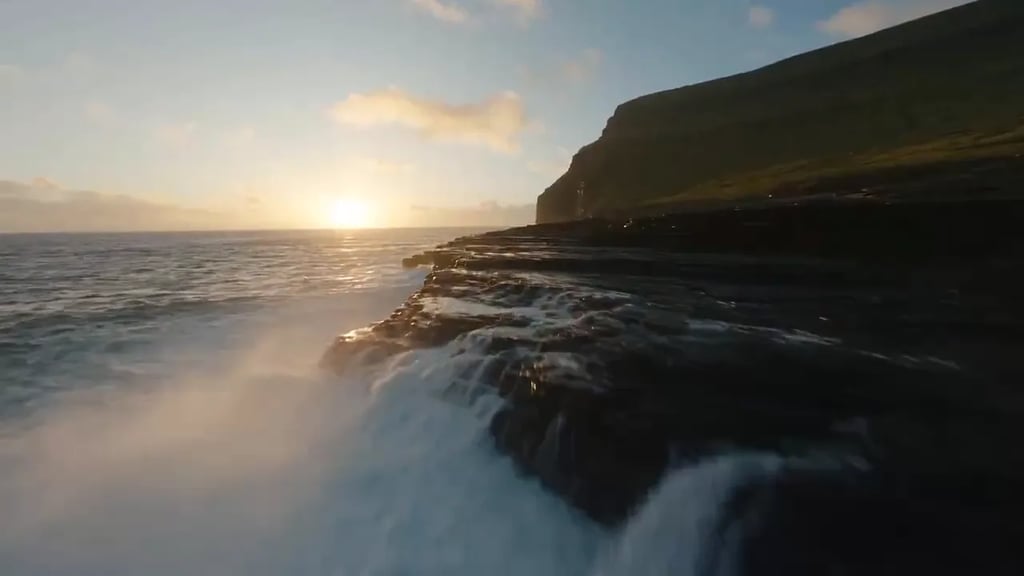
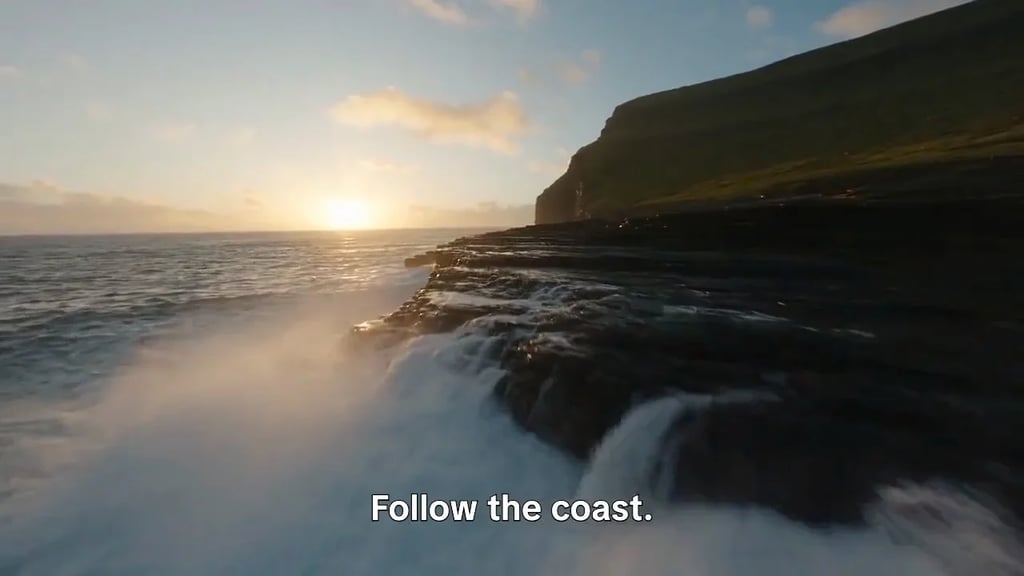
Wide coastal reveal

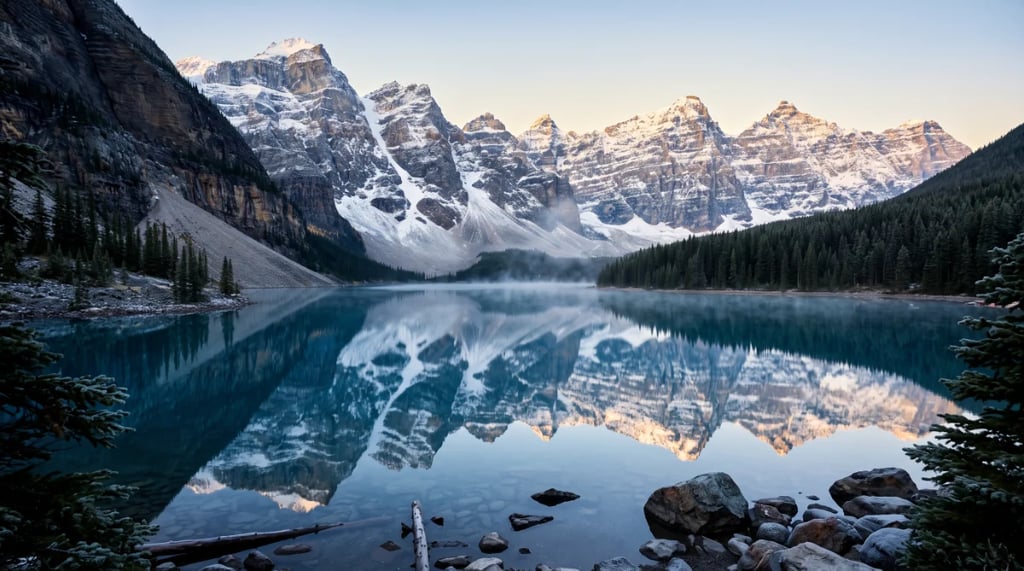
A 2.39:1 frame that slides in and out around a sunset coastline.

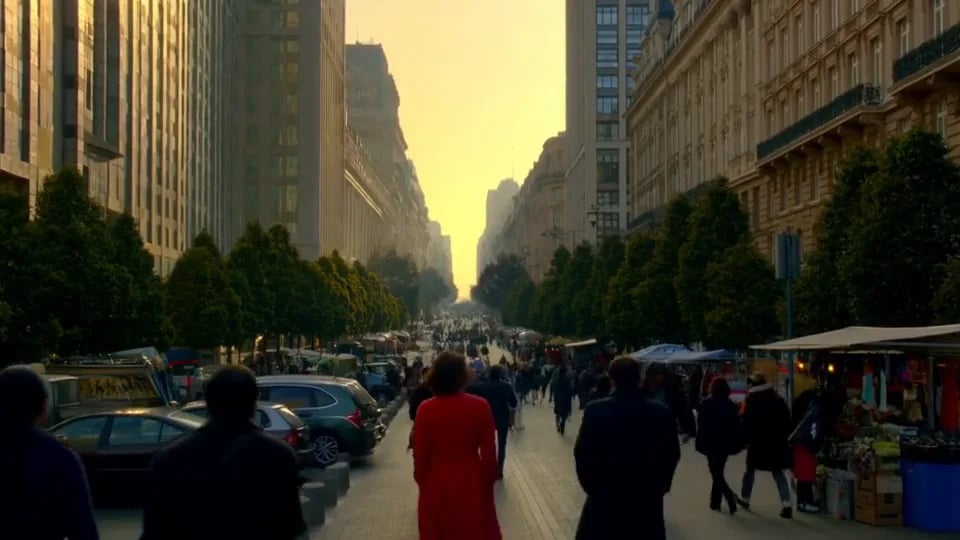
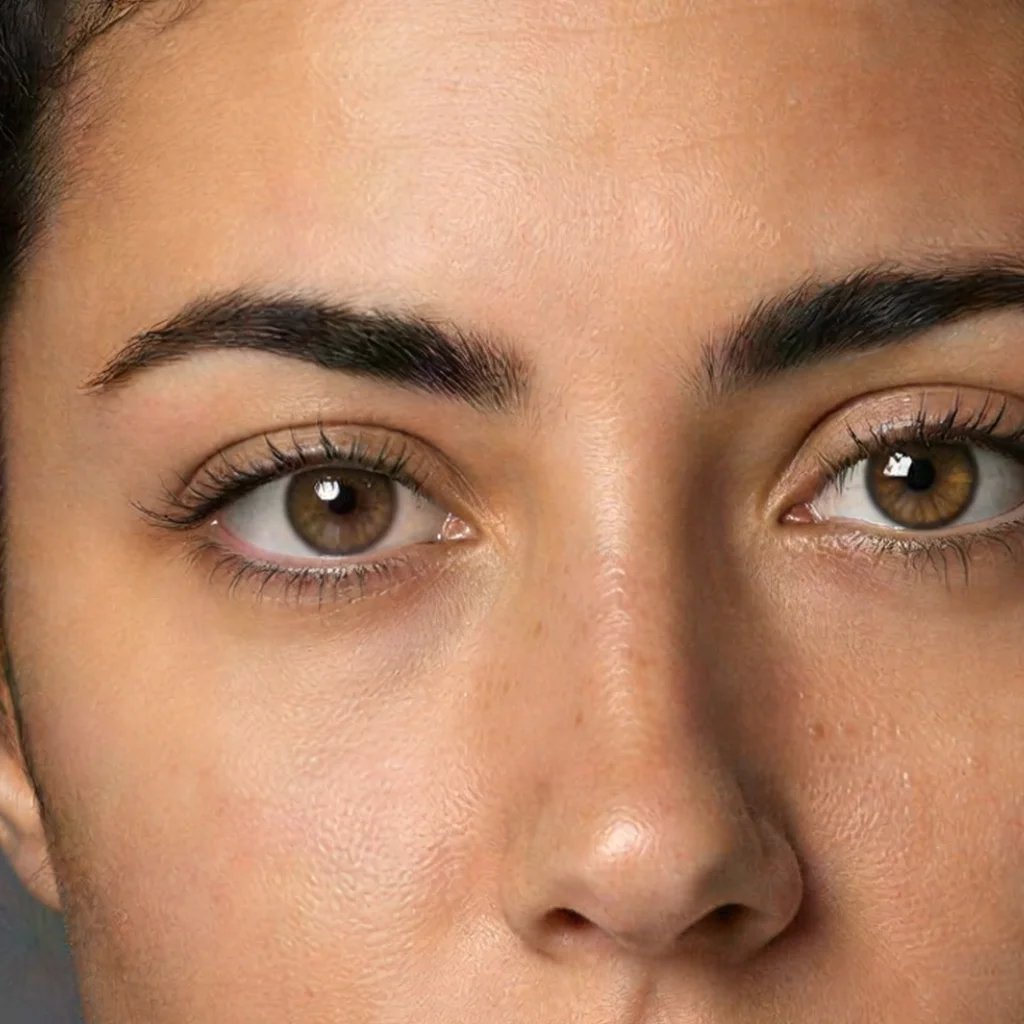
Frame the portrait

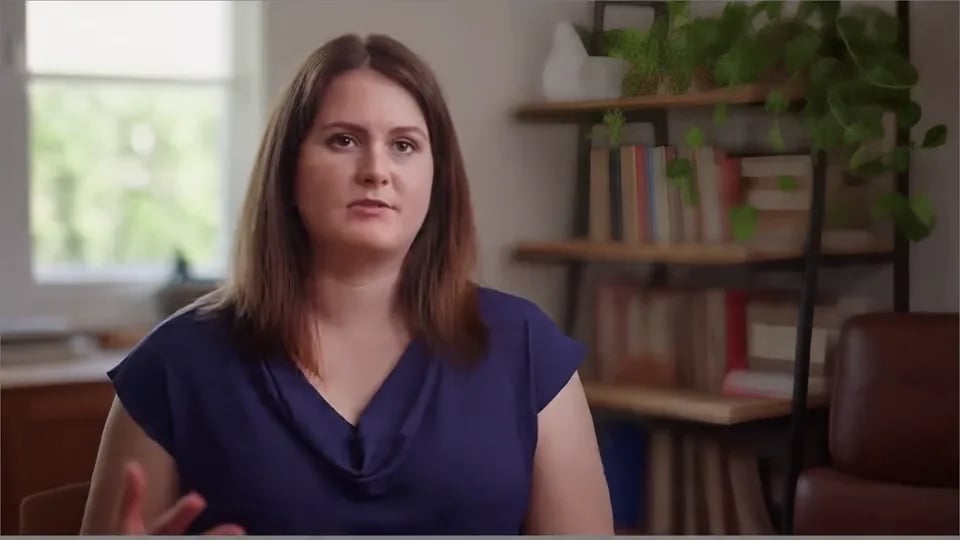
A 2.35:1 letterbox around a window-lit portrait.

Make the letterbox fit your story

Choose a cinema ratio

Start with 1.85:1, 2:1 or 2.39:1, or set your own bar height.

Keep the subject in view

Move the picture vertically beneath the black bars.

Time the entrance and exit

Slide the bars in, out or both, with adjustable timing.

Keep picture and sound together

Download the framed clip as MP4 or WebM, with optional audio.

A letterbox changes the visible frame and the attention it gives a subject. Choose the composition first, then time the movement of the bars around a reveal, a change of mood or the end of a scene.

1.85:1 gives a 16:9 clip a modest matte, while 2.39:1 creates a wider Scope composition. The menu also includes 2.35:1, 2.40:1 and other framing presets. Those ratios are distinct: 21:9 is approximately 2.33:1. A wider selected ratio means taller top and bottom bars. Custom height sets each bar as a percentage of the full video height.

Inspect faces, the horizon, text and subtitles before choosing a wide matte. Picture position moves the source up or down within the space concealed by the bars. It does not track a subject automatically. The bars cover the picture inside the existing frame; no extra canvas or missing image content is generated.

Entrance brings the bars from the frame edges to their chosen height. Exit slides them back out. Set an entrance delay from the start of the clip and an exit delay before its end, then choose each transition’s duration. Smooth easing starts and finishes gently; linear easing moves at a constant pace. Scrub the preview to check the same animation at any point.

Choose an available format and resolution, then export a separate file. The bars are burned into the download, so viewers see them without an overlay or editing project. The output keeps the original frame shape and may be downscaled to the selected resolution. Preview mute does not remove the exported soundtrack; use the audio option in download settings.

How to add black bars to a video

  1. Open a clip

    Choose a local video or try an example. You can edit a local file without uploading it or creating an account.

  2. Set the frame and motion

    Pick a ratio or custom bar height. Adjust picture position, then set the entrance, exit and timing while watching the preview.

  3. Download your video

    Choose MP4 or WebM and whether to keep audio. Export the letterbox effect into a new video file.

Video letterbox: common questions

A letterbox places horizontal bars above and below the visible picture. In this tool, black bars overlay your existing video to create a wider-looking composition. It is useful for cinematic framing, music videos, short films and scene transitions. Your original file stays unchanged.

Try 1.85:1 for a restrained cinema frame, 2:1 for a wider composition or 2.39:1 for a Scope look. The presets also include 1.66, 1.70, 1.78, 2.35, 2.40, 2.55, 2.76 and 3:1. Choose by the composition of your footage. If the source is already as wide as or wider than a selected ratio, that preset adds no horizontal bars; choose a wider ratio or custom height.

The bars cover the top and bottom of the picture inside its existing frame. They do not expand the canvas, squeeze the image or turn a 16:9 file into a native 2.39:1 file. Export can downscale the image according to the selected resolution. To preserve every visible pixel by adding space outside the source, you would need a padding or canvas-resize tool.

Yes. Choose In, Out or In & out, then adjust the delays and transition durations. Entrance timing starts at the beginning of the clip; exit timing is measured back from its end. The bars follow the video’s playback position, so pausing, seeking and exporting preserve the timing. Choose Static for a static letterbox.

Picture position moves the image vertically behind the bars to help keep a face or horizon visible. You can apply top and bottom bars to portrait footage too, although a wide cinema ratio can cover much of a tall frame. Custom bar height offers a gentler result. This tool does not add side bars, change the canvas orientation or remove bars already present in the source.

Opening a local video, editing the letterbox and downloading the result are free, with no account or generation credits required. Processing happens on your device. If you choose a saved YouArt asset while signed in, the tool downloads it to your browser. The finished video downloads locally; saving it to your YouArt assets is not available here.

Open one SDR MP4, MOV or WebM up to 60 seconds and 200 MiB. Your browser must support the input codecs and the video APIs used for preview and export. Available outputs are H.264 MP4 or VP9/VP8 WebM, with 1080p or 720p options that do not enlarge the source. HDR, camera Log and transparent video are outside this tool’s scope. Export re-encodes the video and is not lossless.

Select Keep audio to preserve compatible source tracks or convert them when supported. If audio cannot be included, the tool reports the problem so you can change format or choose Remove audio. Muting the preview only affects playback while editing. Check the downloaded clip for picture, sound and synchronization.
Explore all tools