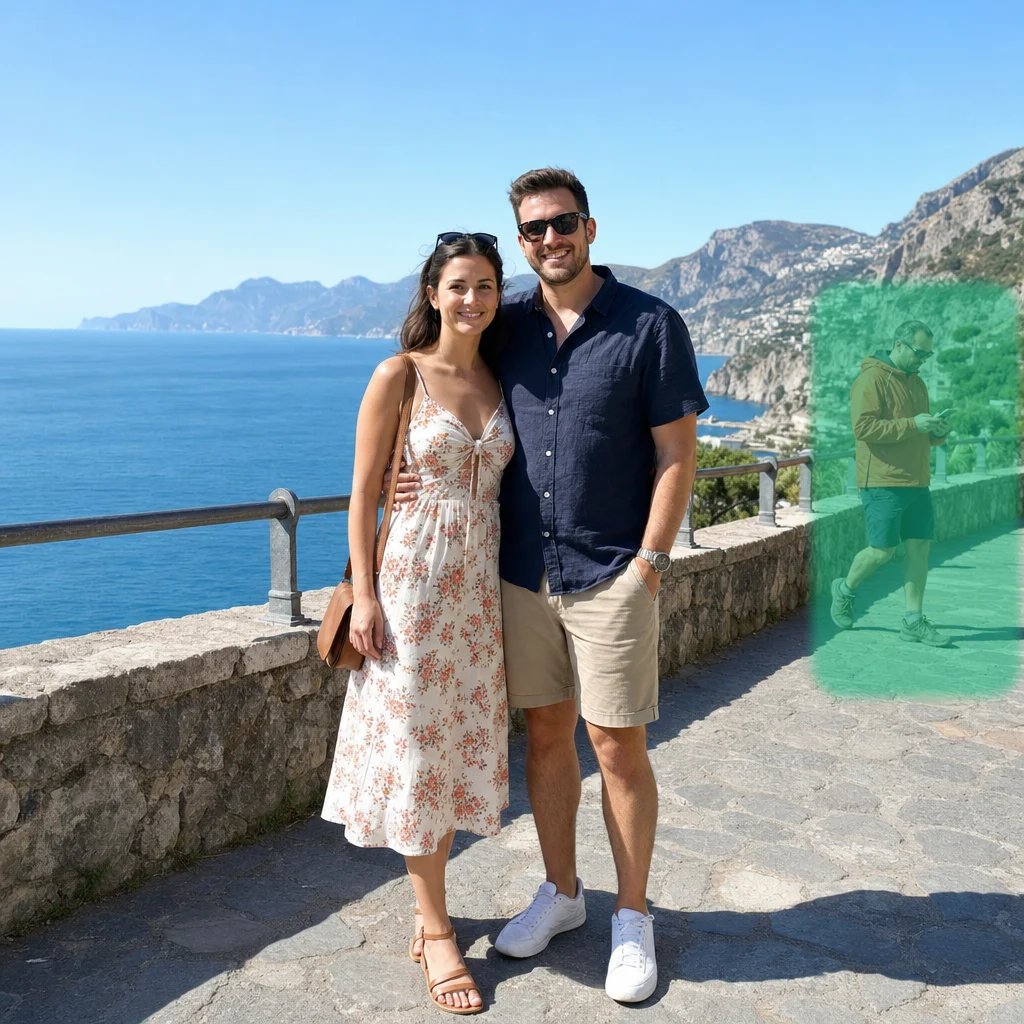
Delivering in 4K
A channel that shoots 1080p can still publish at 4K. Upscaling before the export gives the platform's encoder more to work with, and leaves a thumbnail frame with detail in it.
Free AI video upscaler - Topaz Video AI
Drop in a clip, pick 2× or 4×, and Topaz Video AI rebuilds the detail frame by frame — the upscaler editors run on the desktop, hosted here instead, with nothing to install. Switch on smoother motion and it generates new in-between frames as well.
The upscaled clip opens in a session you can come back to, at the factor you picked.
How it works
Drop in an MP4, MOV, WebM or M4V up to 50 MB on Free and Basic, or 200 MB on Pro and above. Phone footage, an old camcorder transfer, a screen capture, a clip a model generated too small — anything that needs more pixels than it has.
The factor multiplies both sides, so 2× is the 1080p-to-4K step and 4× is for smaller source footage. Turn on smoother motion as well if the movement stutters rather than just looking soft.
The finished clip opens in a session that belongs to you, ready to download or to carry into another edit.
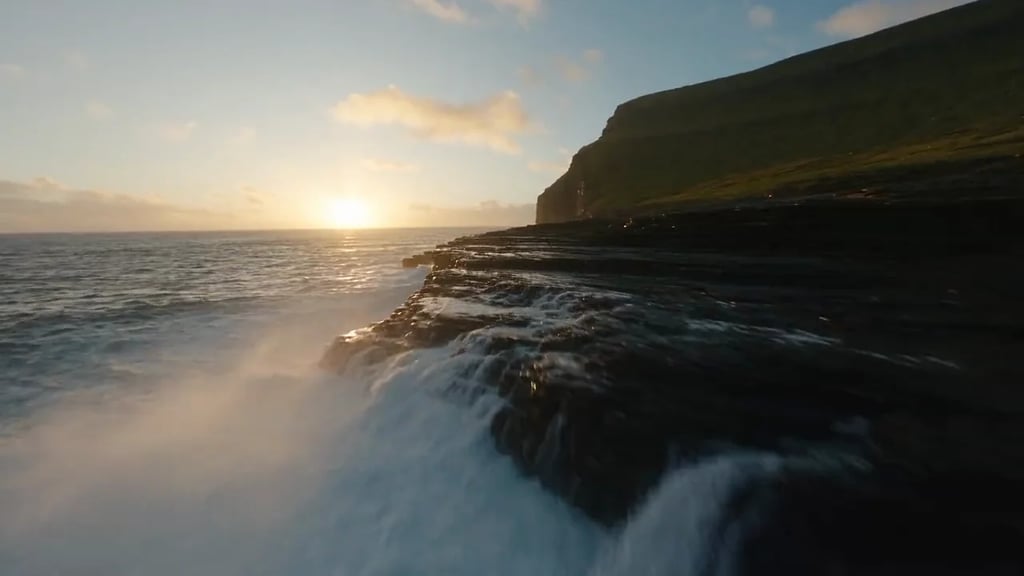
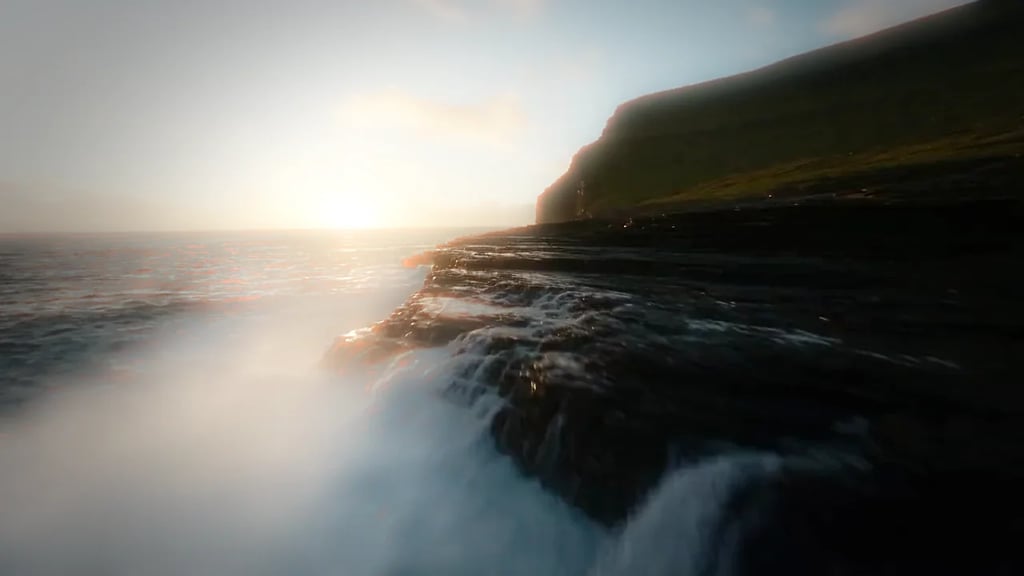
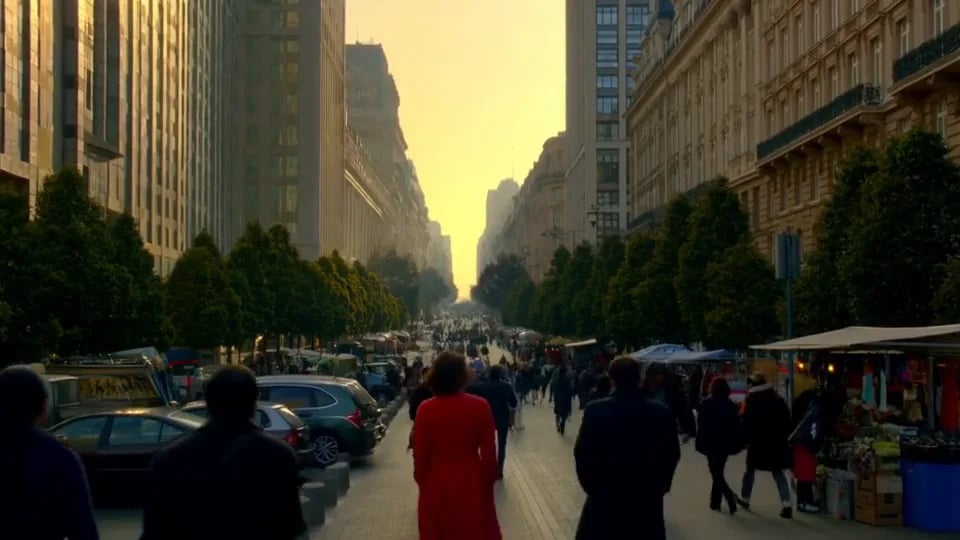
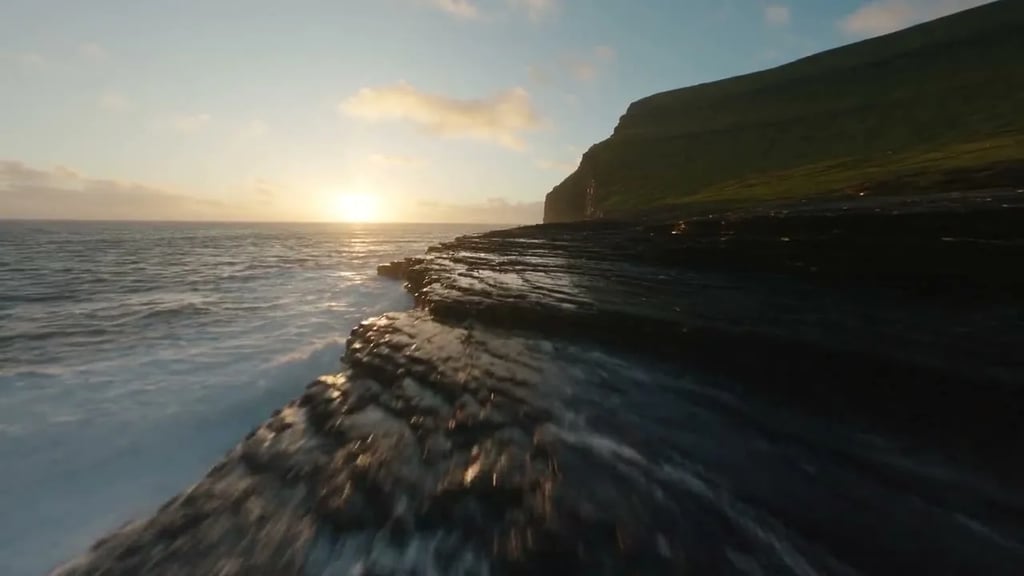
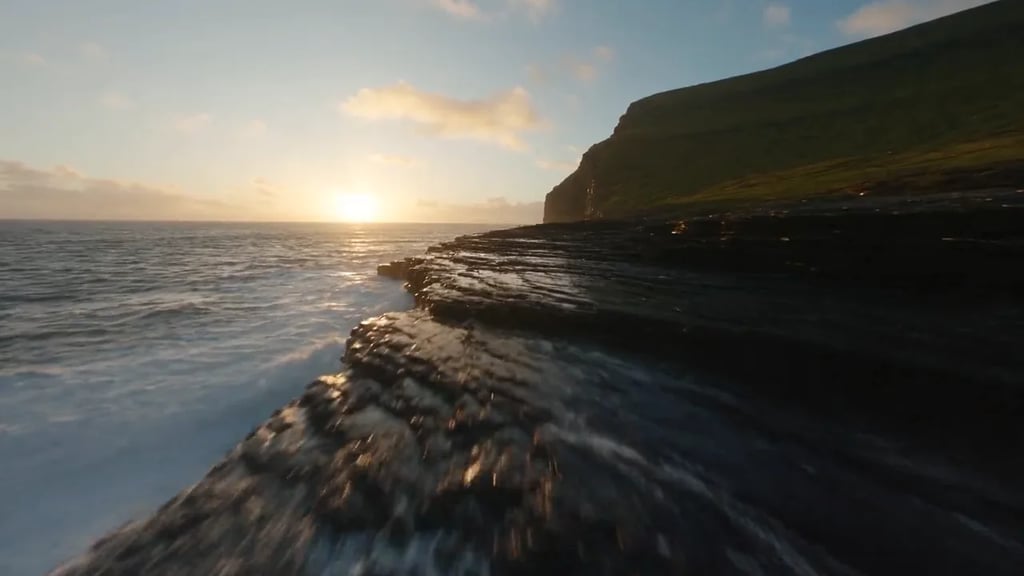
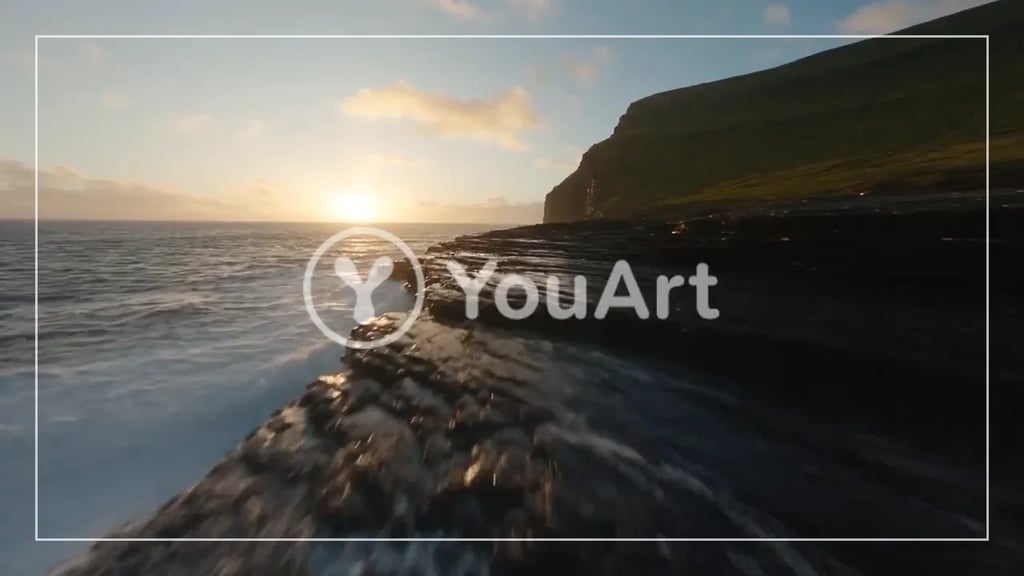
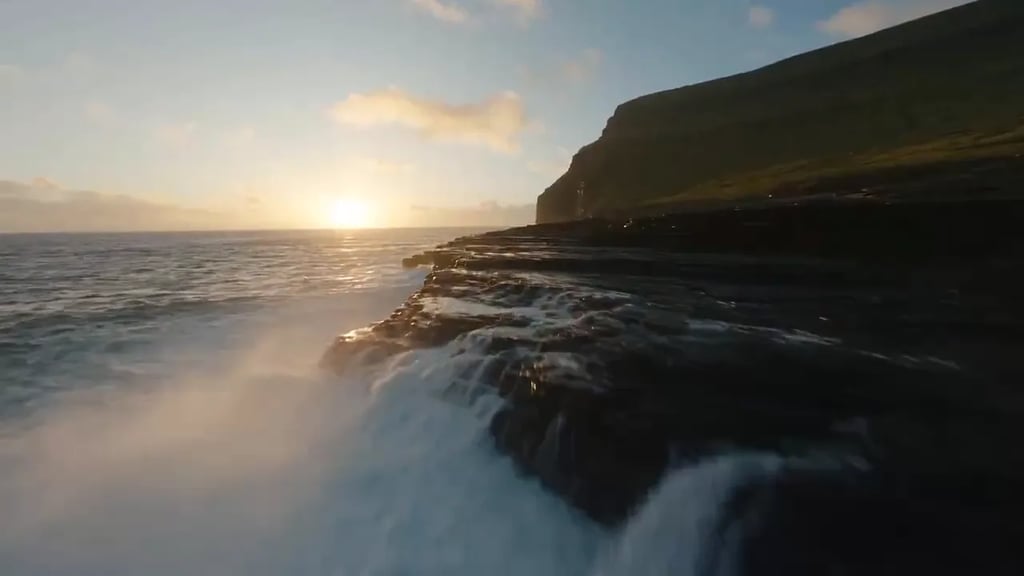
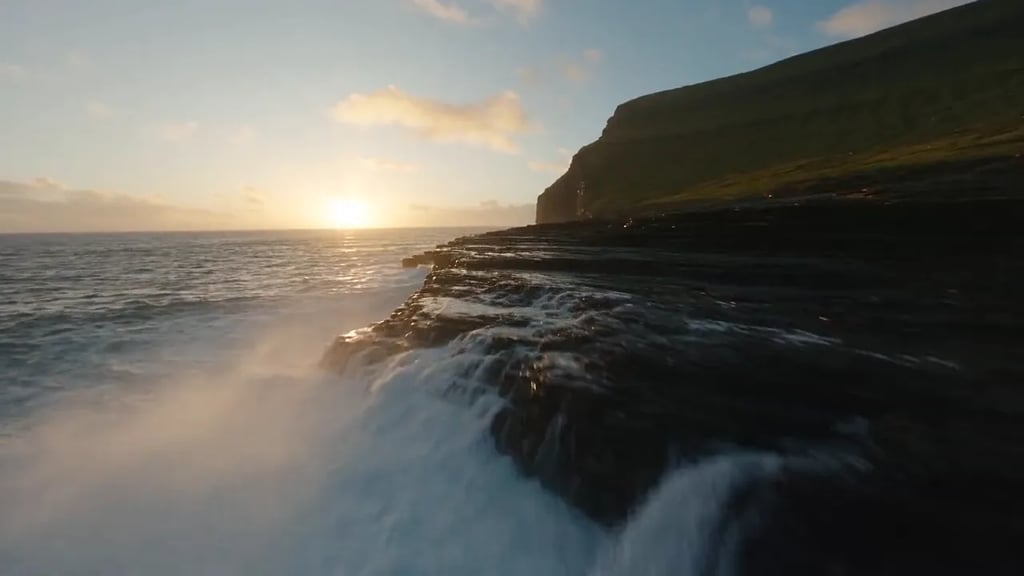
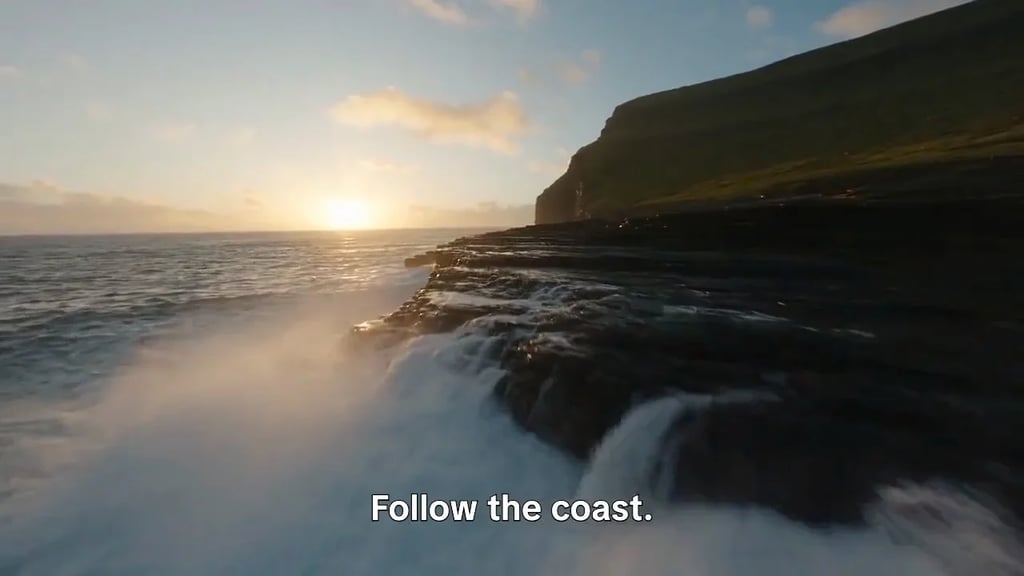
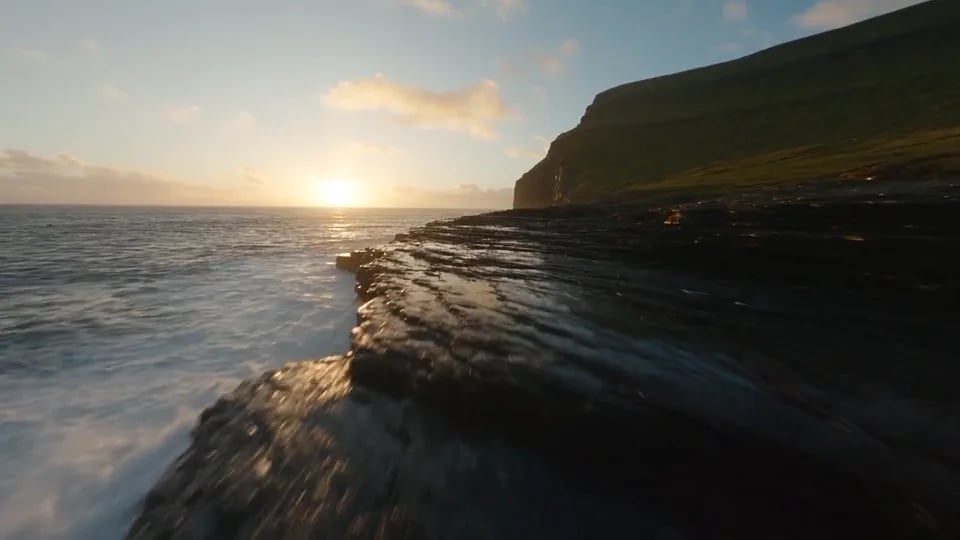
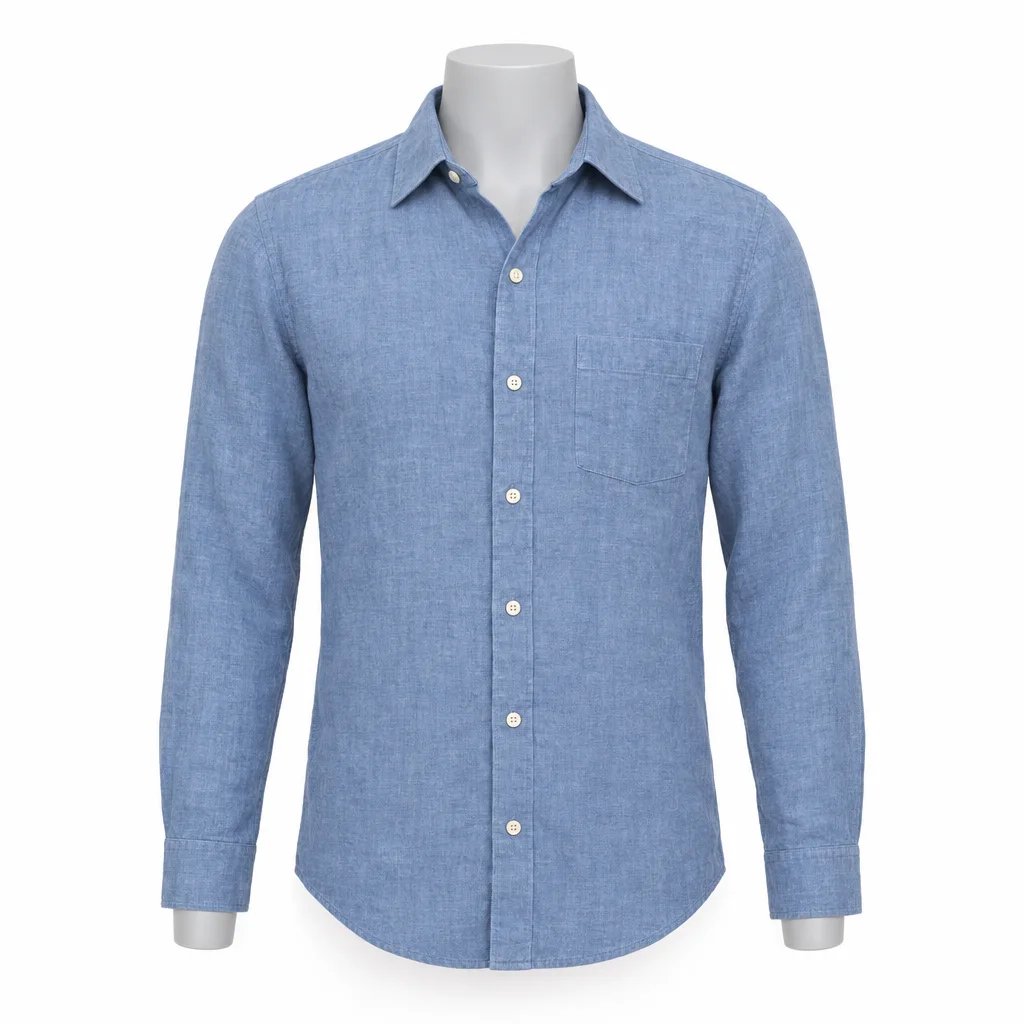
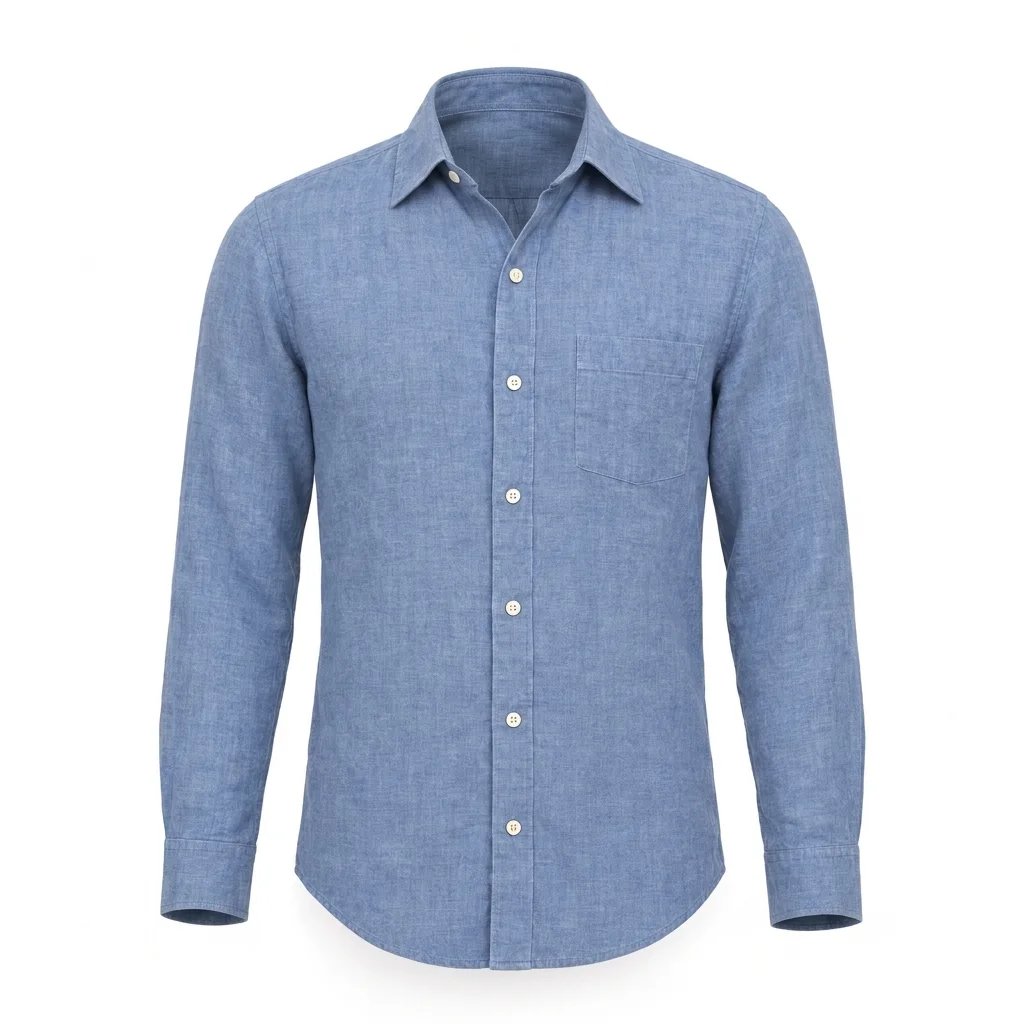
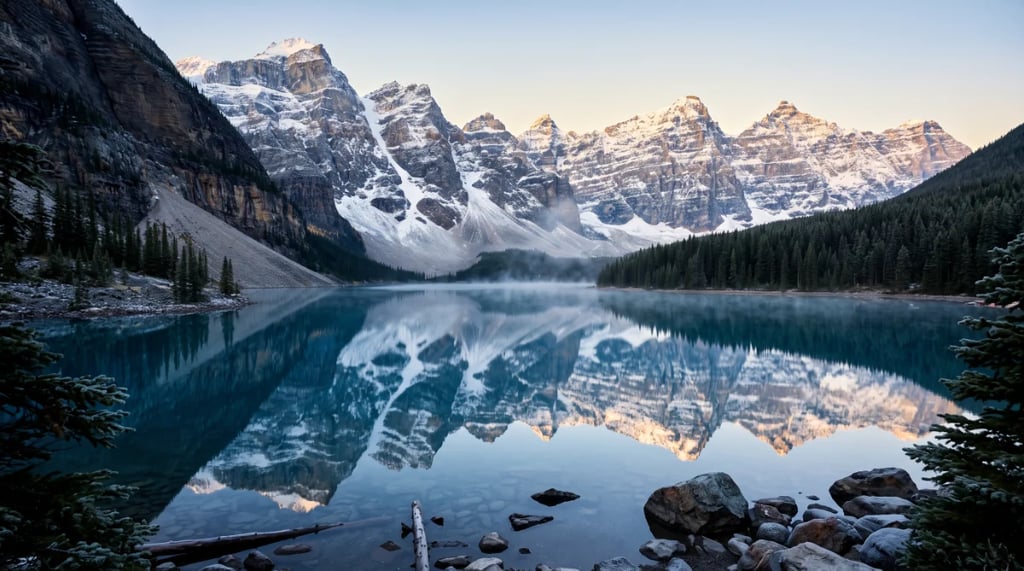
Before and after
What it is for
A channel that shoots 1080p can still publish at 4K. Upscaling before the export gives the platform's encoder more to work with, and leaves a thumbnail frame with detail in it.
Camcorder transfers, VHS captures and early phone clips were recorded at a fraction of the resolution a modern screen expects. Upscaling brings them closer to the display they were never made for.
Line art, hard edges and on-screen UI text are the first things a plain resize destroys. The upscale reconstructs those edges rather than blending them, which is the whole difference between a resize and a rebuild.
Most video models finish well below 4K and at a modest frame rate. Run the output through here to reach delivery resolution, and interpolate the frames when the motion arrives stuttering.
What makes this different
Not a generic super-resolution filter: this page runs Topaz Video AI — the Proteus v4 model for the upscale, and Apollo v8 when you ask for smoother motion. No install, no licence and no GPU of your own: the run happens on our side and the result lands in your session.
The factor applies to width and height at once, so 2× is four times the pixels and 4× is sixteen times. Four is the ceiling. Pick for where the footage has to land rather than for the biggest number: a source that is already sharp gains little from an extreme factor.
Resolution is only half of why old footage reads as old. Optional frame interpolation generates new frames between the ones you shot, up to 60 fps, so a slow pan moves instead of stepping. It is not something the online upscalers usually offer.
Video is priced by the second, so a short clip costs what a short clip should. Every plan includes credits, and they work on any other tool on YouArt.
Questions
More tools
Choose another tool to edit, enhance or transform your images and videos.
Beyond one clip
This page runs one fixed step. Open the workflow editor to chain an upscale onto a generated clip, feed it into an edit, or push a batch of footage through the same graph.