Red Eye Remover for Photos
Open a flash photo and the red eye remover looks for faces and corrects the red pupils it detects. Compare with the original, fine-tune the strength and download. Your photo stays in your browser.
Photo preview
Opening, correcting and downloading a local photo all happen on your device. No photo upload, account or generation credits are needed. The first photo can take a few extra seconds to open.
Compare a red-eye correction


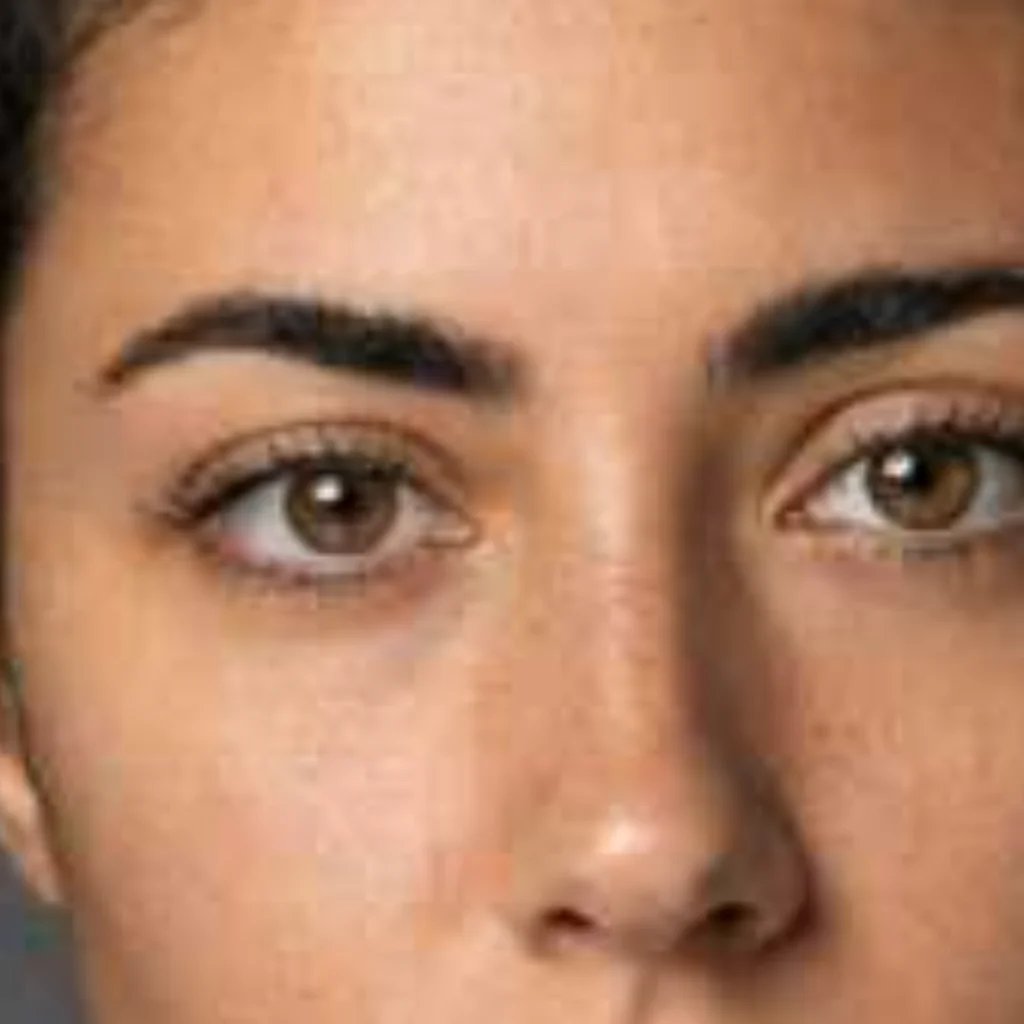
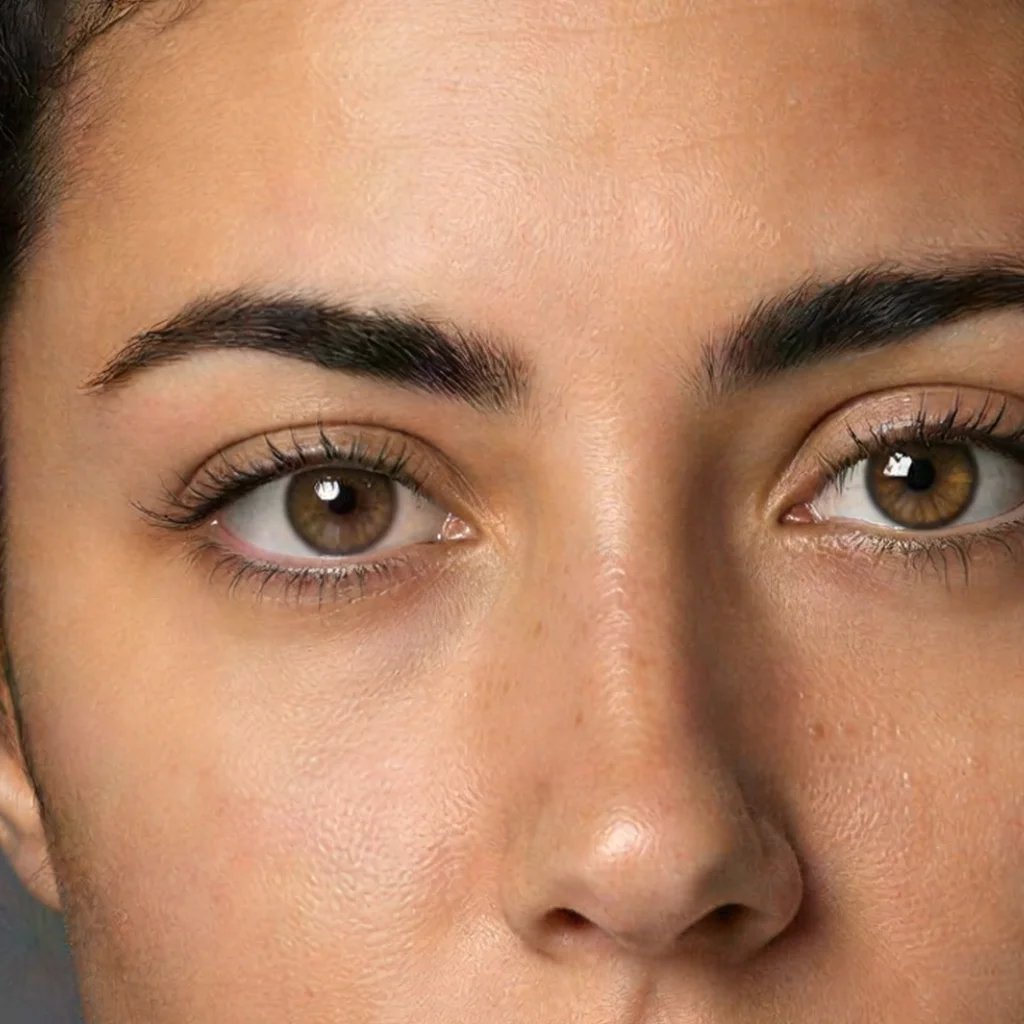
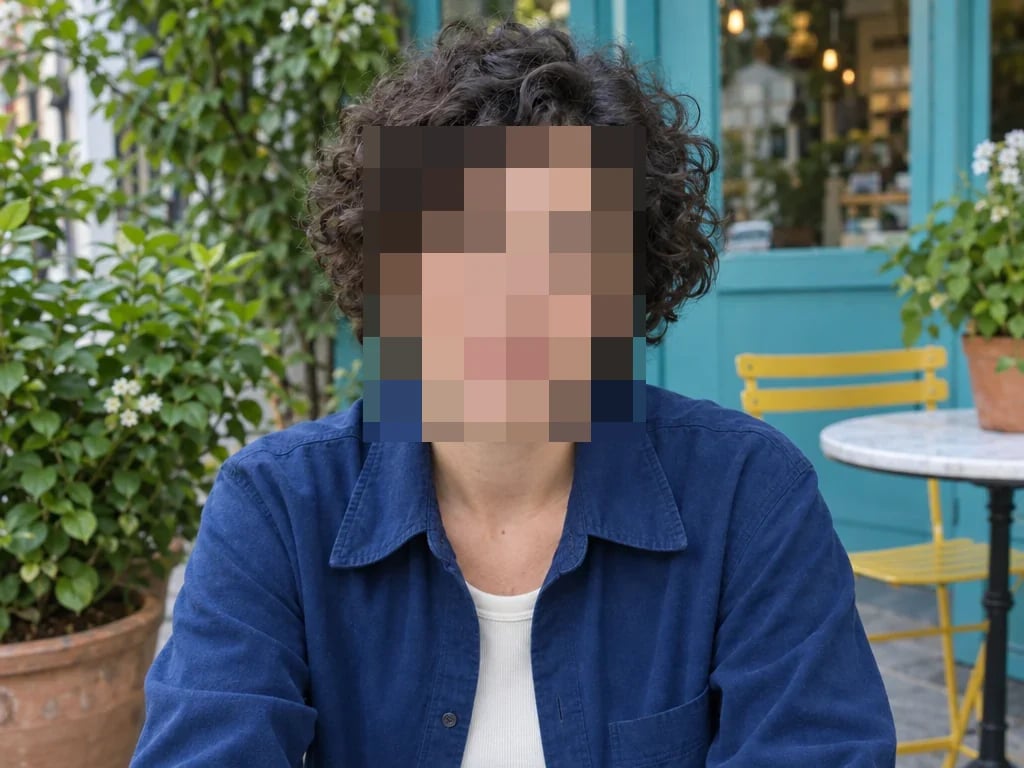
Compare the red pupils before correction with the darker pupils afterward. Check the catchlights and surrounding face.
How to remove red eyes from a photo
Open the original photo
Choose a JPG, PNG or WebP from your device, or drop it onto the editor. Use the original file when possible: a screenshot or heavily compressed copy may lose the pupil detail needed for a natural correction.
Let it find the red eyes
The tool looks for faces, checks their eyes and corrects detected red pupils. It can also process group photos. The status line shows how many red eyes were detected; compare with the original to check the result.
Compare and download
Switch between the original and the correction and zoom in on the eyes. Adjust the strength or sensitivity if needed, then choose PNG, JPEG or WebP (if your browser supports it) in the download menu. The saved file keeps the photo's full dimensions.
Automatic red-eye correction that leaves the rest alone
Finds the eyes for you
The tool looks for visible faces and checks their eyes for flash-red pupils. Small, cropped or obscured faces may be missed. Correction is limited to detected pupils, leaving red clothes, lipstick and backgrounds elsewhere untouched.
Keeps natural detail
The correction darkens the red inside the pupil and leaves white catchlights and the iris colour in place. Start with the default settings, then lower the strength if a pupil looks too dark. Very small or blurred eyes have less detail to keep, so results vary with the source photo.
Know which photos this can help
Use it for the familiar red pupils in flash photos of people. Faces turned far away, covered by hands or hair, or hidden behind tinted glasses may not be found. It does not change eye colour, fix yellow or green pet-eye shine, or rebuild detail that is missing. Keep your original file.
Red eye remover FAQ
More tools
More tools for your project
Choose another tool to edit, enhance or transform your images and videos.