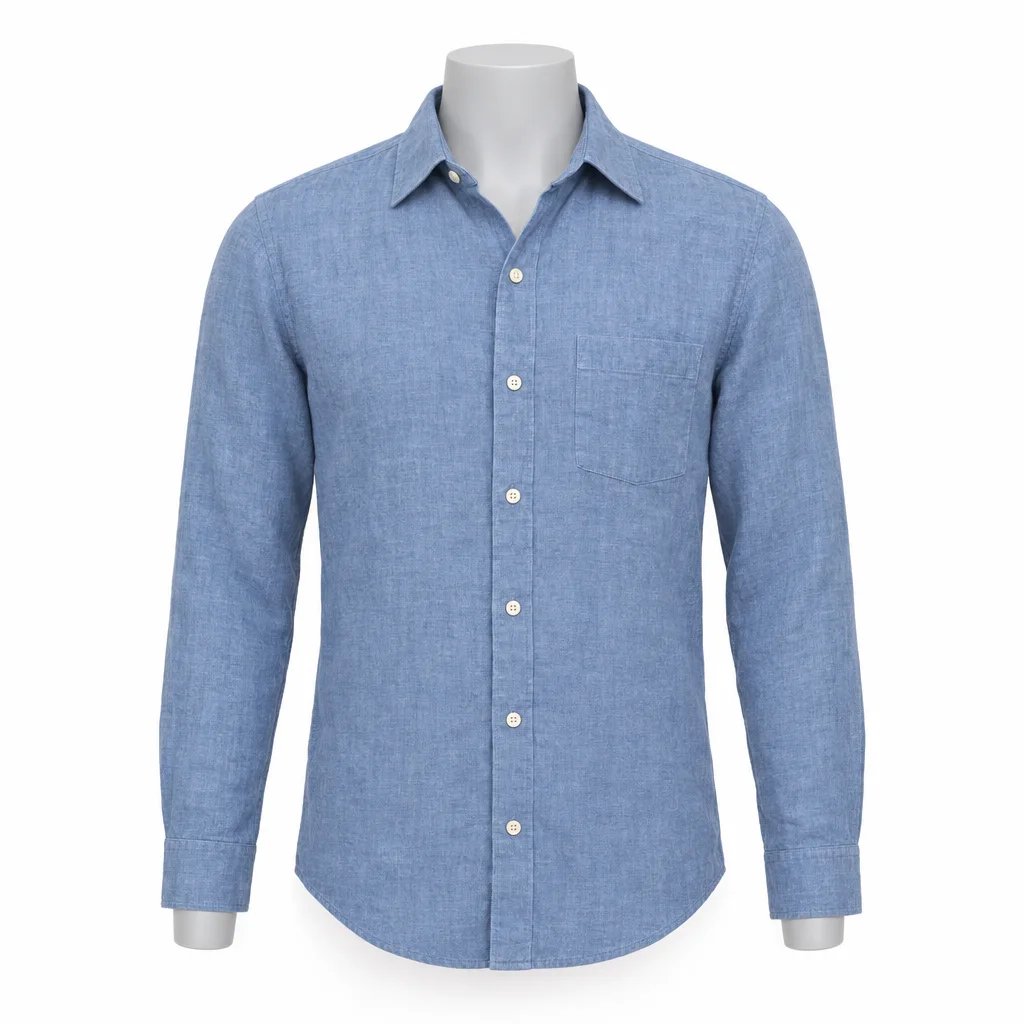
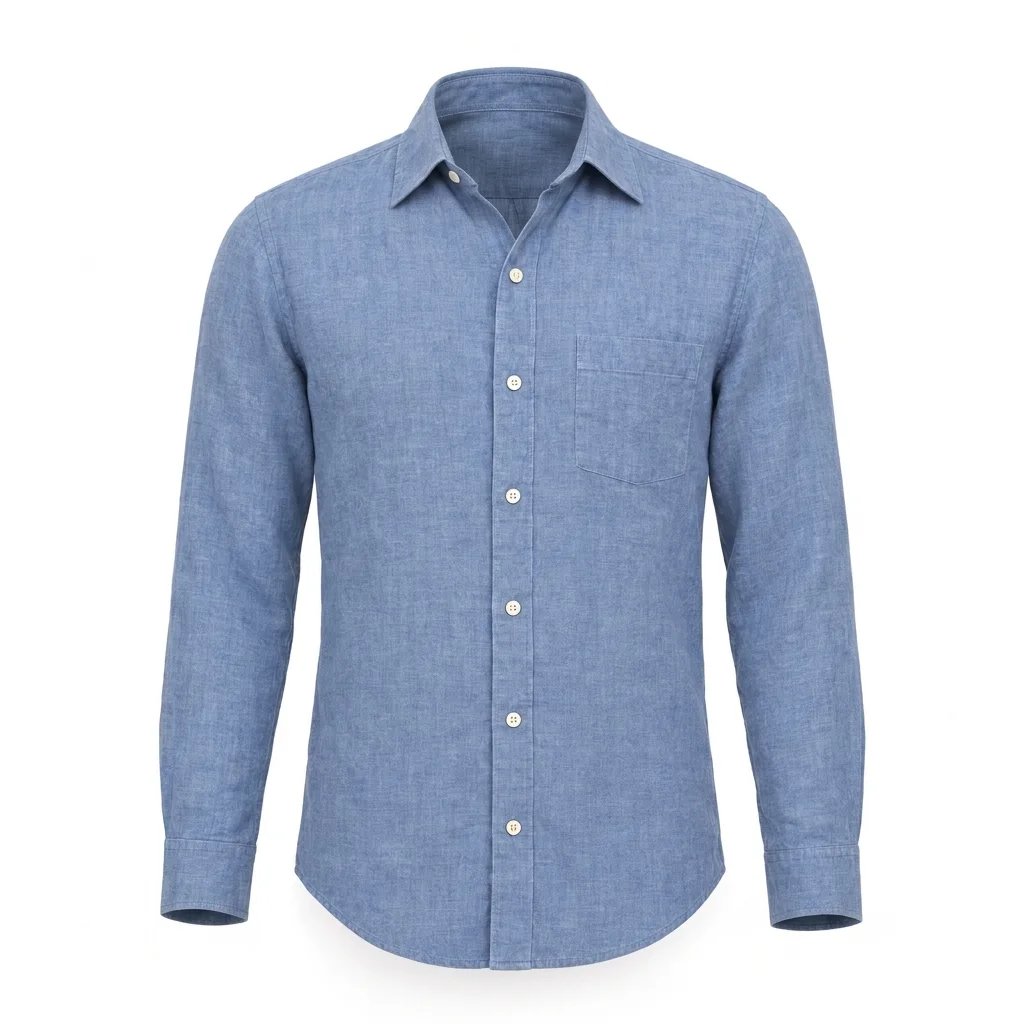
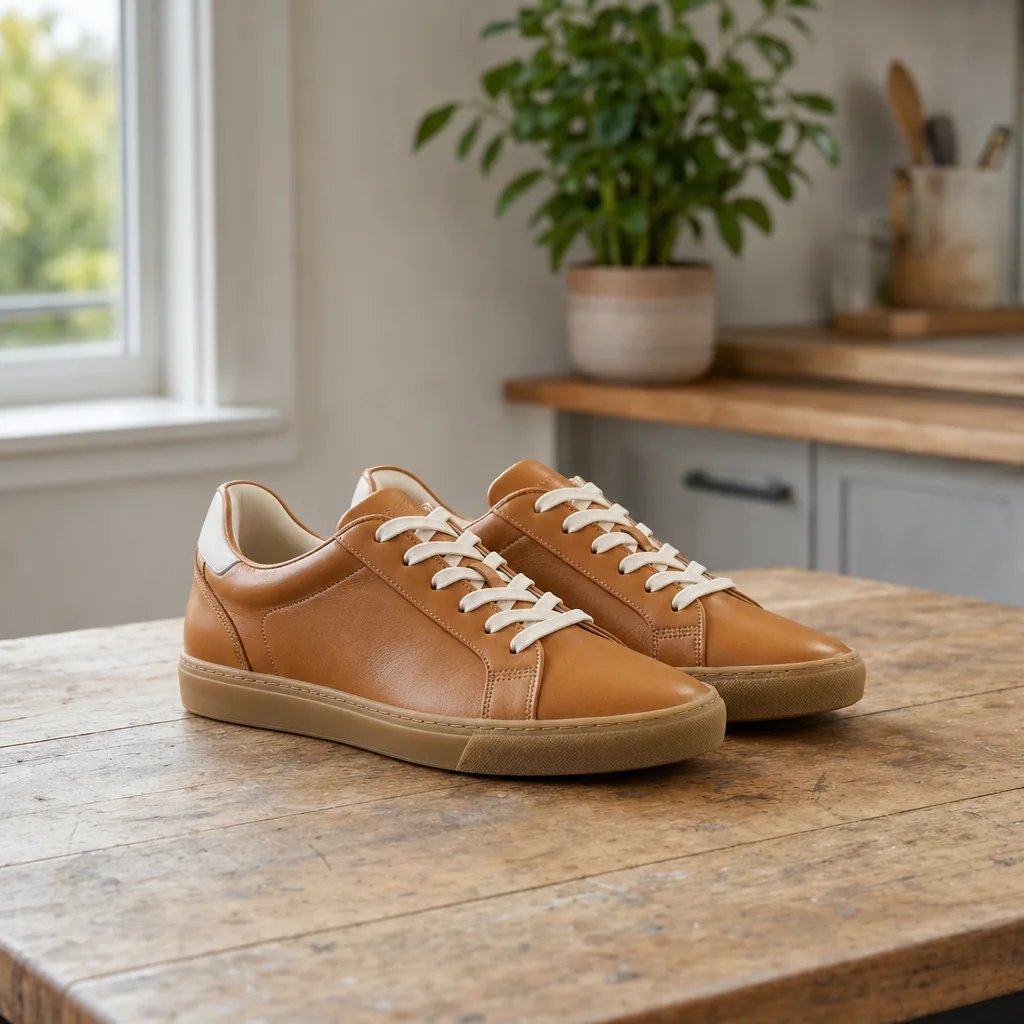
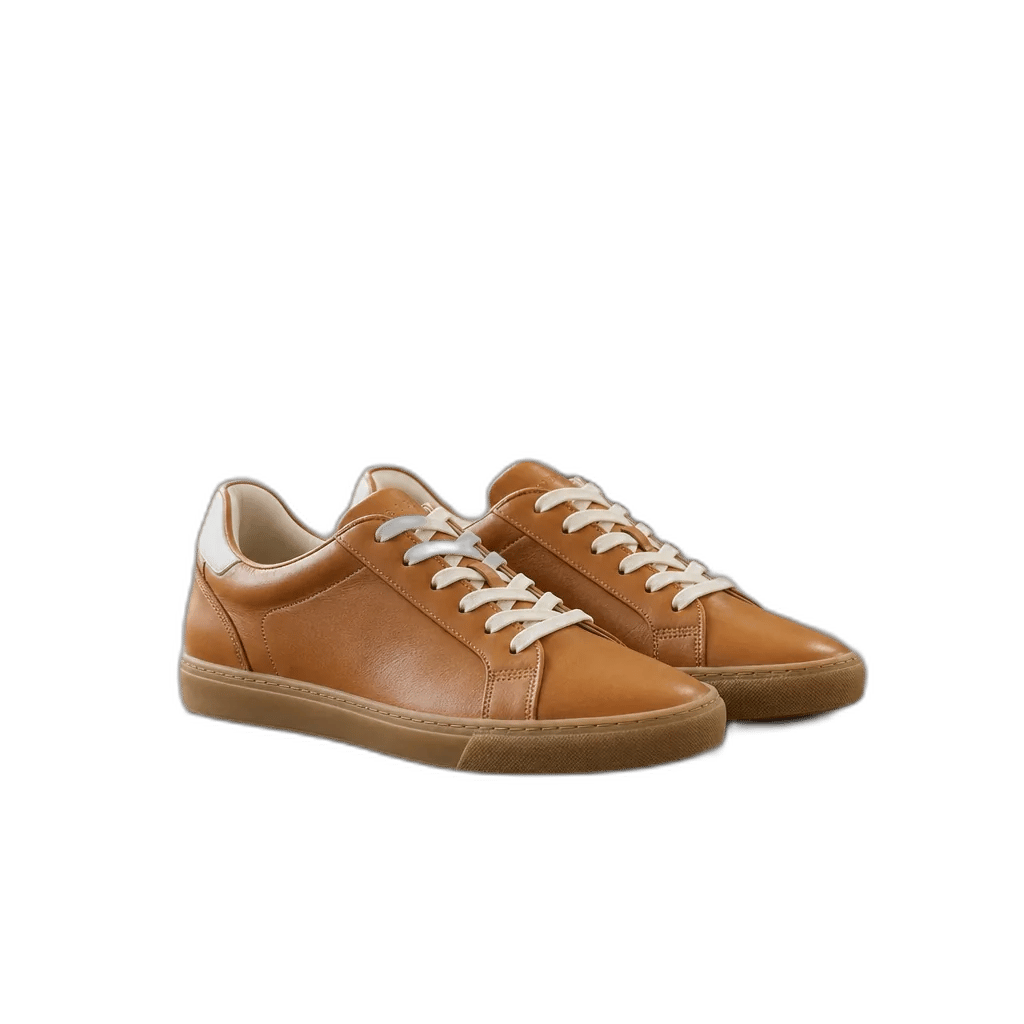
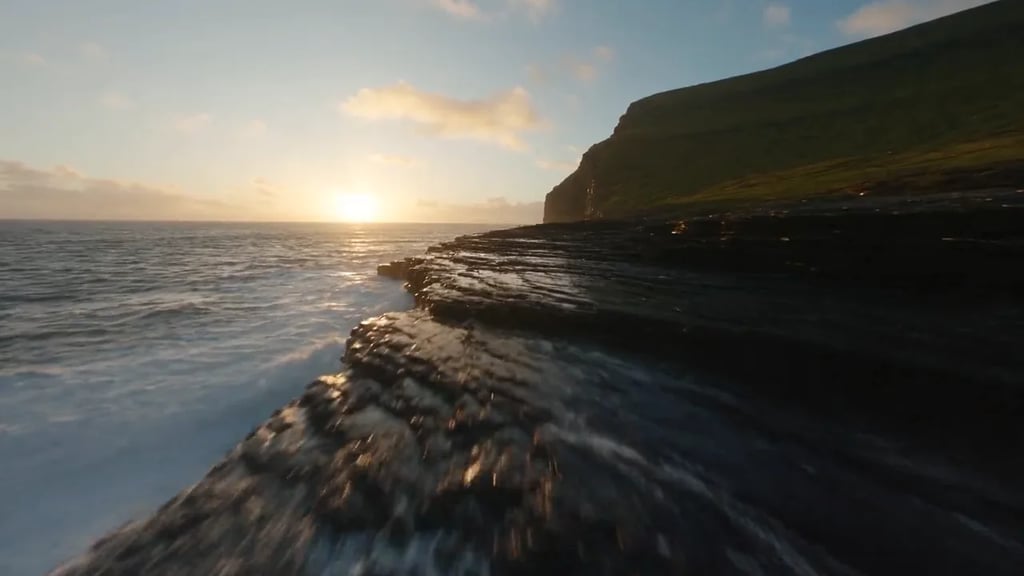
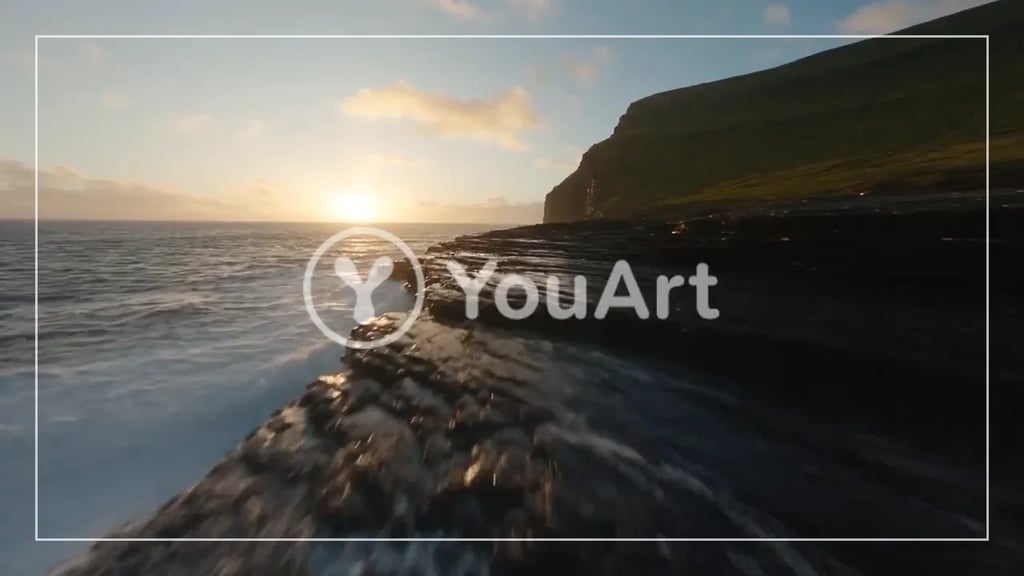
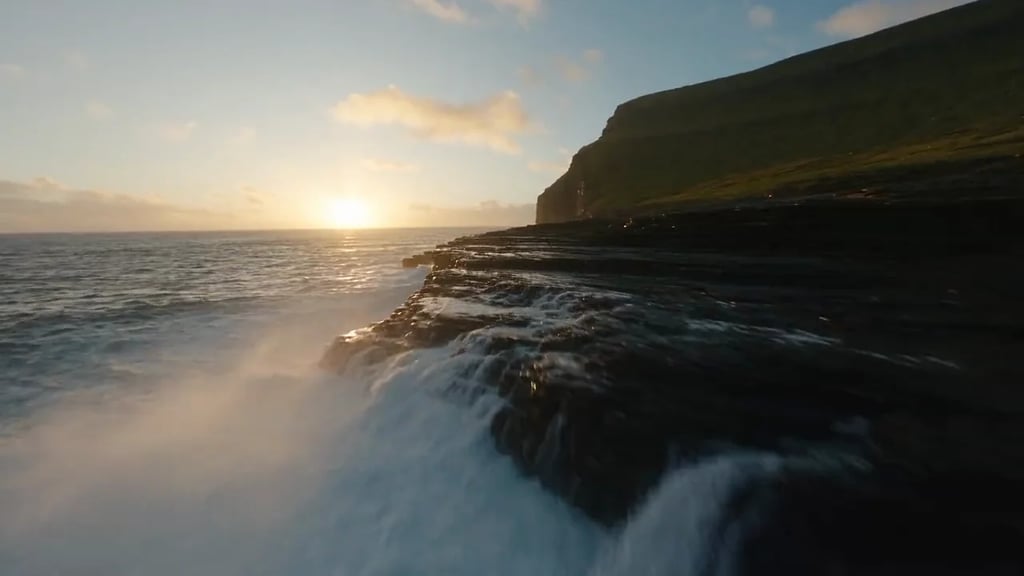
Product cutouts for layouts
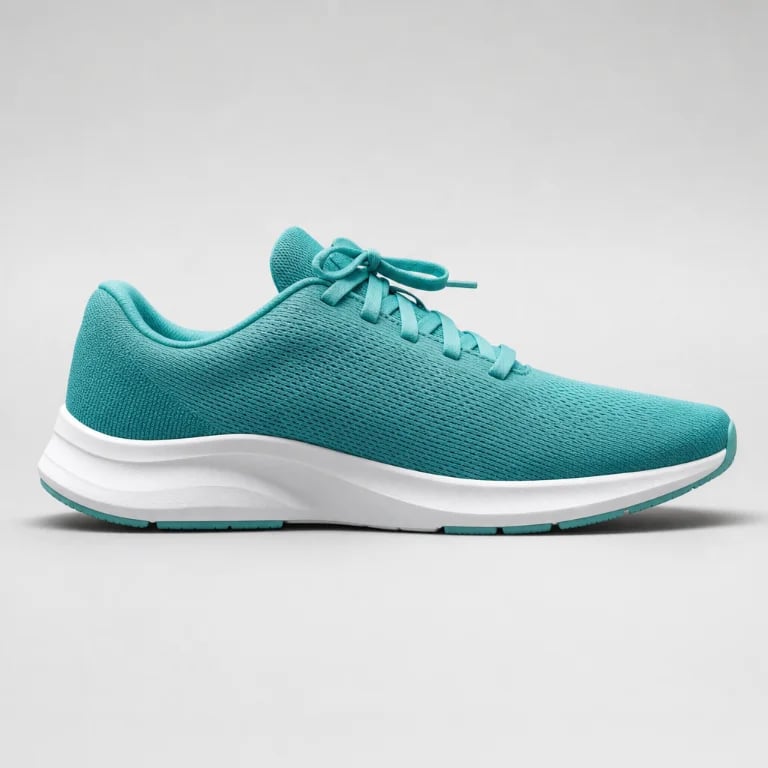
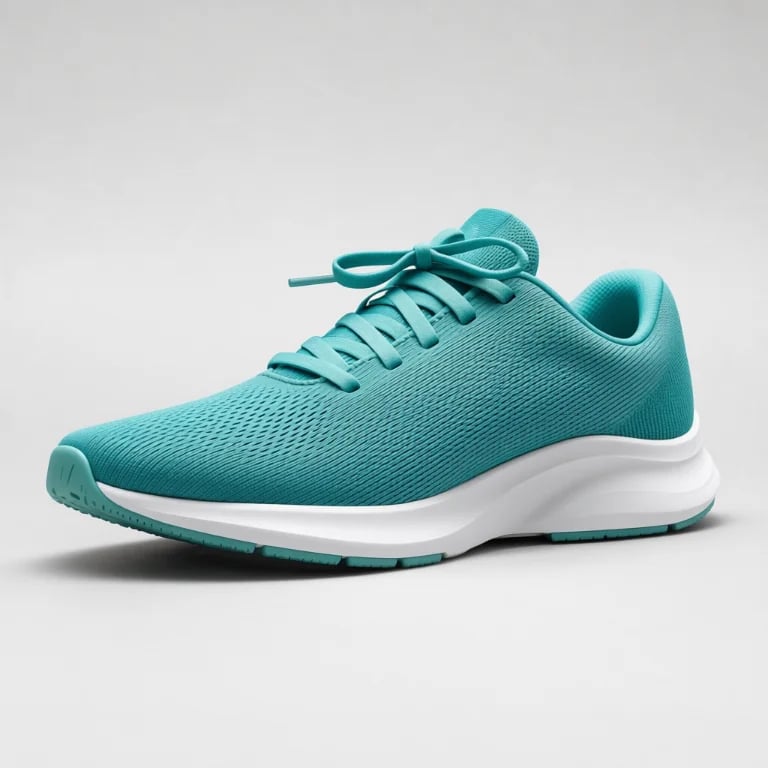
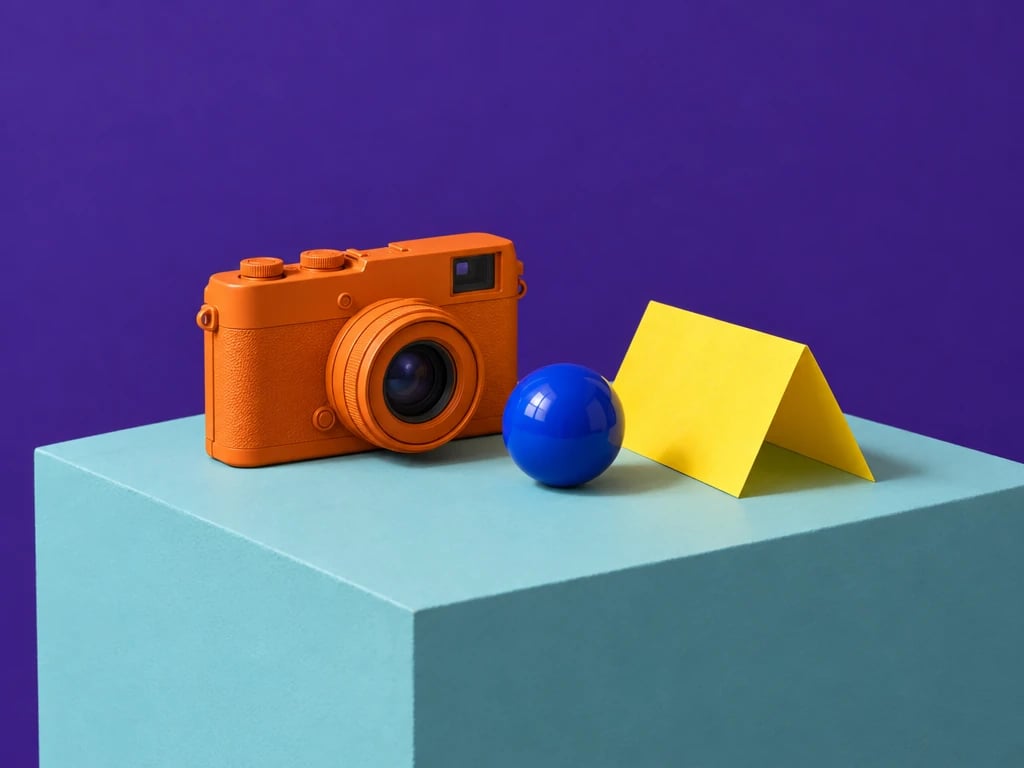
Select one item from a styled scene and reuse it in a listing, sale banner or comparison graphic. A transparent PNG lets your design supply the background.
Choose what stays · SAM3.1
Upload a photo and name what you want to keep. SAM3.1 isolates products, people, pets or faces and returns one transparent PNG per run.
Use a short English object name, such as “red backpack”, “woman” or “dog”. Other languages may return no match.
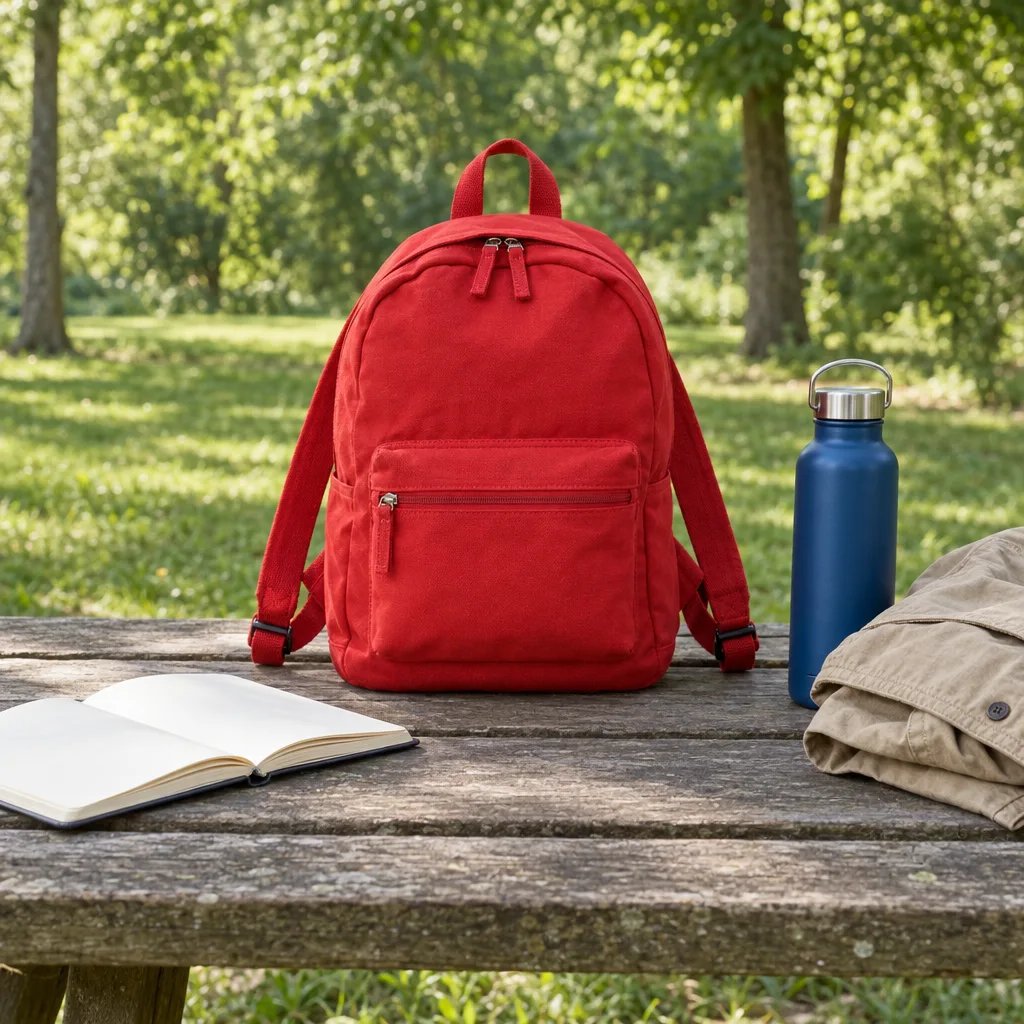
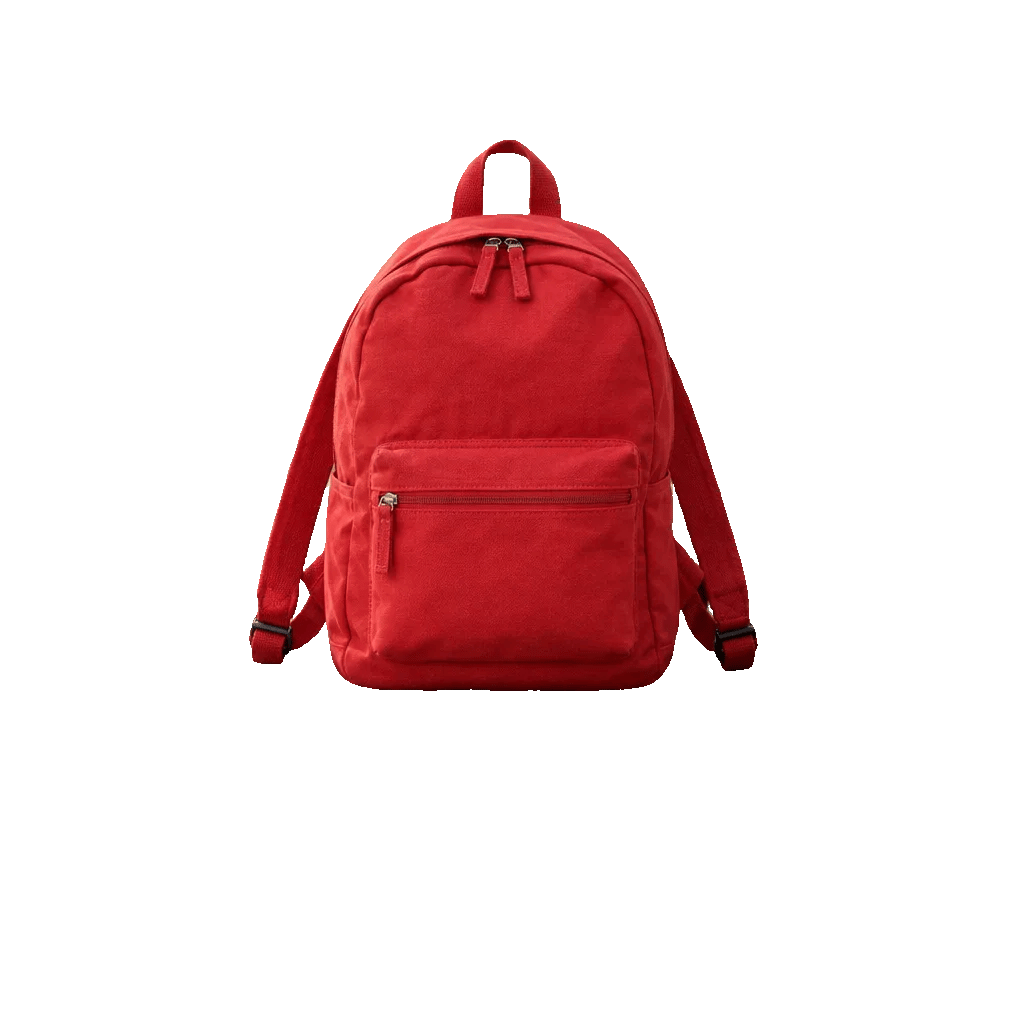
red backpack
Sign in to generate. Your transparent PNG opens in a generation session; the checkerboard represents transparency.
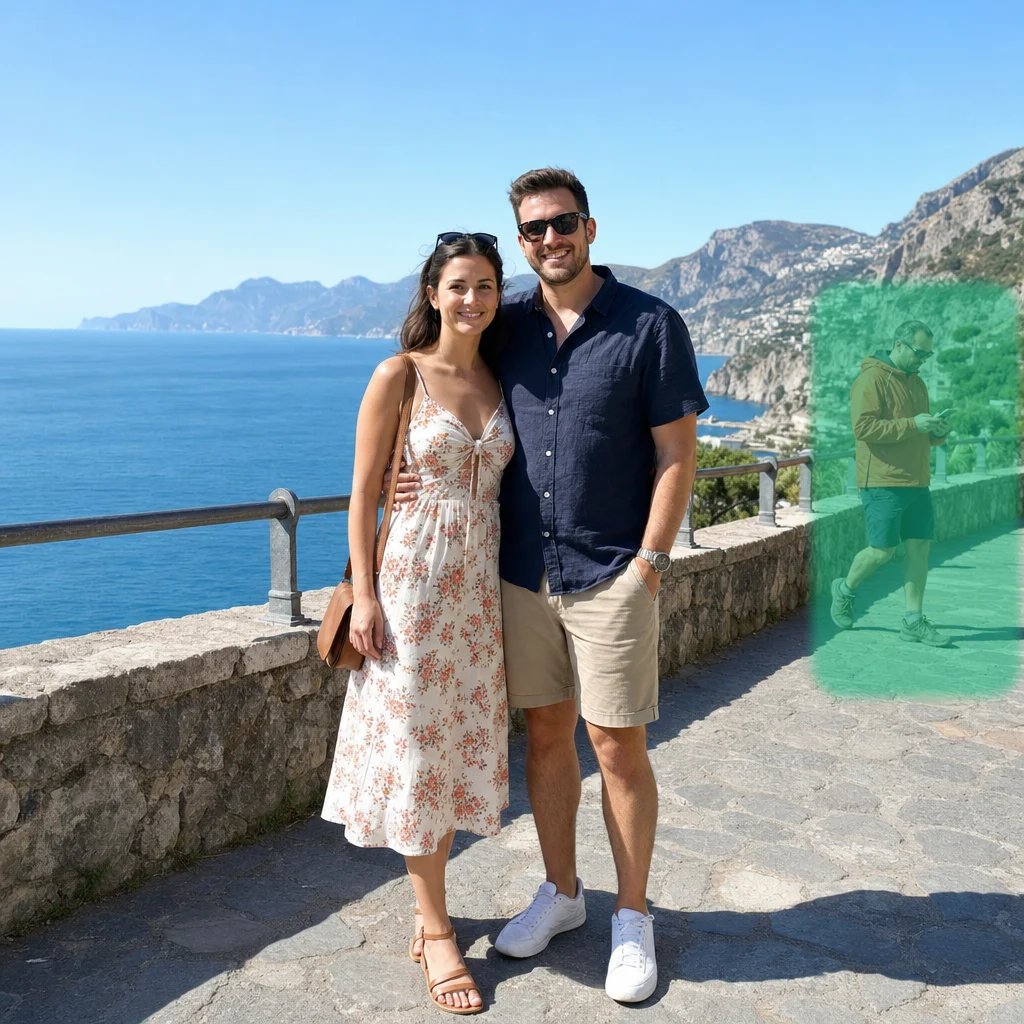
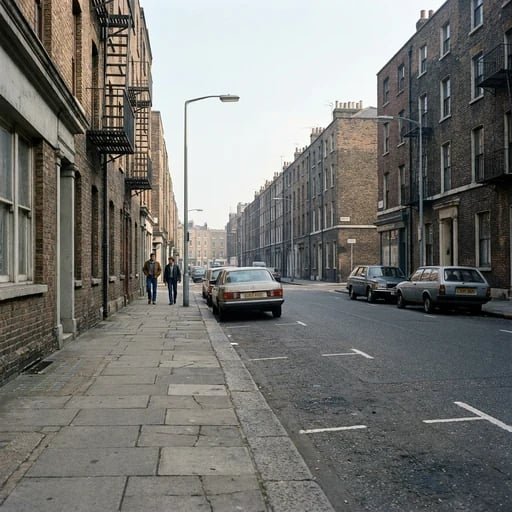
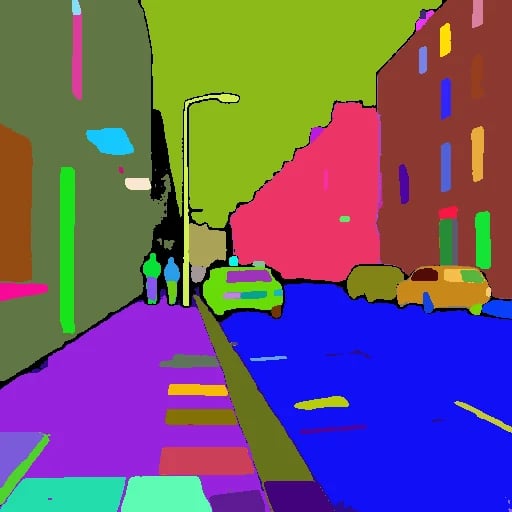
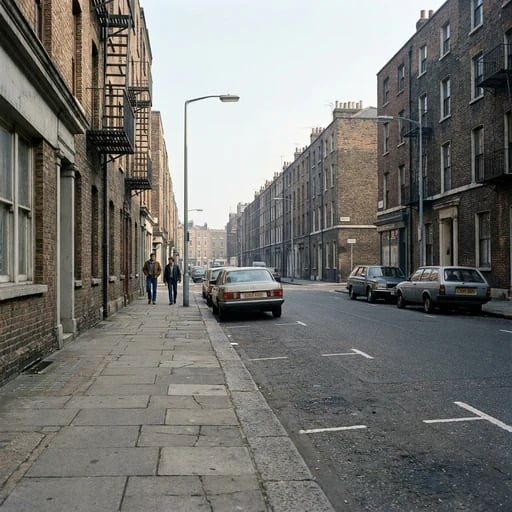
Before and after
red backpack


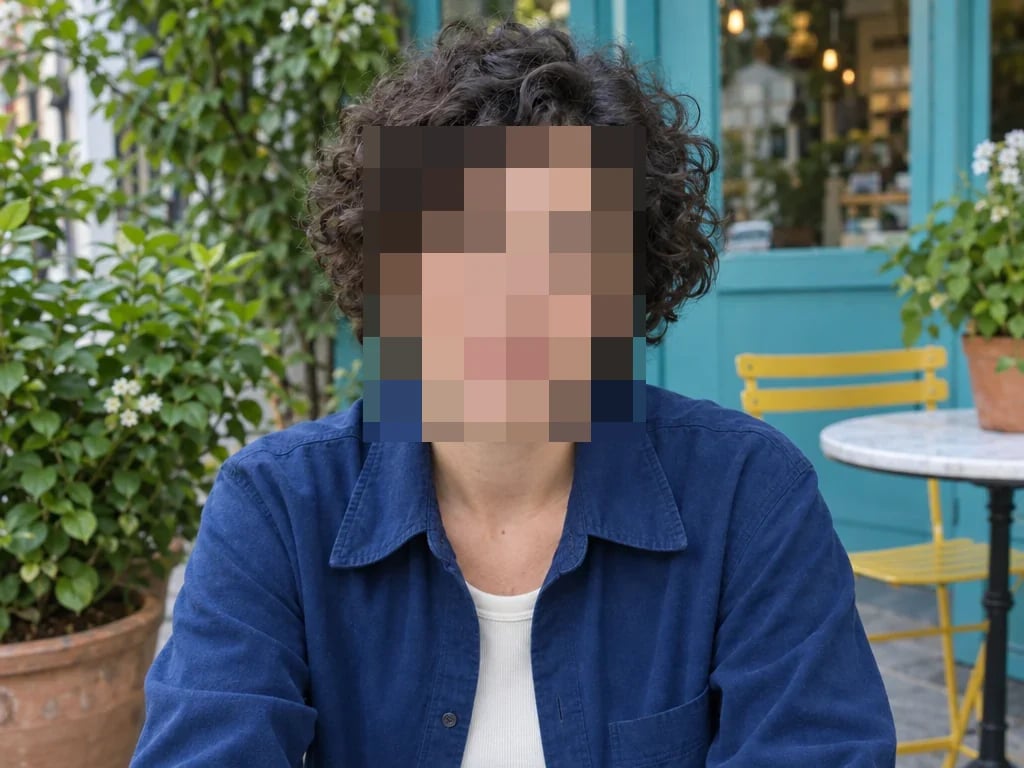
woman


dog


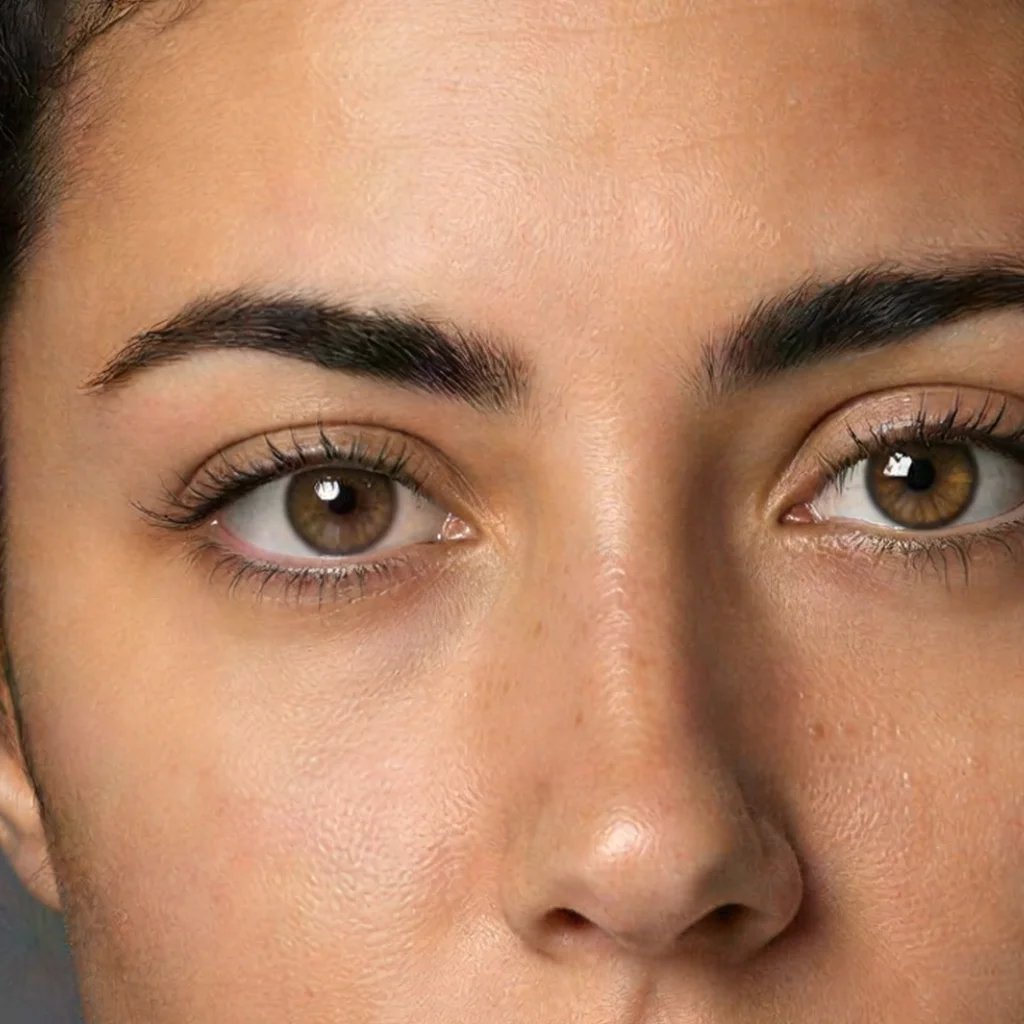
face
Three steps
Choose a JPG, PNG or WebP with the object clearly visible. A sharp photo with space around the subject is easier to separate than a blurry or crowded scene.
Write a short label such as “red backpack” or “dog”. Add a visible detail to distinguish similar objects, then sign in and generate at the displayed credit cost.
Open the result in your generation session and download the PNG. Check its edges before placing it into a product layout, thumbnail or collage.
One tool, different subjects
Select one item from a styled scene and reuse it in a listing, sale banner or comparison graphic. A transparent PNG lets your design supply the background.
Isolate a person for a presentation, poster or video thumbnail. Describe clothing or another visible detail when you want to distinguish someone in a group.
Separate a dog or another visible pet for a digital sticker, greeting card or collage. Inspect the fur edges against your new background before exporting the design.
Use “face” to select the facial area for a profile layout or collage. The example shown here keeps the face and excludes hair. Use a person description when you want the whole visible person.
A better match
SAM3.1 follows the object description. It does not redraw missing parts or guarantee a match for every photo.
Use “red backpack” instead of “remove the background”. Name what stays, with a color or other visible detail when the scene contains similar subjects.
Start with “woman”, “dog” or “face”. Long editing instructions and non-English descriptions can make the intended object harder to detect.
Use a well-lit source. Overlap, motion blur, low contrast and tiny subjects can reduce separation quality; fine hair and fur may need further editing.
Sign in and check the current credit cost beside the generate button before running the tool.
Questions, answered
More tools
Choose another tool to edit, enhance or transform your images and videos.
Keep the part you need
Choose a photo, describe the subject in English, and create a cutout for your next layout.