

AI photo relighting
AI Relight: Change Photo Lighting with 3D Controls
Give a portrait, product or still life a different light. Position one light around your photo, then adjust brightness, temperature and diffusion. Generate a new version from those settings, without writing a prompt.
Try the light controls, then add your own photo to generate a relit image.
Quick select
Light Settings
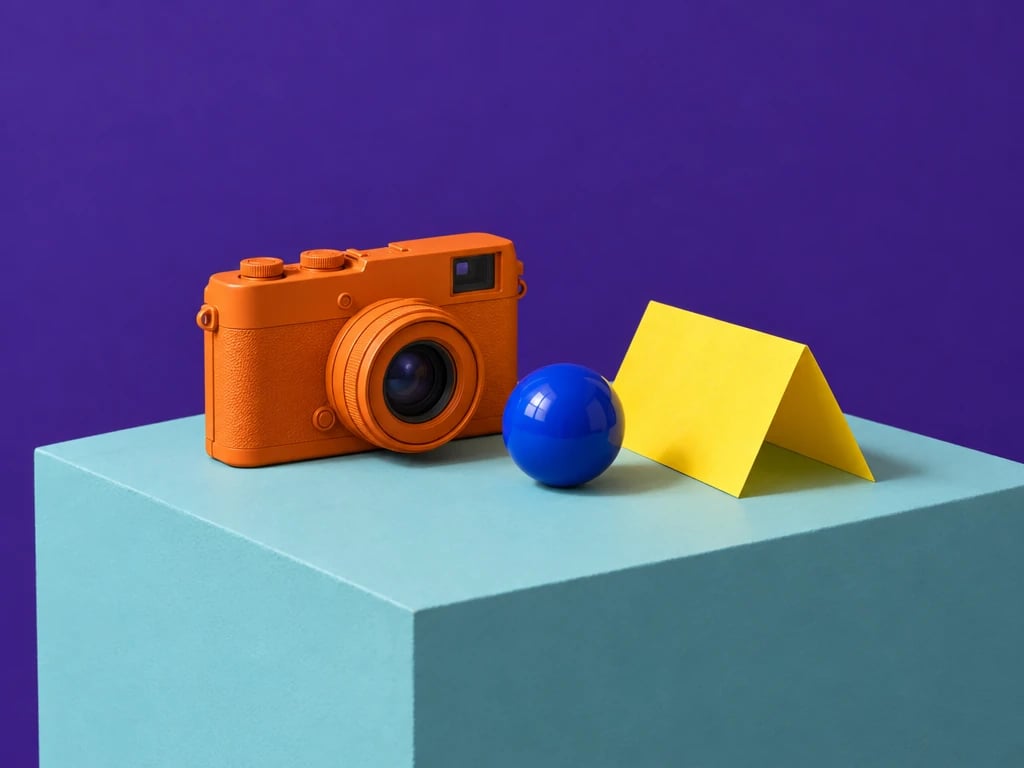
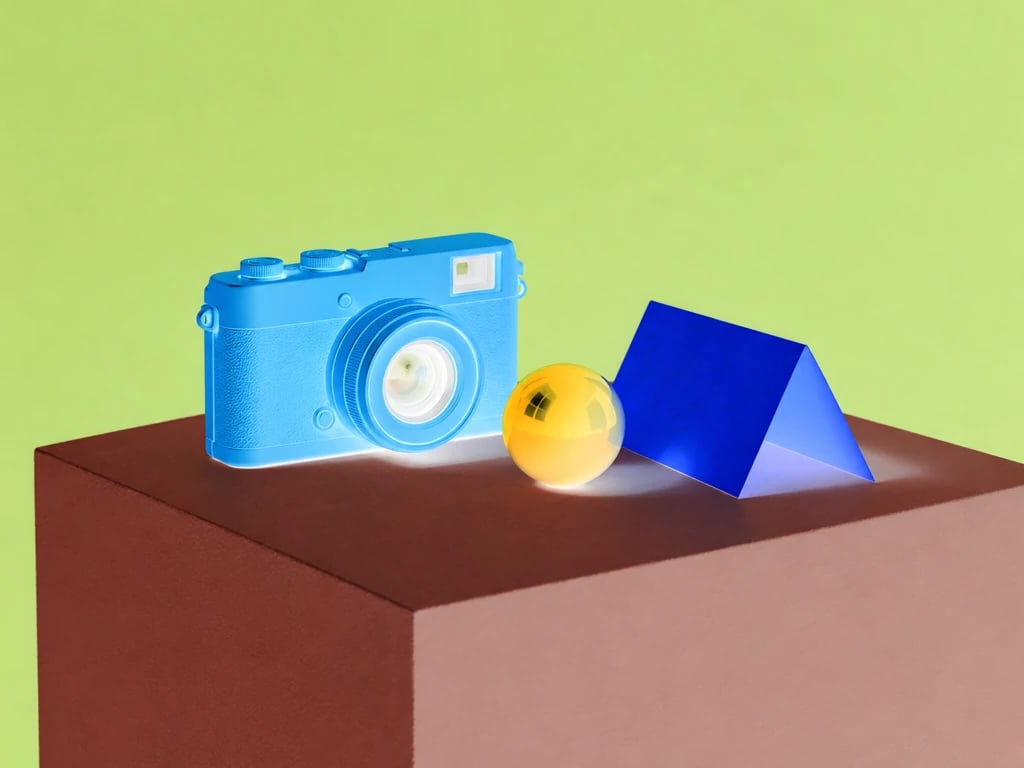
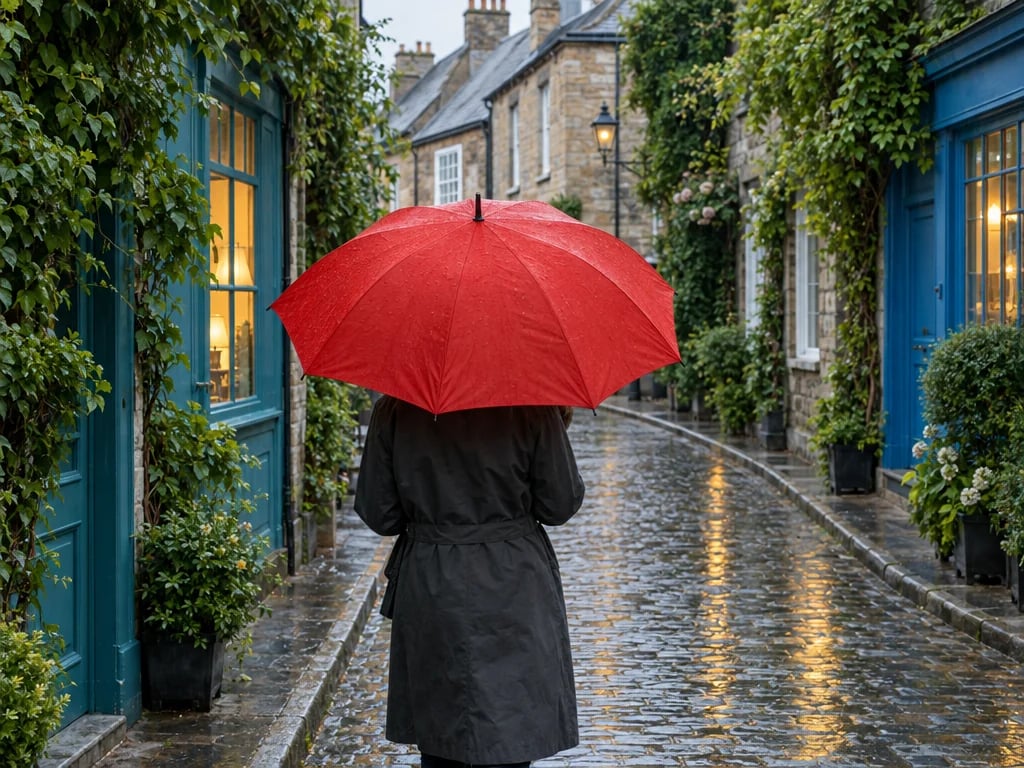
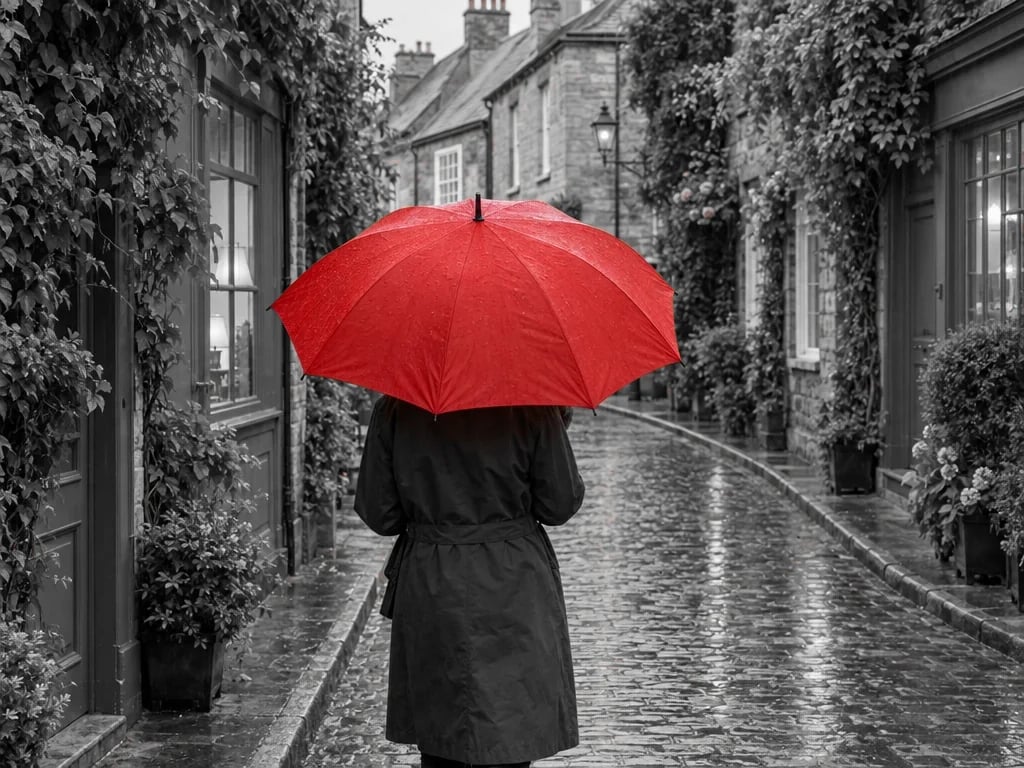
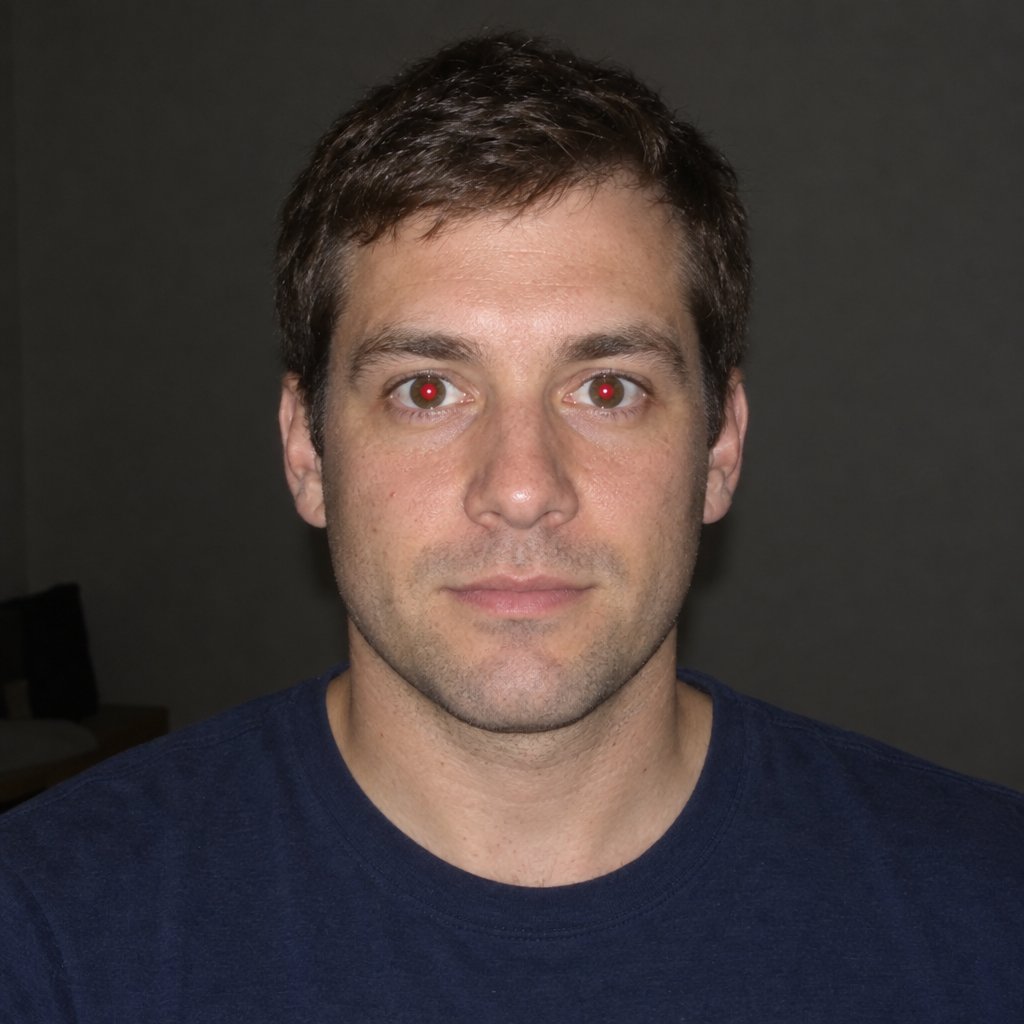
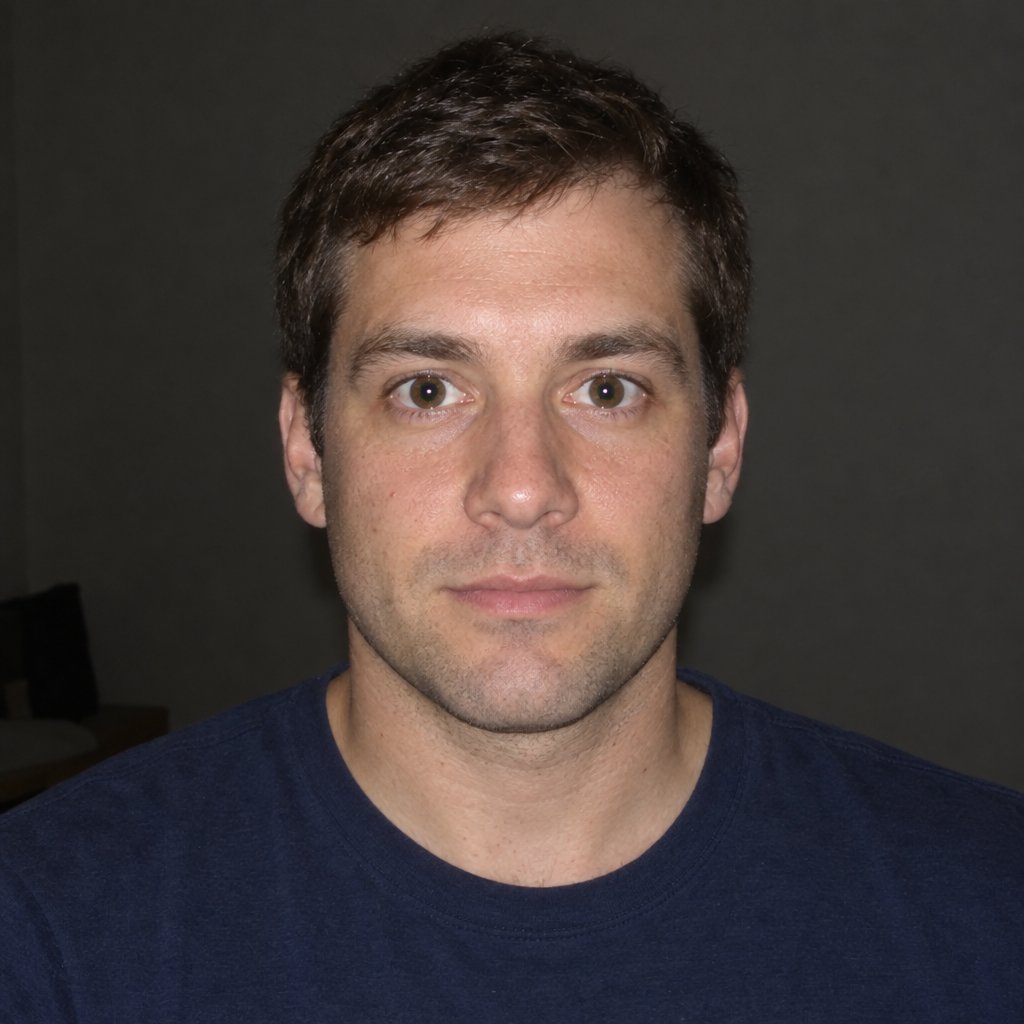
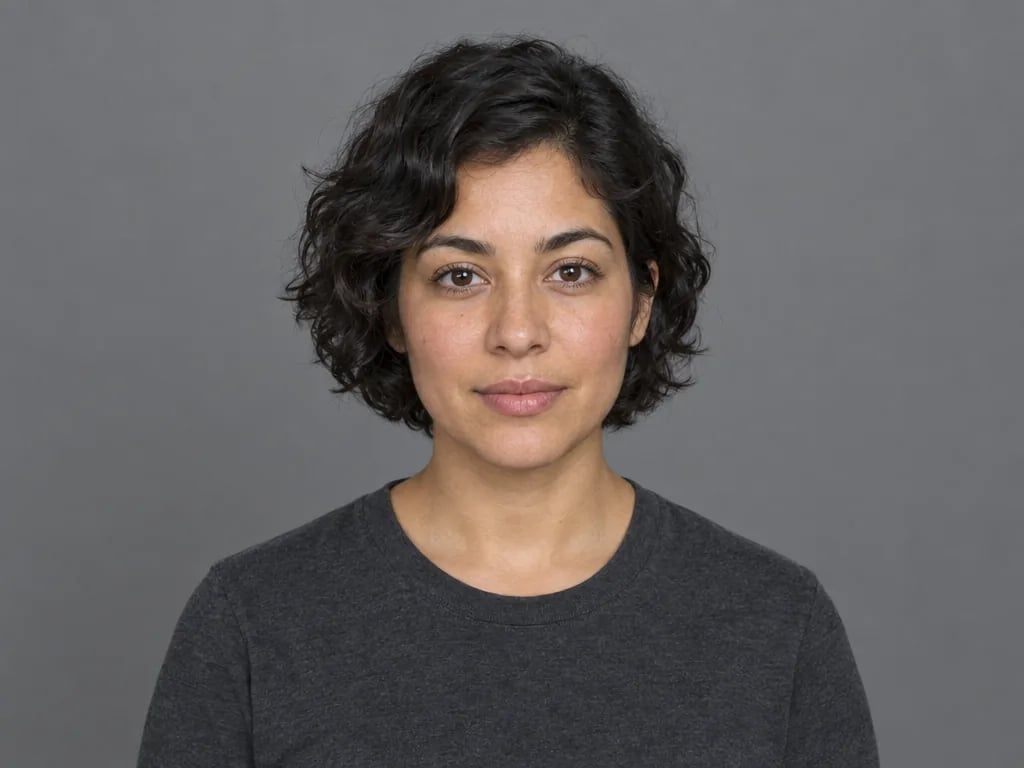
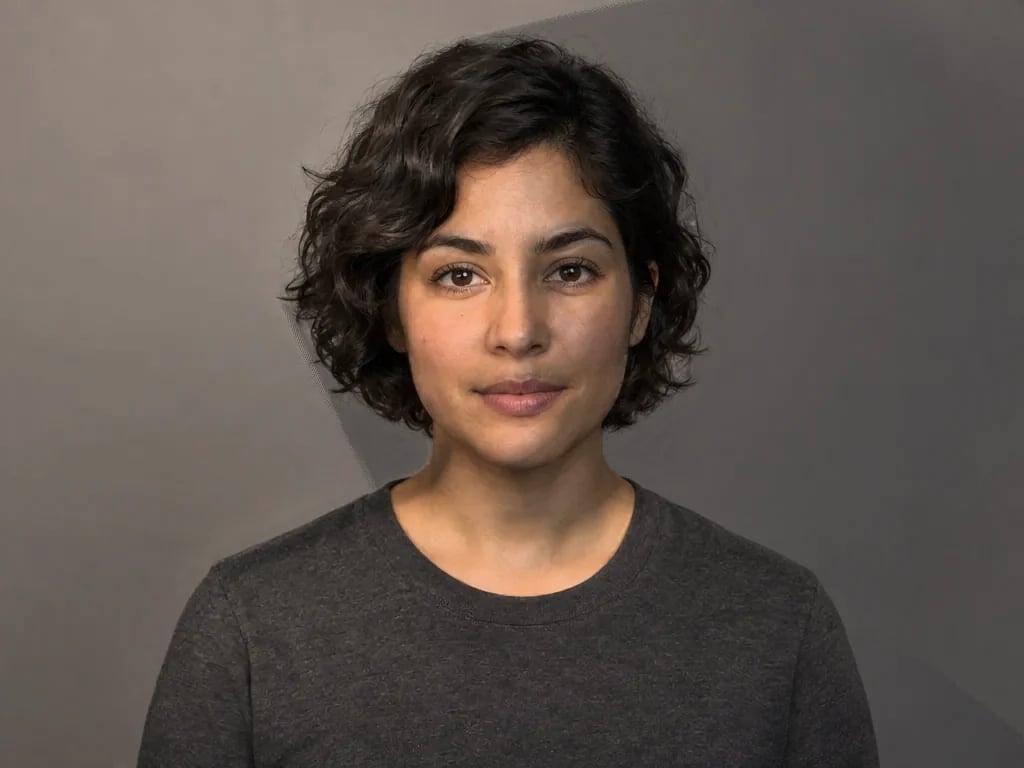
Before and after
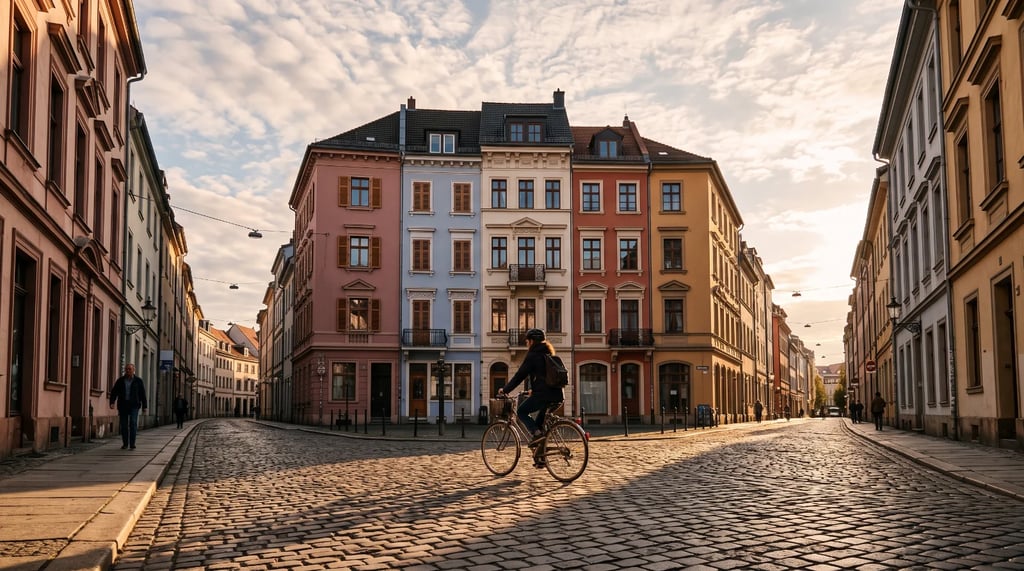
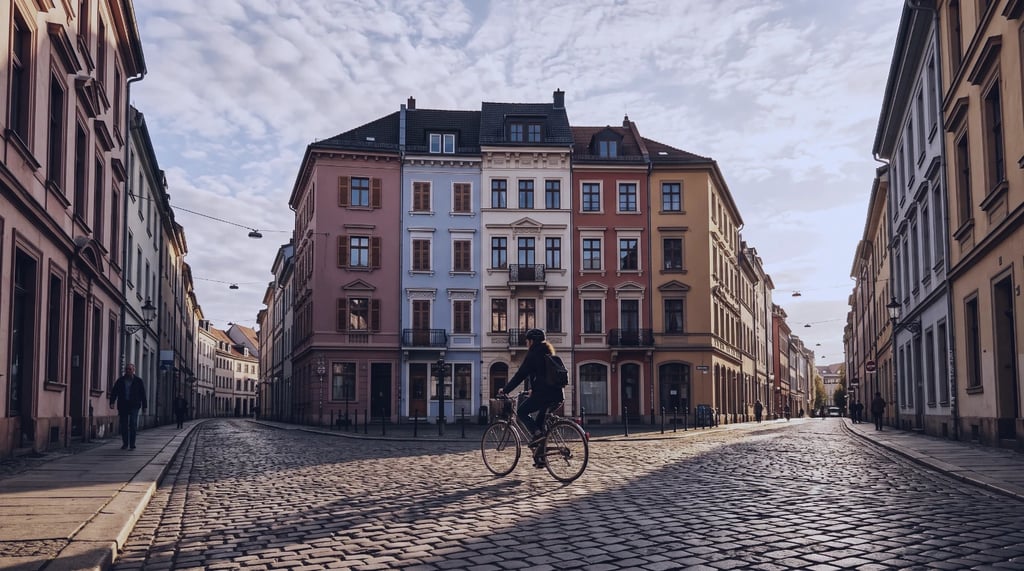
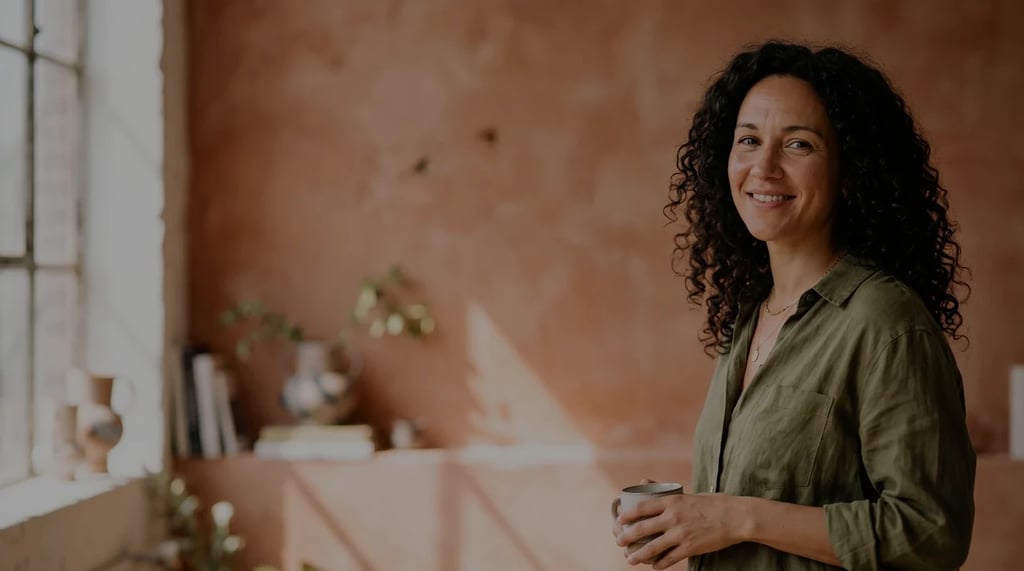
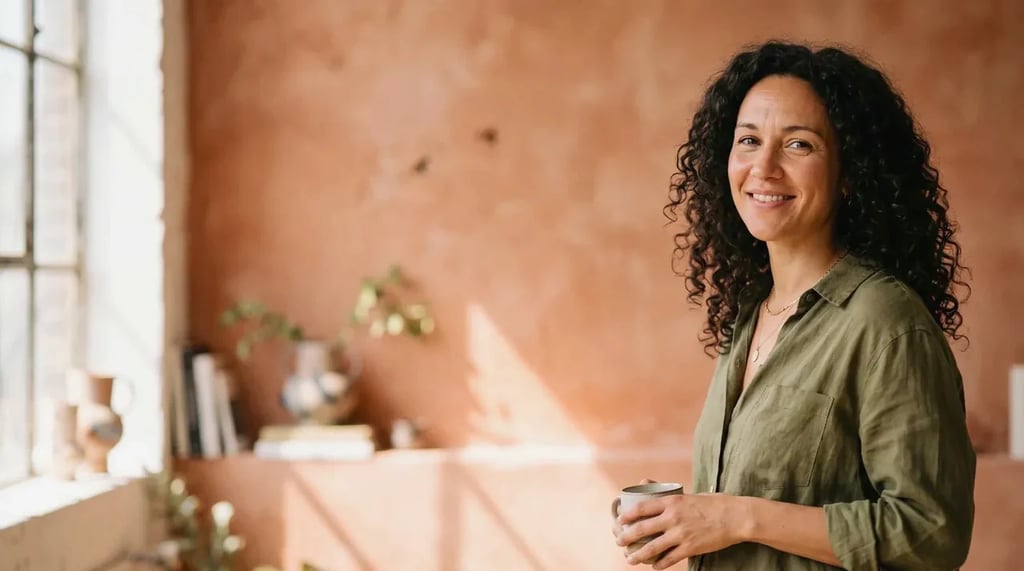
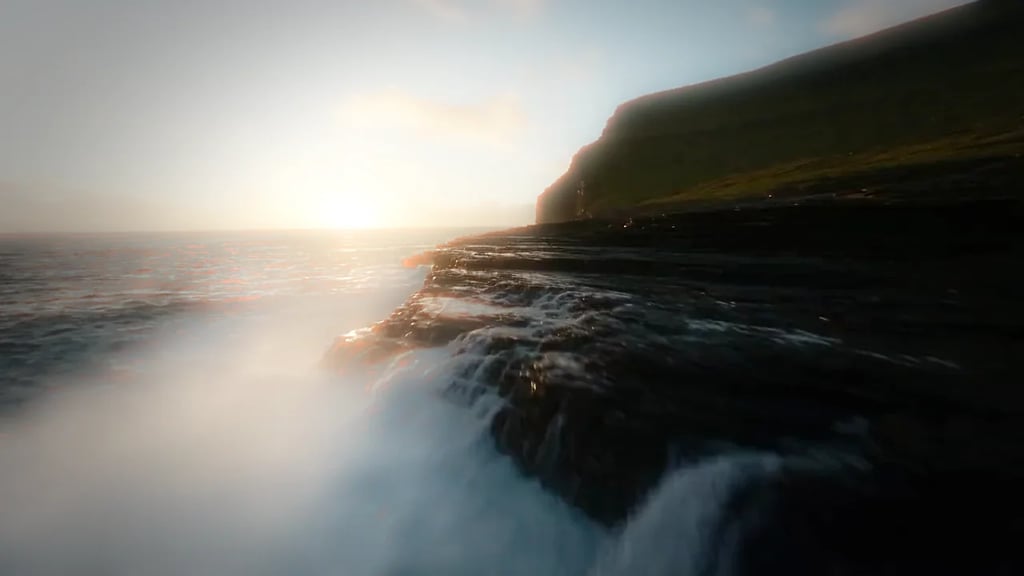
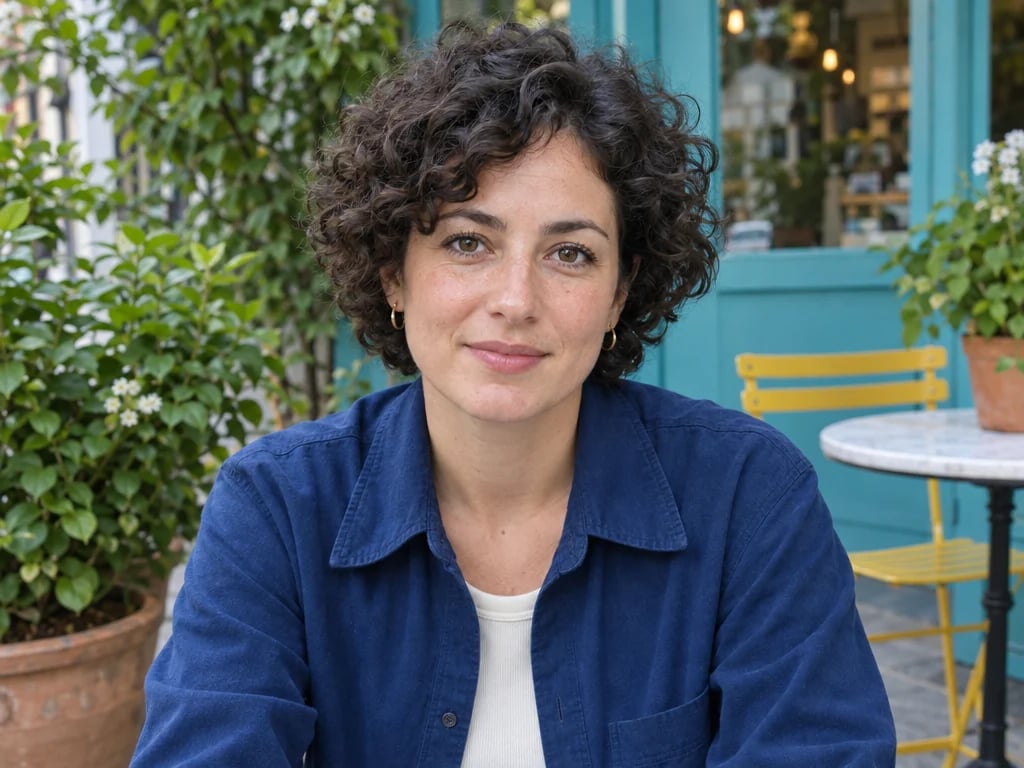
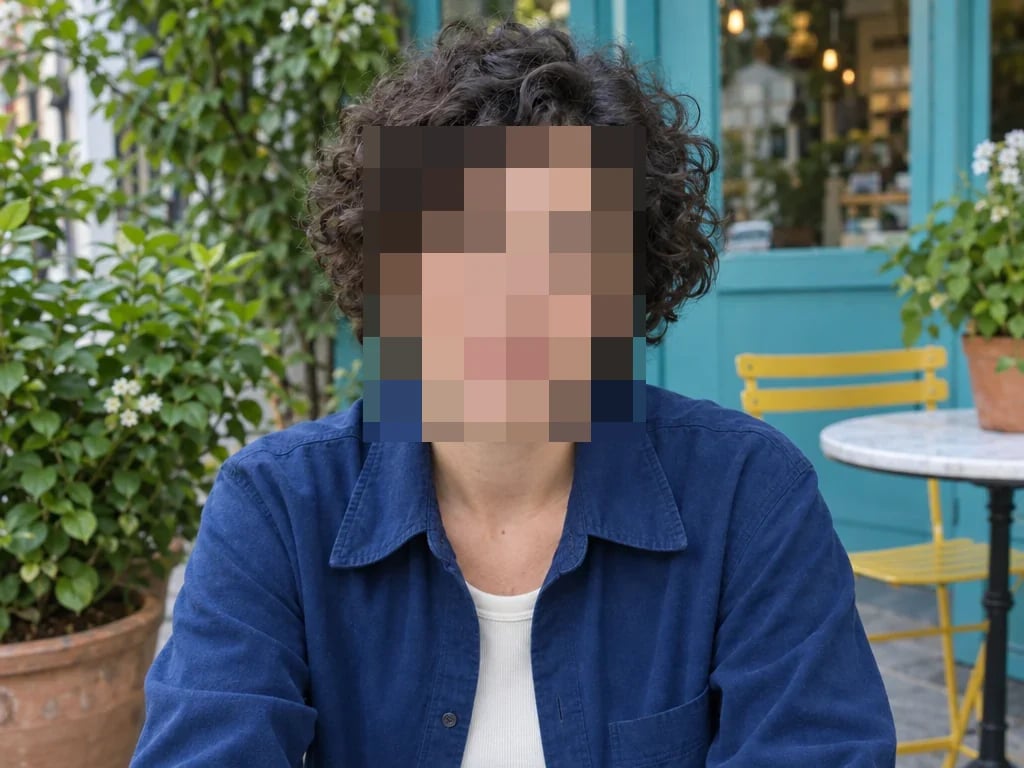
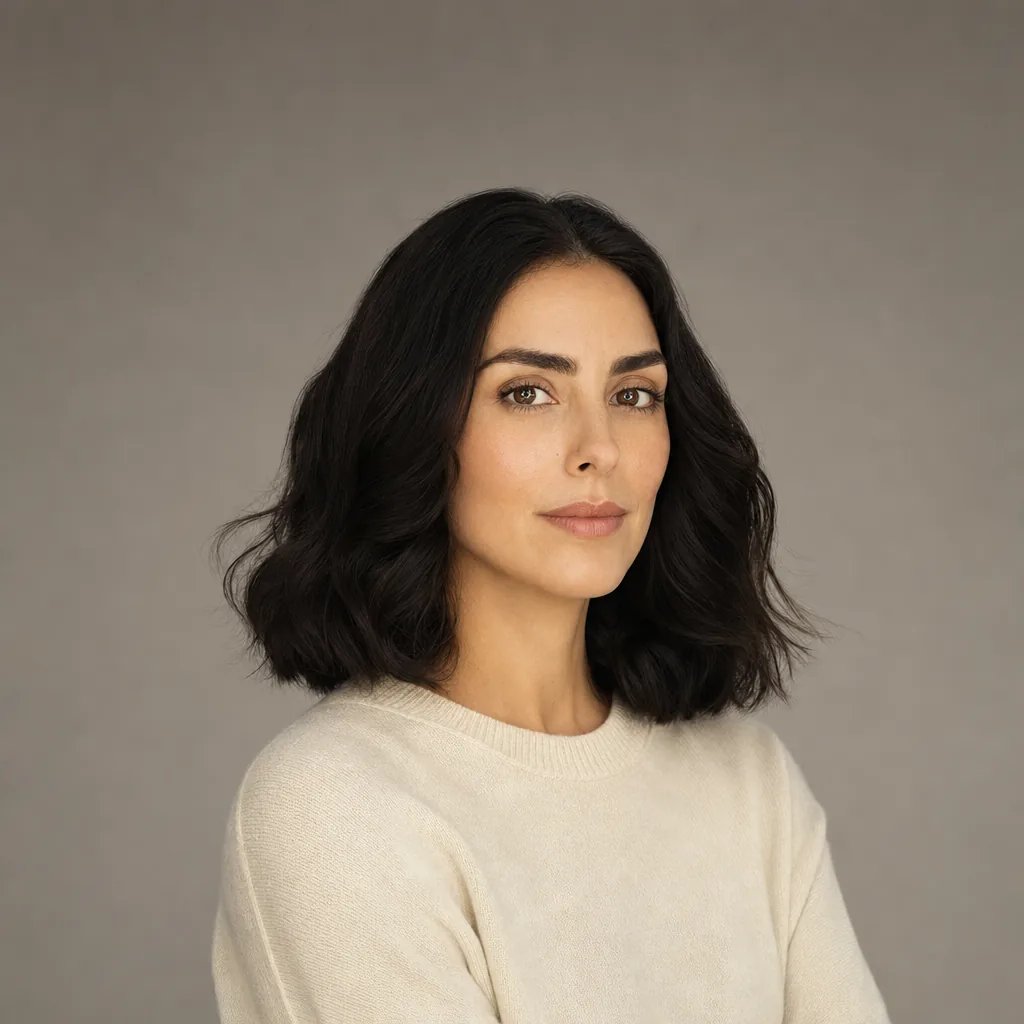
AI relight examples for portraits, products and still life
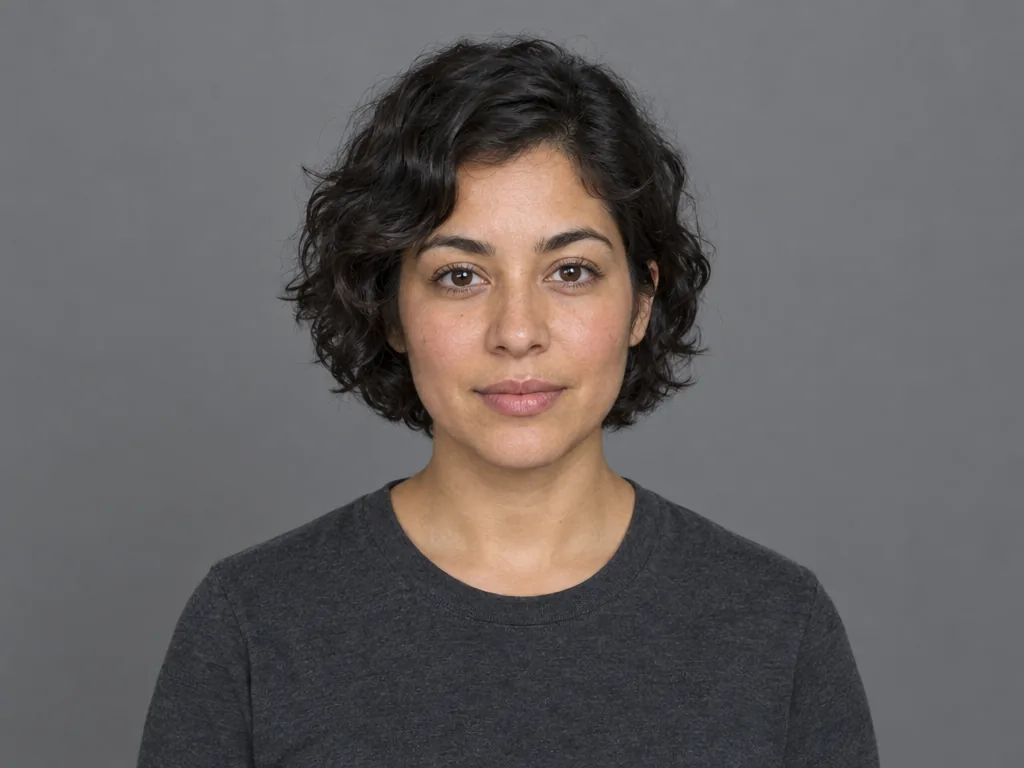
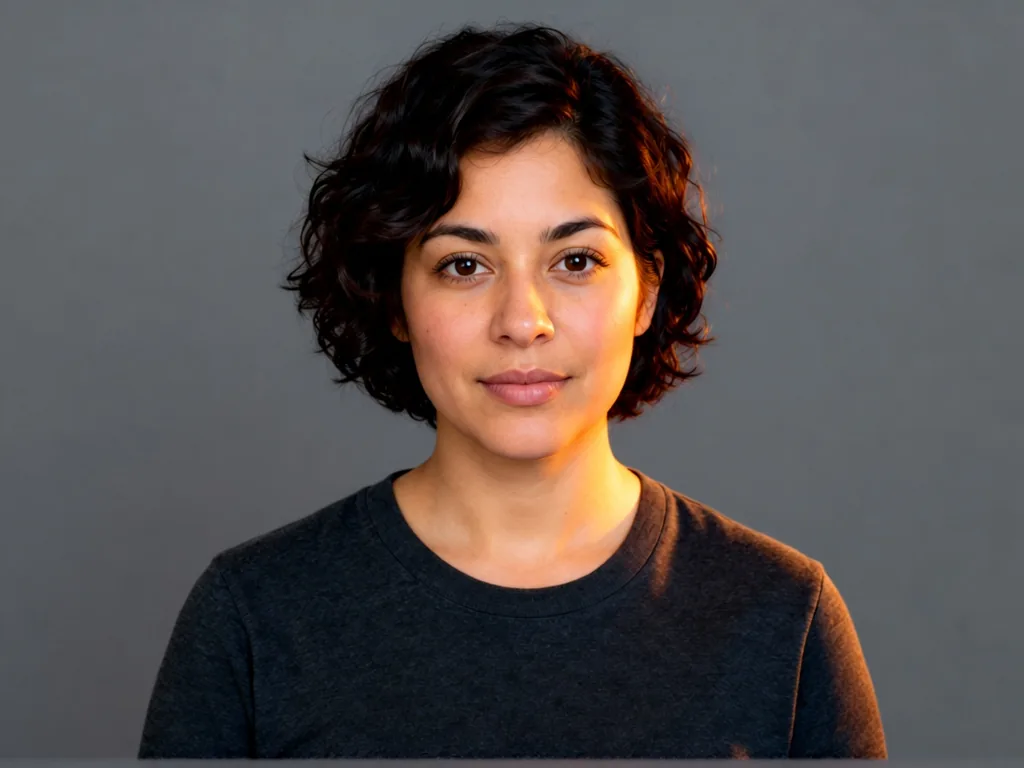
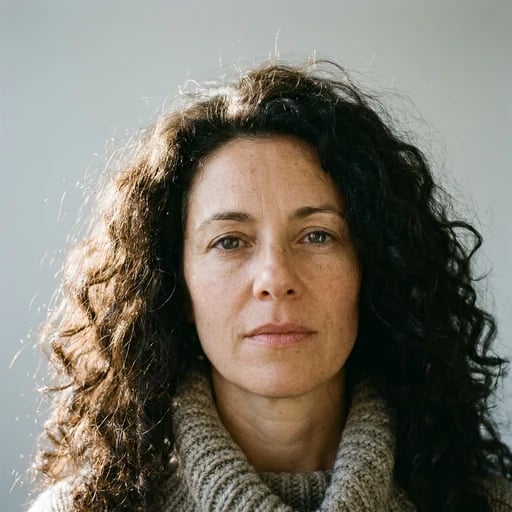
Portrait lighting
Explore how a change of light shapes a face and the mood of a portrait.
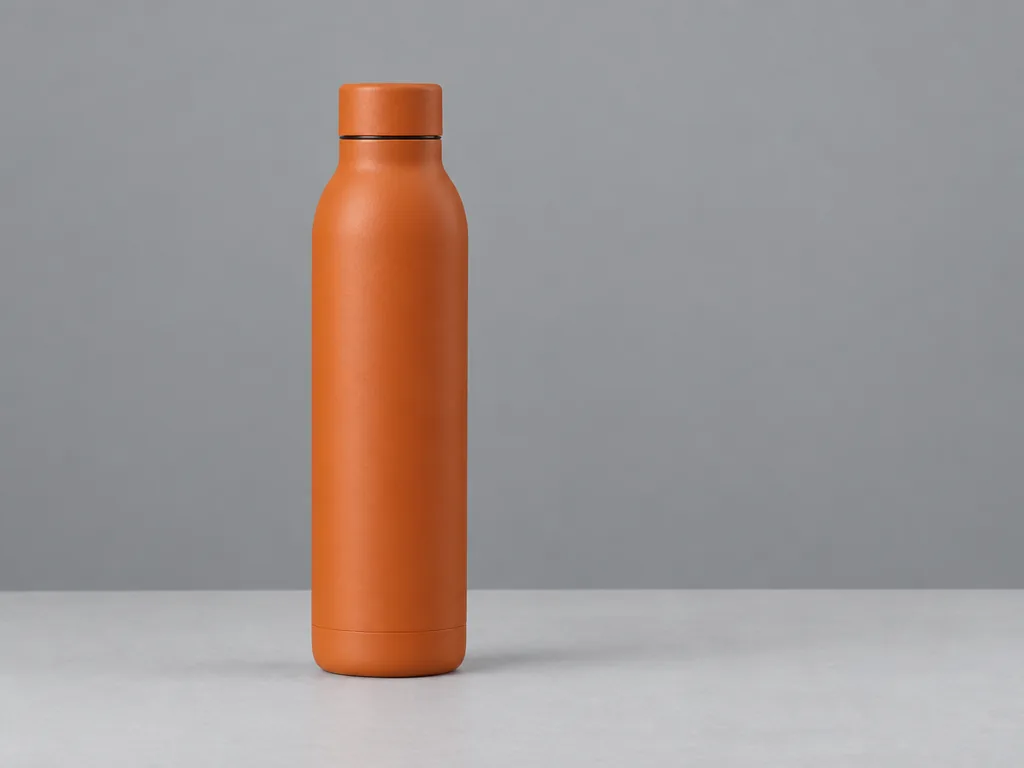
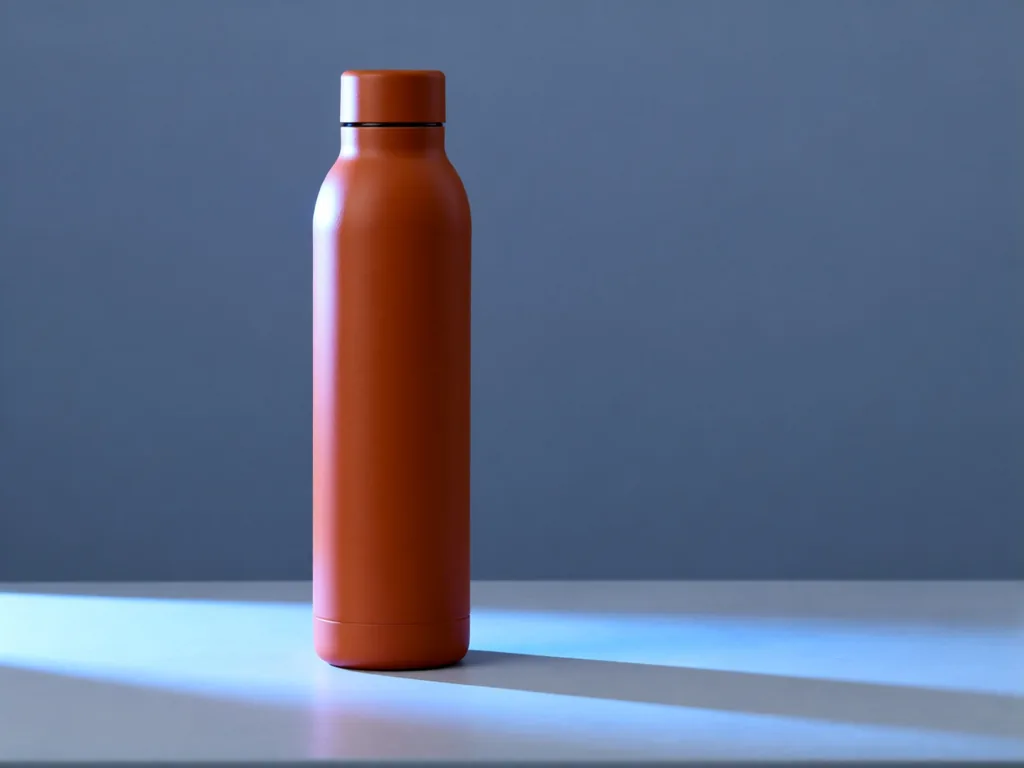
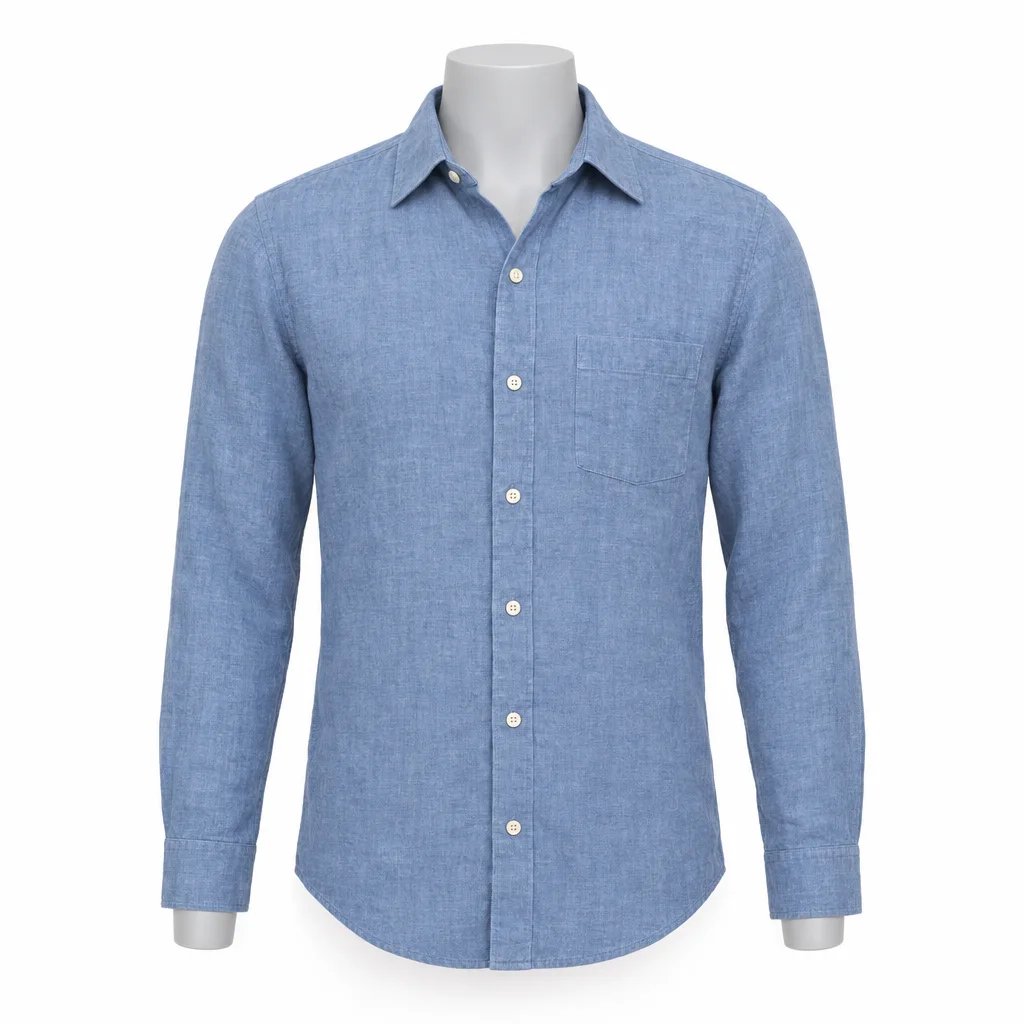
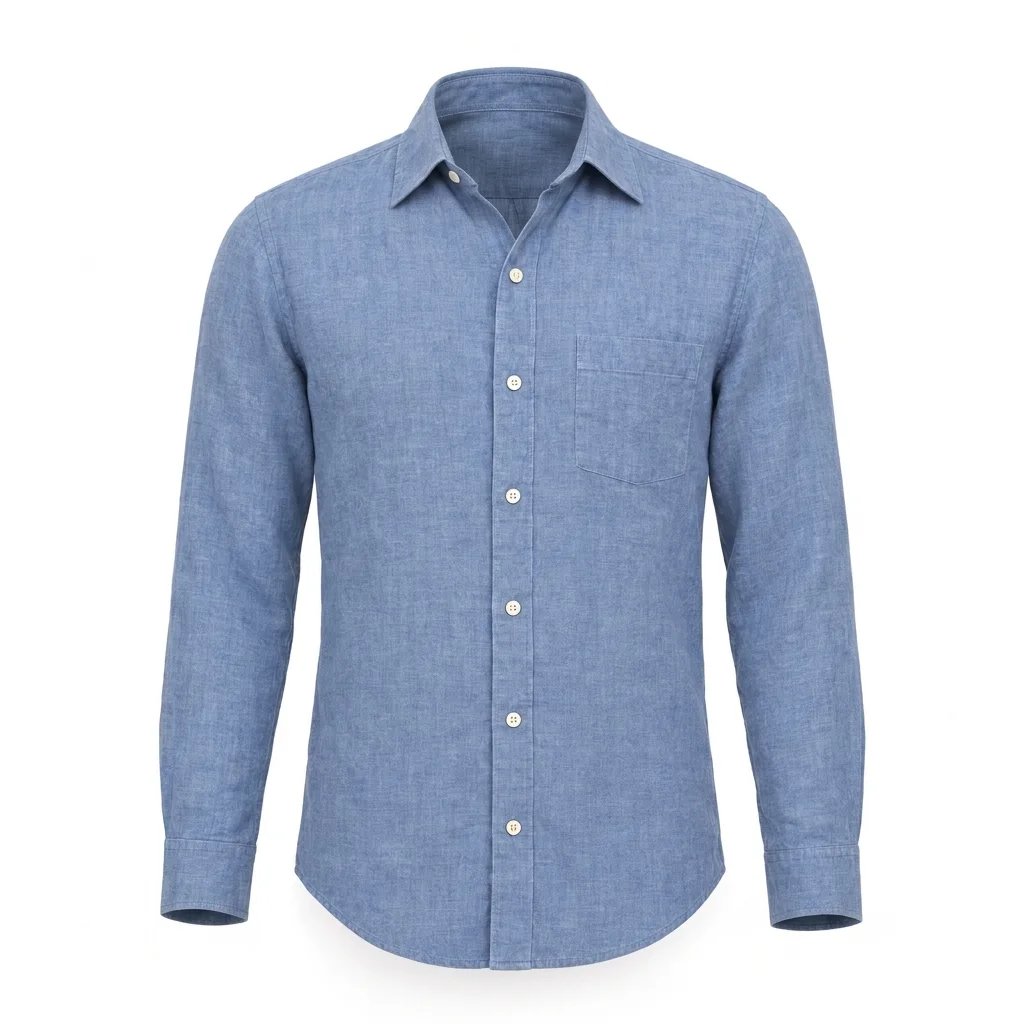
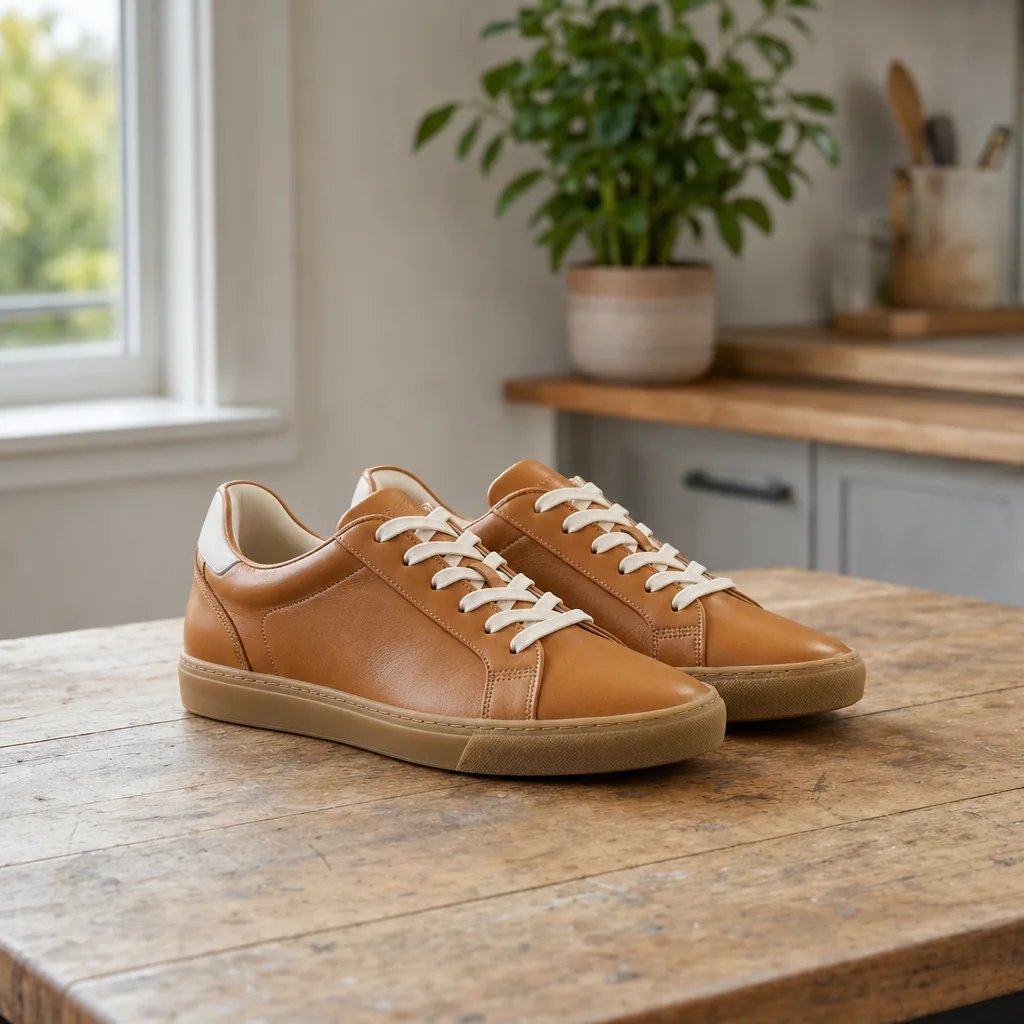
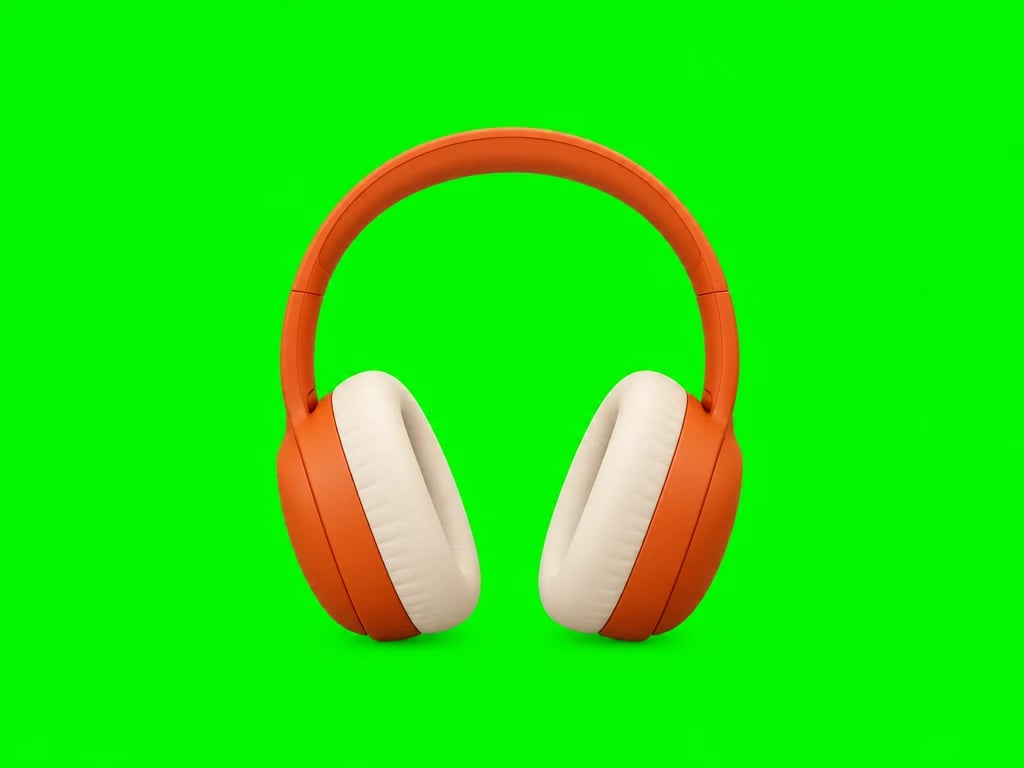
Product lighting
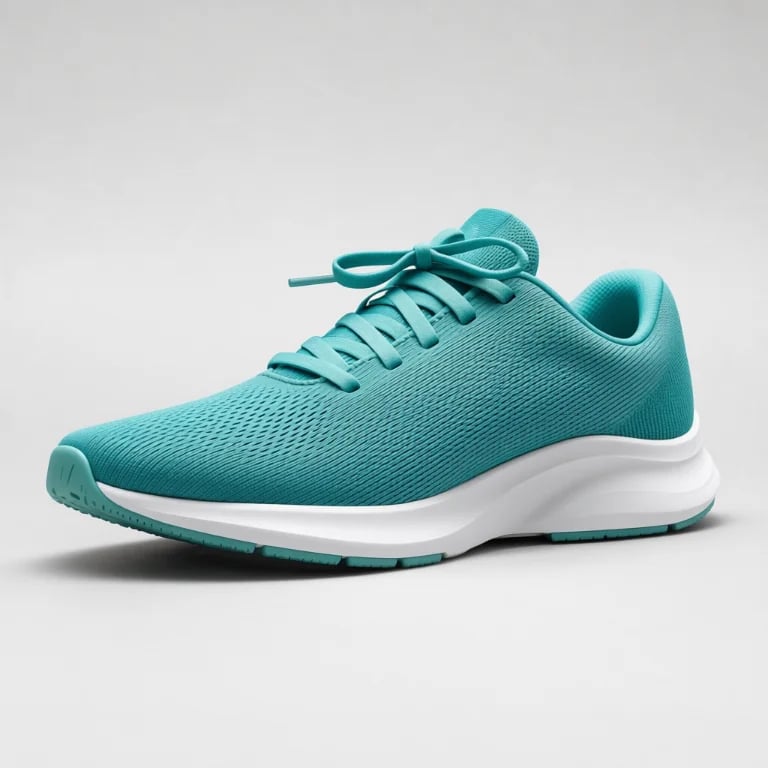
Try a new lighting direction for a product photo before arranging another shoot.
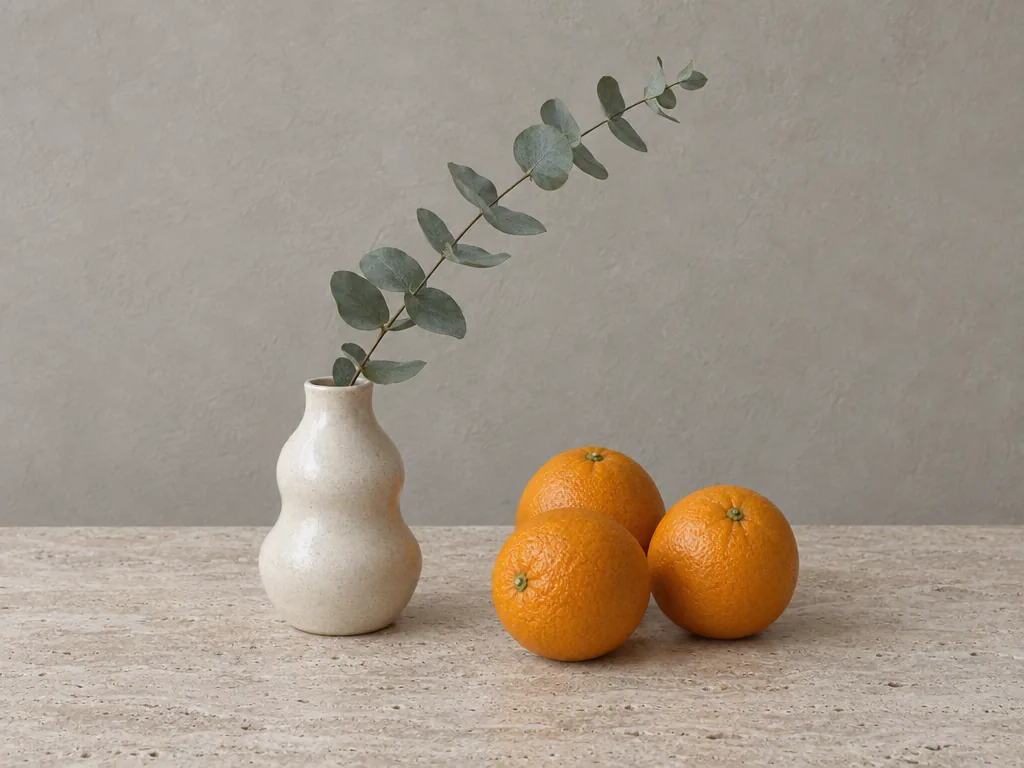
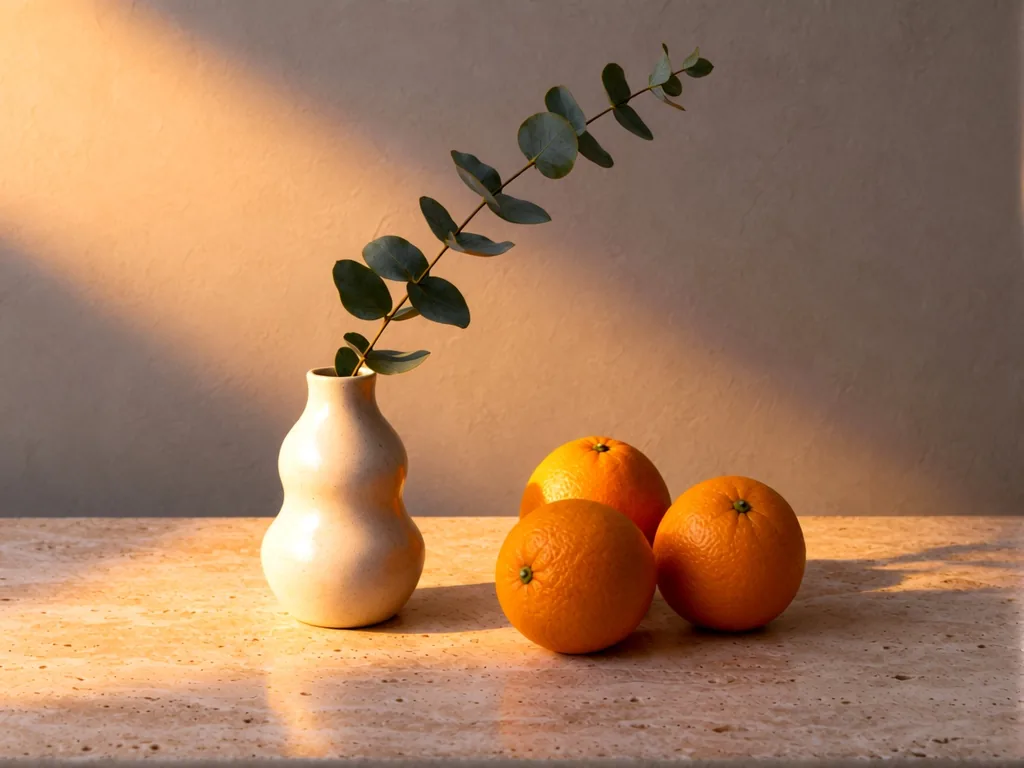
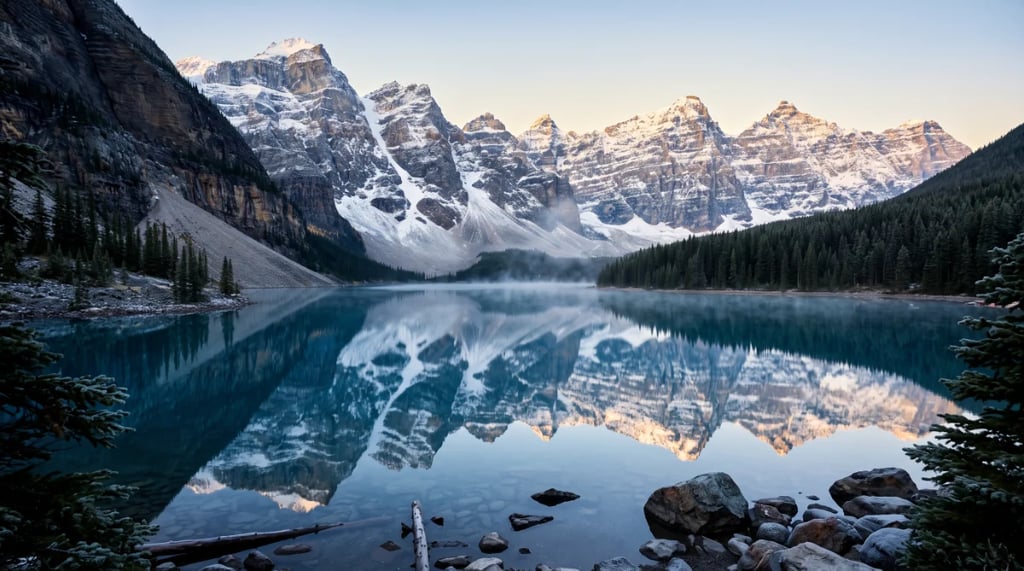
Still-life lighting
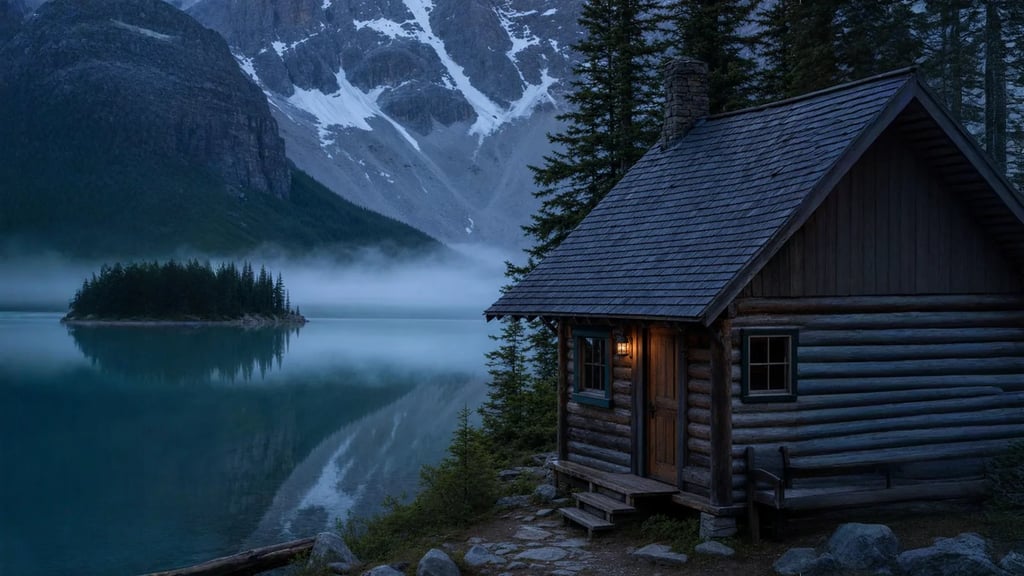
Use light to explore the shape, surface and atmosphere of a still-life arrangement.
How it works
How to relight a photo in three steps
- Step 1
Choose one photo
Upload a JPG, PNG or WebP with a clearly visible subject. Start with a portrait, a product or a simple still life so the lighting change is easy to judge.
- Step 2
Place and shape the light
Choose a direction or move the light in the 3D view. Adjust elevation, brightness, color temperature and diffusion. Moving the controls does not spend credits.
- Step 3
Generate and review
Sign in and generate one relit image for 5 credits. Review the new shadows, colors and subject details in the result, then download the JPEG or try another setup.
Your light, your settings
Control where the light falls and how it feels
Direction and elevation
Start from front, back, left, right, above or below. Refine the horizontal direction and elevation to explore a different relationship between light and shadow.
Brightness and diffusion
Set the light's brightness, then adjust diffusion for a harder or softer lighting character. Try gentle settings first when you want a restrained change.
Warm or cool light
Shift the color temperature to suggest warmer or cooler illumination. Review the generated skin tones and material colors before choosing the version to keep.
Choose the right edit
AI relight or a photo adjustment?
Change the lighting setup
Relighting generates a new interpretation of illumination, including directional highlights and shadows. Use it when you want light to appear to come from somewhere else.
Balance the existing image
For a photo that only needs exposure, contrast or color correction, use Image Adjuster. Those controls tune the existing picture without asking AI to reconstruct its lighting.
Review the details
AI can redraw fine features, lettering and textures while changing the light. Check faces, product labels and important details at full size; exact preservation is not guaranteed.
FAQ
AI photo relighting questions
More tools
More tools for your project
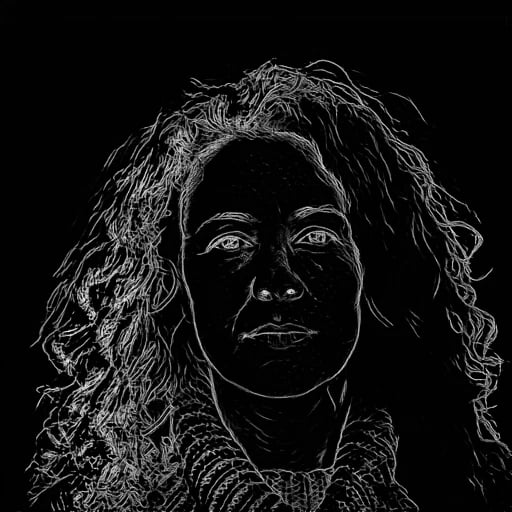
Choose another tool to edit, enhance or transform your images and videos.


Beyond one edit
Build a workflow around your photo
Combine relighting with other image operations in the workflow editor, or return to the controls above to try another light setup.