Image Adjuster & Photo Effects Online
Balance light and color, then add glow, grain or a soft finish. Explore 21 precise controls and five editable looks in one image editor.
Drag the image to pan. Scroll or pinch to zoom. In comparison mode, drag the divider. With the preview focused, use +/− to zoom, arrow keys to pan, and F to fit.
Start with your photo
Drop a photo here or choose a file to start.
JPG, PNG or WebP · up to 32 MiB and 16 megapixels
Edit and download locally in your browser.
Local image editing
Edit and download on your device. Save to assets uploads the adjusted image to your account.
Try image adjustments and photo effects
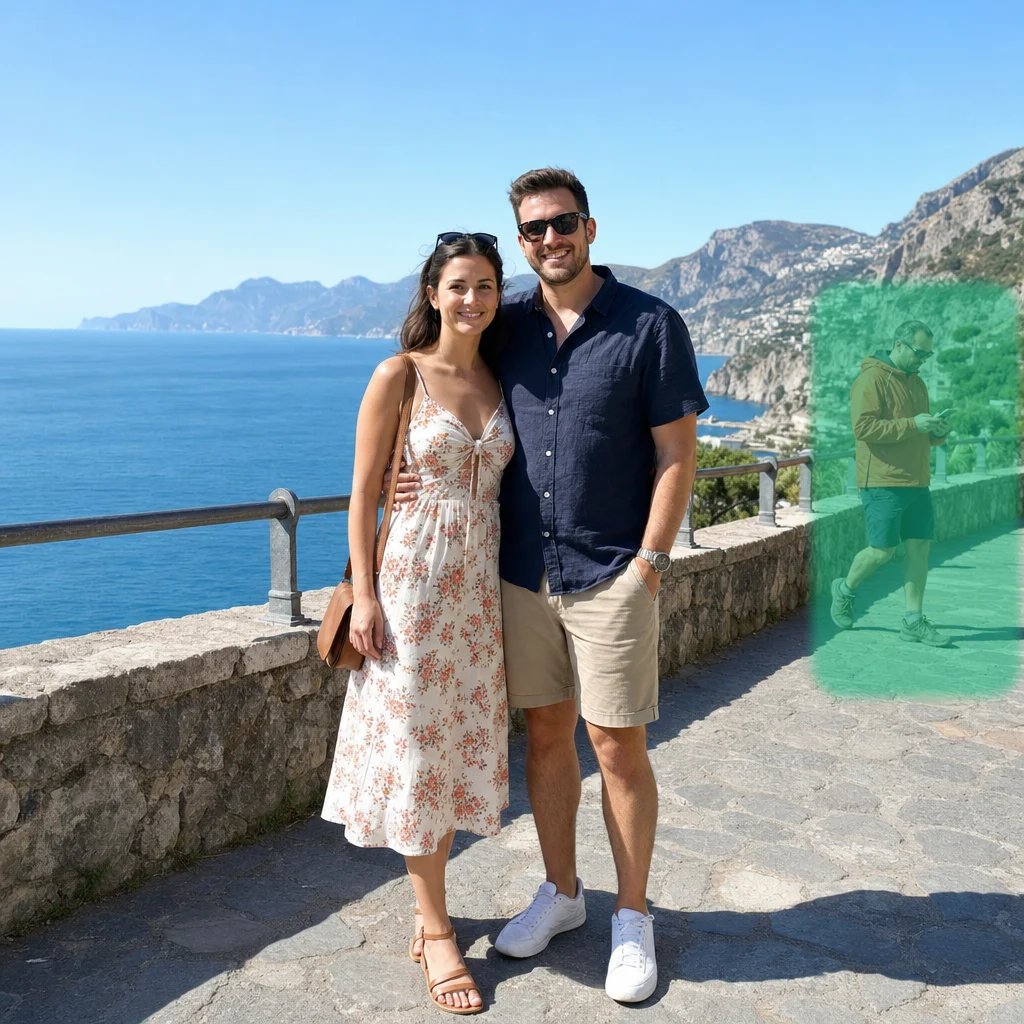
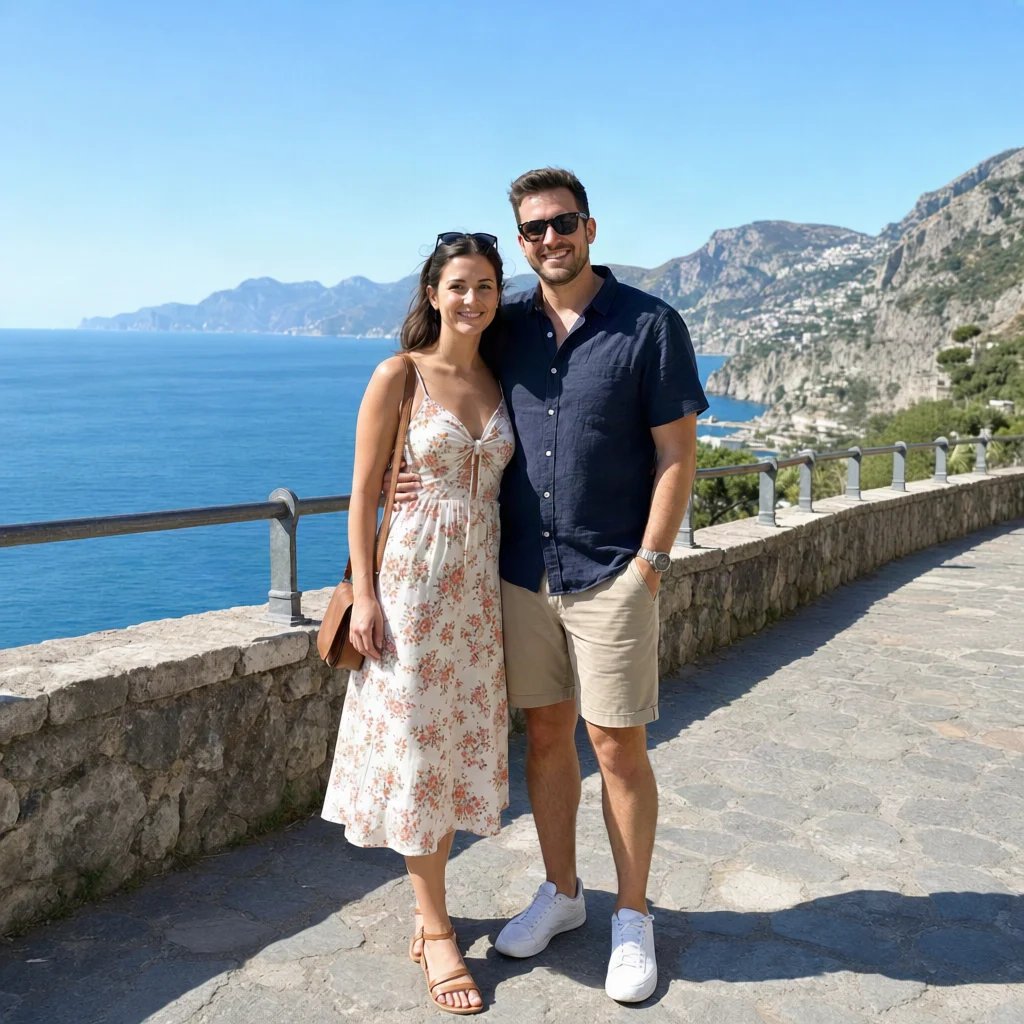
Choose a photo, compare the result and fine-tune the controls. Try it in the editor to combine adjustments and effects.


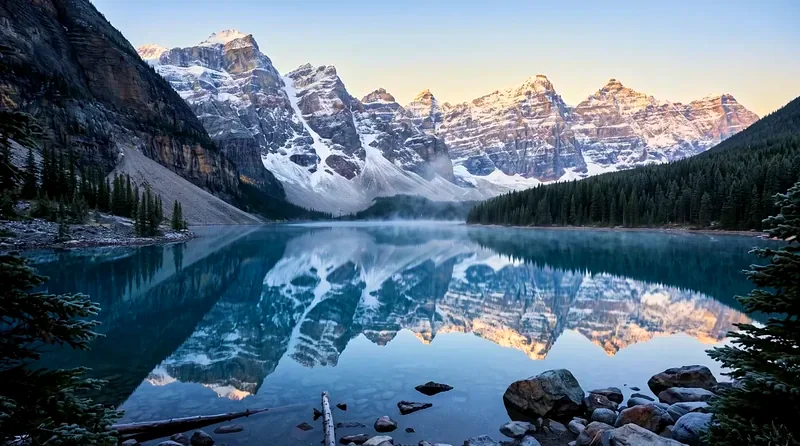
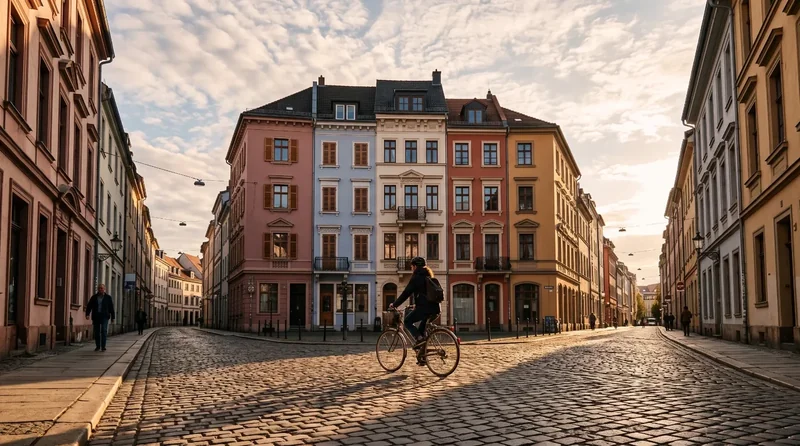


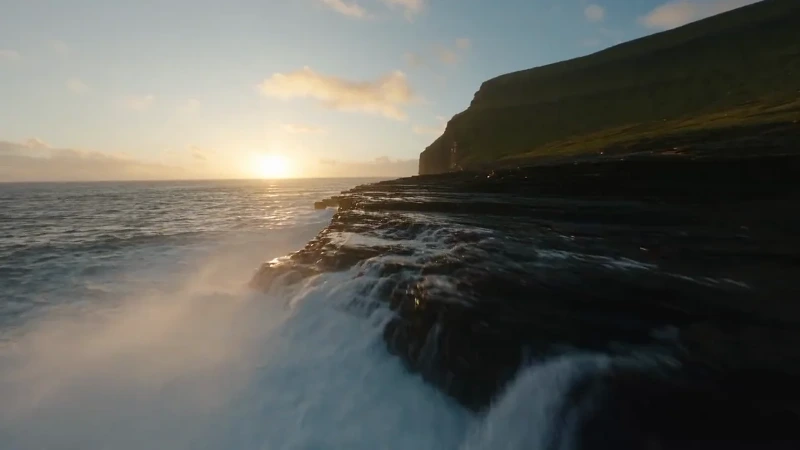
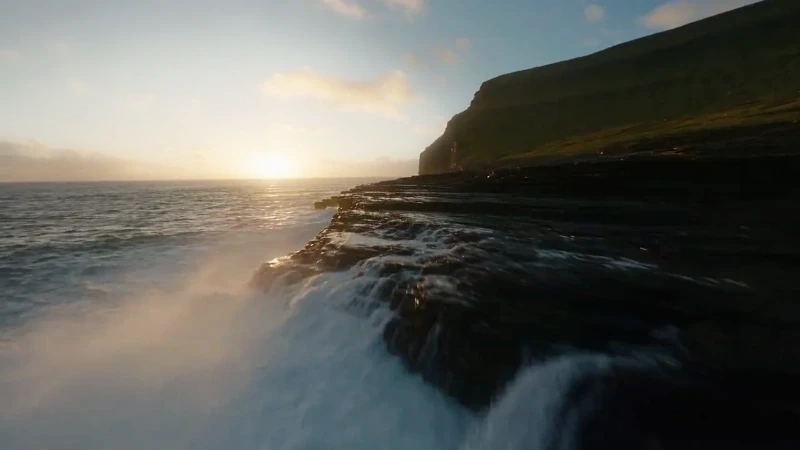


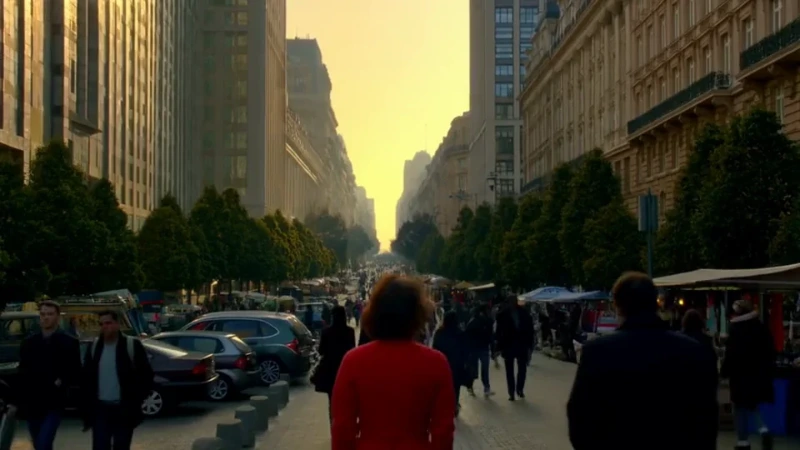
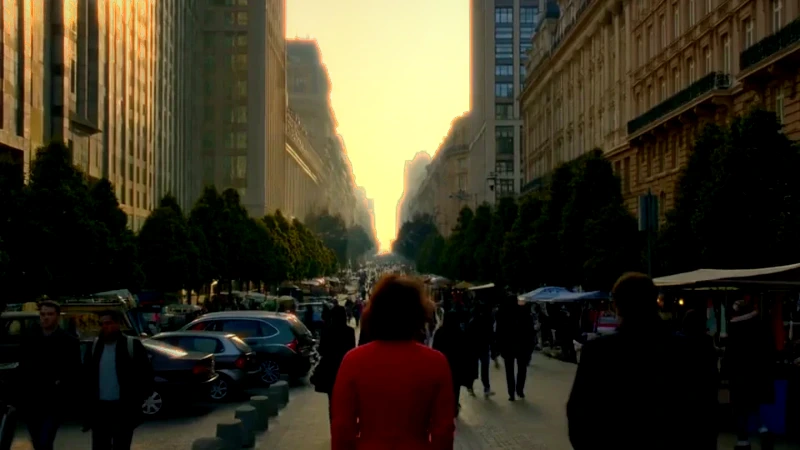
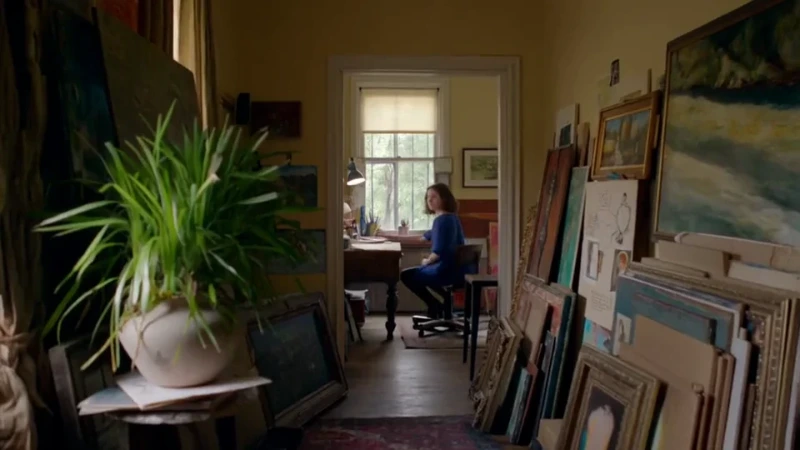
Image adjustments and photo effects
Light
Balance exposure, highlights and shadows.
Color
Fine-tune white balance and color intensity.
Detail
Sharpen edges and add a subtle vignette.
Photo effects
Add bloom, halation, blur and film grain.
Start with balanced light and color, then shape the finish. Compare small changes with the original and inspect texture at 100%.
Exposure changes the overall light level. Contrast changes the separation between tones. Use highlights and shadows to target broader bright or dark areas, then whites and blacks to fine-tune the ends of the tonal range. Raising every control at once can flatten the photograph or push detail beyond the usable range.
Temperature changes the warm–cool balance, while tint addresses green–magenta shifts. Vibrance emphasizes less saturated colors; saturation changes overall color intensity. For portraits and product photos, start with restrained changes and compare skin tones, neutral backgrounds and familiar colors with the original.
Sharpening increases edge definition but cannot restore detail that was never captured. Inspect at 100% before choosing a final amount. Vignette changes edge brightness without changing the composition: negative values darken the edges and positive values lighten them. Keep both restrained for a natural finish.
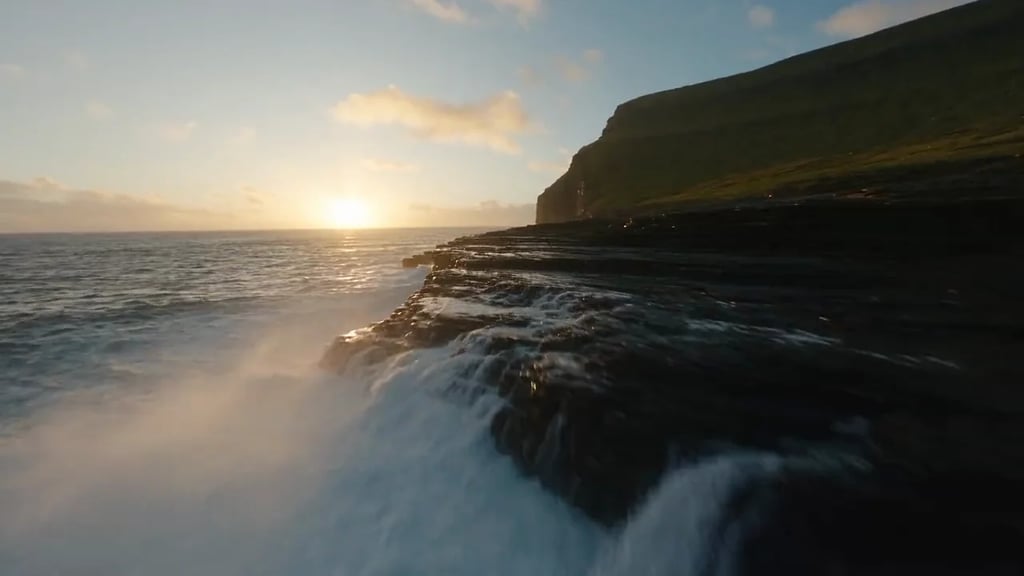
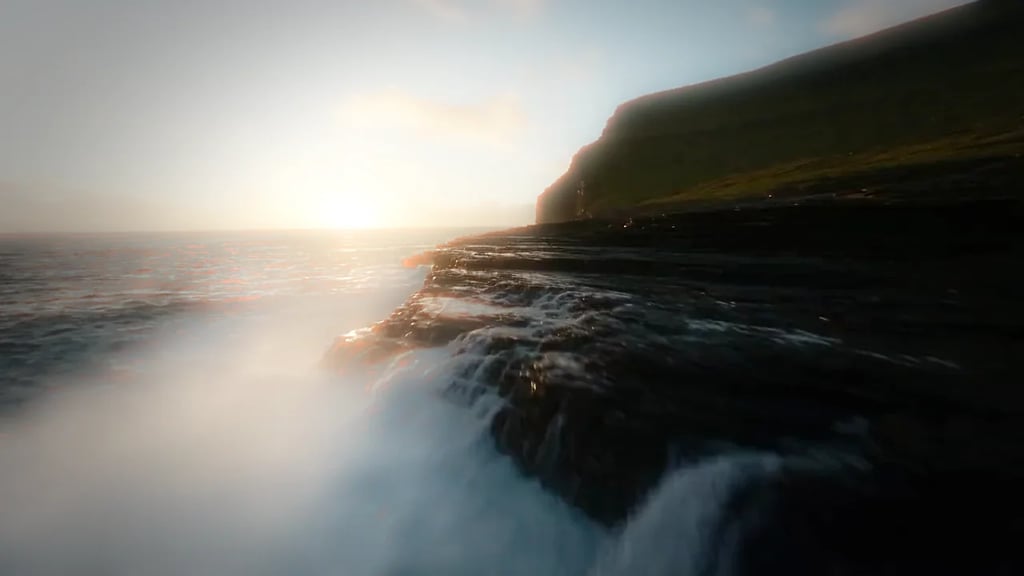
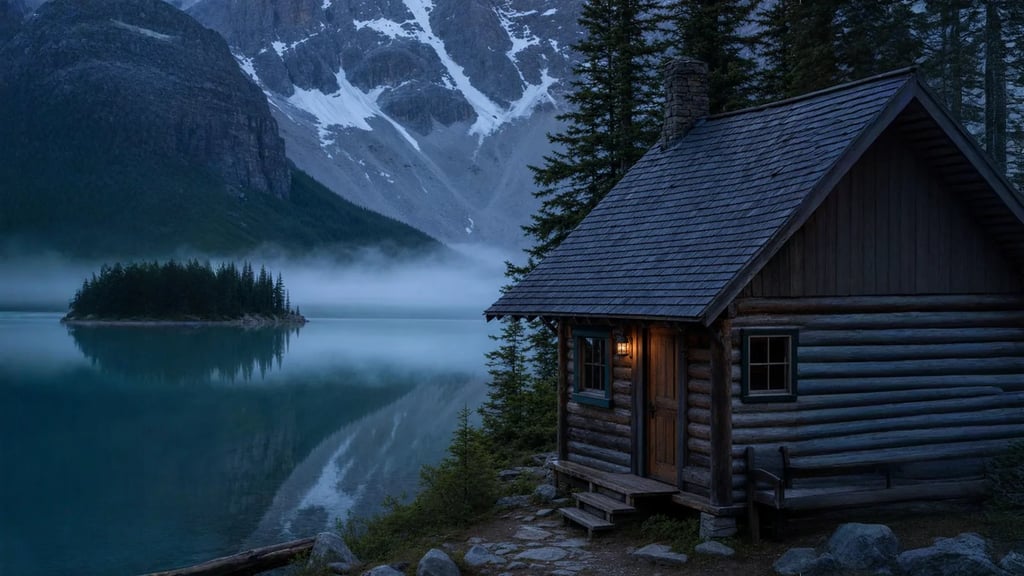
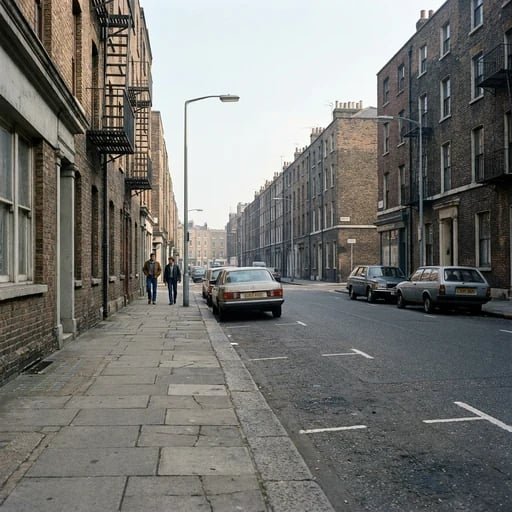
Bloom spreads bright highlights into a soft glow; halation adds a warmer halo around bright edges. The threshold controls which highlights contribute to either effect, and each spread control adjusts its reach. Blur softens the whole photo, with no subject selection. Grain adds fixed texture with adjustable amount, size and color. Start gently, then inspect at the intended viewing size so the finish supports the subject.
The editing workflow
How to adjust an image and add photo effects
Open your original photo
Start with a static JPG, PNG or WebP. Keep the original file so you can return to it while comparing different adjustments.
Adjust and compare
Balance exposure and color, then add bloom, halation, blur or grain. Start with a look or adjust individual controls, and drag the divider to compare.
Choose your output
Use PNG or lossless WebP to preserve transparency. JPEG uses lossy compression and fills transparent areas with white. All downloads keep the original dimensions.
Image adjustment and photo effects questions
More tools
More editing tools
Crop or style a photo, increase its resolution, or move to color grading for video.