

Video tools
Add Watermark to Video
Put your name, logo or artwork on your video. Choose a corner, the center or a full-frame overlay, then refine the size, transparency and timing.
Focus the preview to use these keys.
Drop a video here
MP4, MOV or WebM · up to 60 seconds · 200 MiB
0:00 / 0:00
18
Image width as a percentage of the video width. The image keeps its proportions and stays within the frame.
90
Bottom right
4
Space from the frame edge, as a percentage of its shorter side.
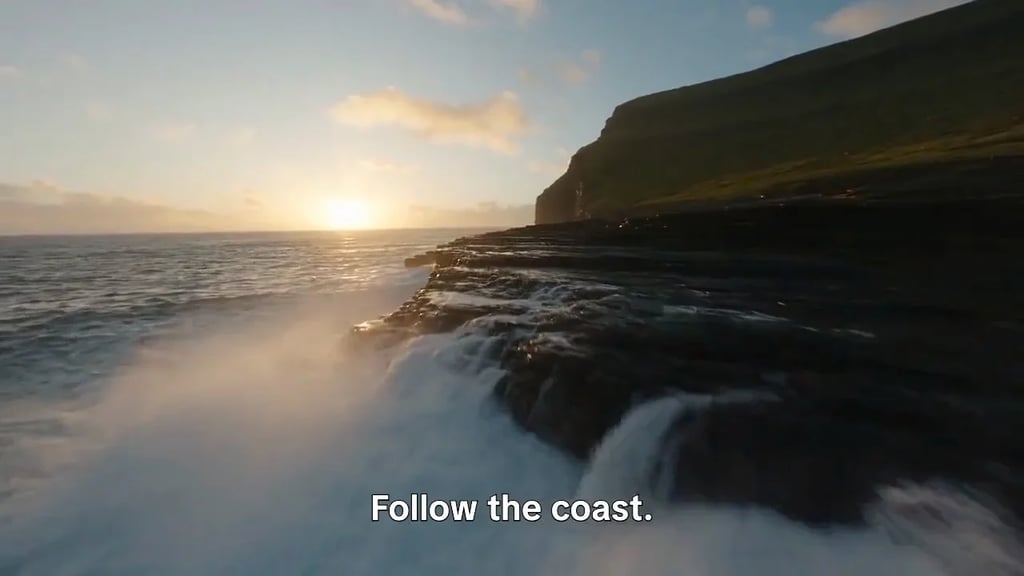
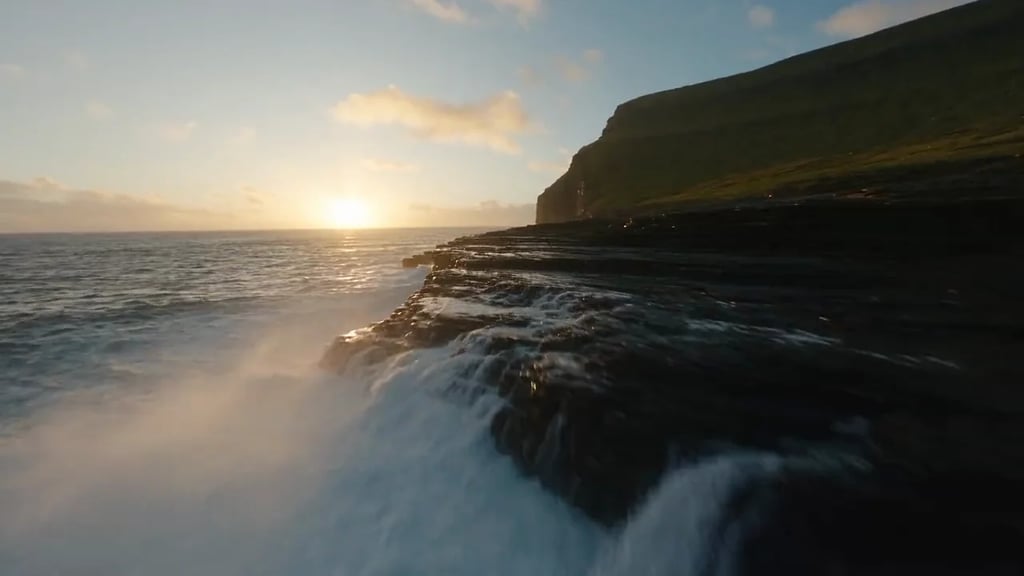
Video watermark examples
Hover to compare the clips, then try the same layout in the editor.
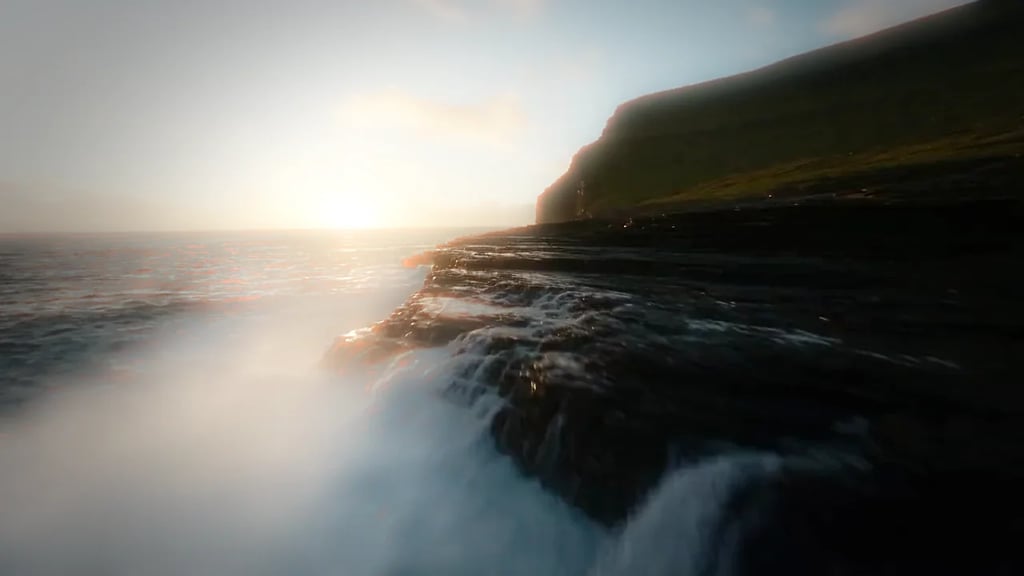
Full-frame overlay
YouArt brand watermarks
Full-frame watermark files from our brand guidelines. Hover to preview, or open a clip in the editor.
Watermarks and brand guidelines
YouArt official watermark

YouArt Creators watermark
Text, logo and full-frame video watermarks
Choose a logo or text
Use a text mark or one PNG, JPEG or WebP image.
Choose one of nine positions
Use corners, edge centers or the center, with fine adjustments.
Fit artwork across the frame
Choose Fit, Fill or Stretch for a full-frame image overlay.
Set visibility and download
Keep the mark throughout the clip or set a timed window and fades.
Start with the mark you want viewers to notice. A small logo can identify a clip without covering its subject; a full-frame image can add a graphic frame or transparent artwork. Preview both bright and dark scenes to check that the result stays readable.
Choose Text to enter a name, handle or short message and set its font, color and size. Choose Logo or image to use a positioned logo or full-frame artwork instead. Switching modes keeps your settings; only the selected type appears in the result. PNG and WebP can preserve transparent areas. JPEG keeps a solid background, which stays visible until you remove it from the image.
The 3×3 grid anchors a mark to the top left, top center, top right, center left, center, center right, bottom left, bottom center or bottom right. Margins keep it away from the edge; X and Y controls refine its position. Left and right always refer to the physical video frame, including in right-to-left interfaces. Check subtitles and faces before exporting.
Fit shows the entire image while preserving its proportions, so mismatched aspect ratios can leave part of the video uncovered. Fill covers the canvas and crops excess artwork. Stretch maps the image to the frame and can distort its shape. Transparent regions reveal the video beneath. Full-frame artwork is available in Logo or image mode.
The default covers the whole clip. Set a start and end when the watermark should appear only for part of the video, then add fade-in or fade-out if needed. Seek through the preview to check the transitions. Download settings control format, resolution and compatible audio; preview mute only changes what you hear while editing.
How to add a watermark to video
Open your video
Choose a local clip or try an example. Signed-in users can also choose a video from their YouArt assets.
Add and position your mark
Enter text, choose a logo or add full-frame artwork. Adjust position, size, opacity and the time it appears while watching the preview.
Export the watermarked clip
Choose an available MP4 or WebM format and audio setting. Download a new video with your watermark applied.
Adding watermarks to video: common questions
Yes. Choose Logo or image for a positioned logo or full-frame image, or choose Text for a written watermark. Only the selected type appears in the preview and export. Switching modes keeps the settings for each type so you can return to them. This tool does not combine separate image and text layers or add animated logos or tiled watermarks.
More tools
Finish your video and prepare your logo
Choose another tool to edit, enhance or transform your images and videos.





















Tool recommendations, page 1 of 4