AI wallpaper generator

AI Wallpaper Generator for Your Phone and Desktop

Make your screen feel personal. Choose phone, desktop or ultrawide proportions, then describe a scene, a few colors or a mood. Add a reference image to guide the look, and ask for quieter space where your icons or clock sit.

8 credits
Teal light over dunes · Desktop 16:9

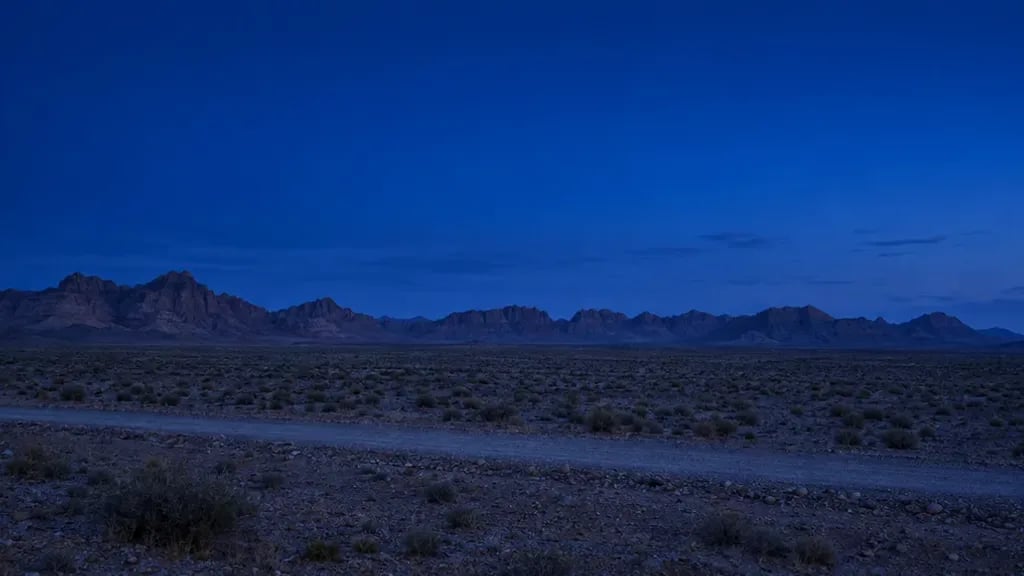
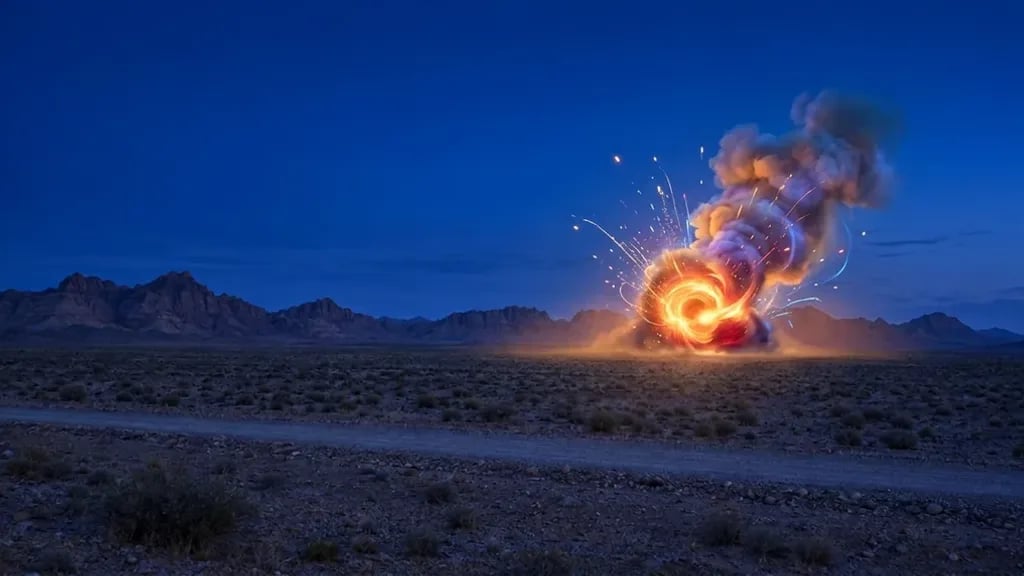
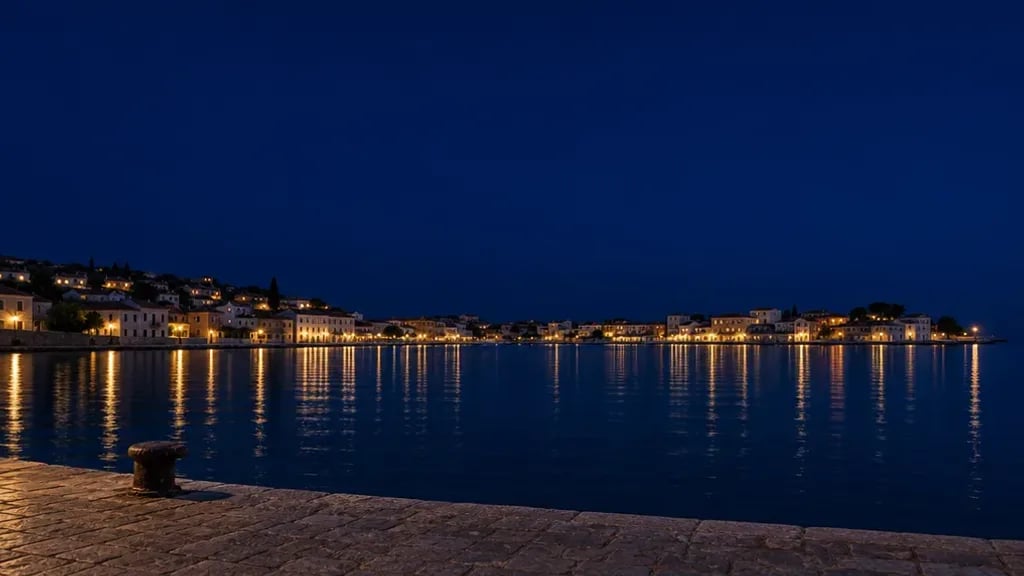
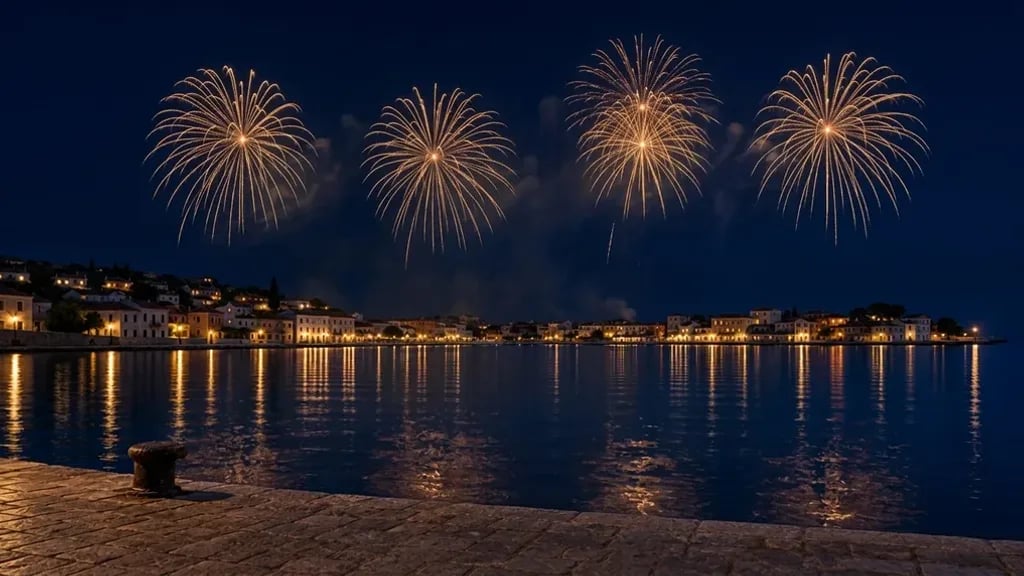
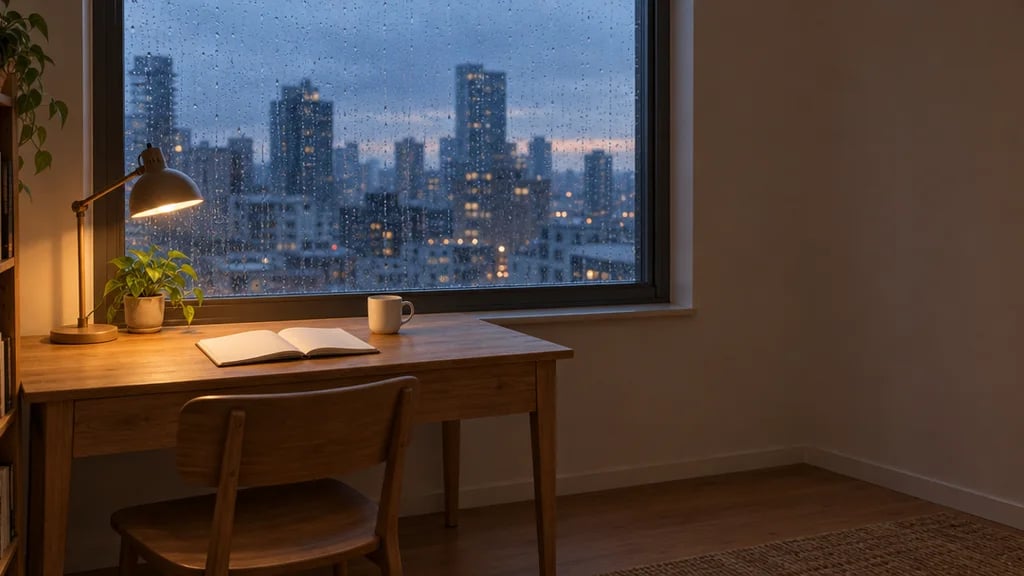
Desktop wallpaper examples created with GPT Image 2.5

Explore Four Wallpaper Directions

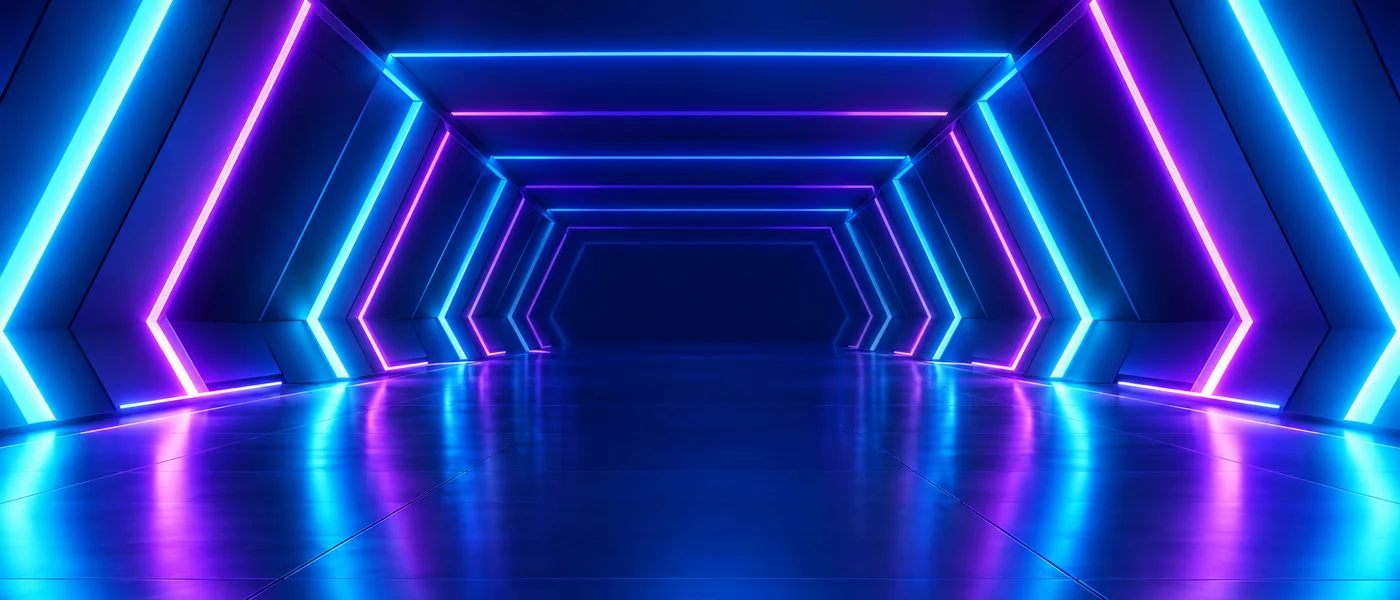
  • Flowing blue forms · Desktop 16:9
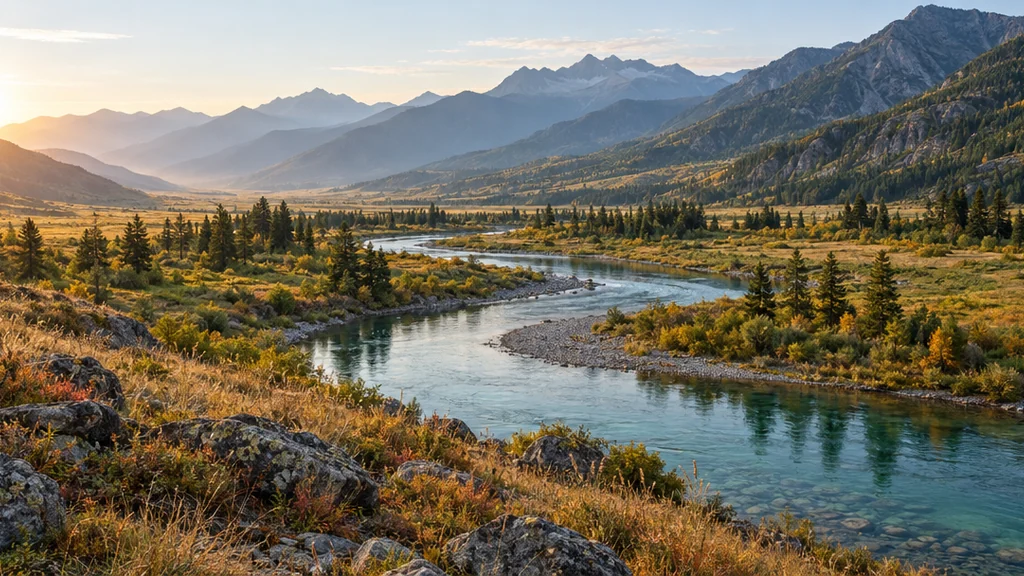
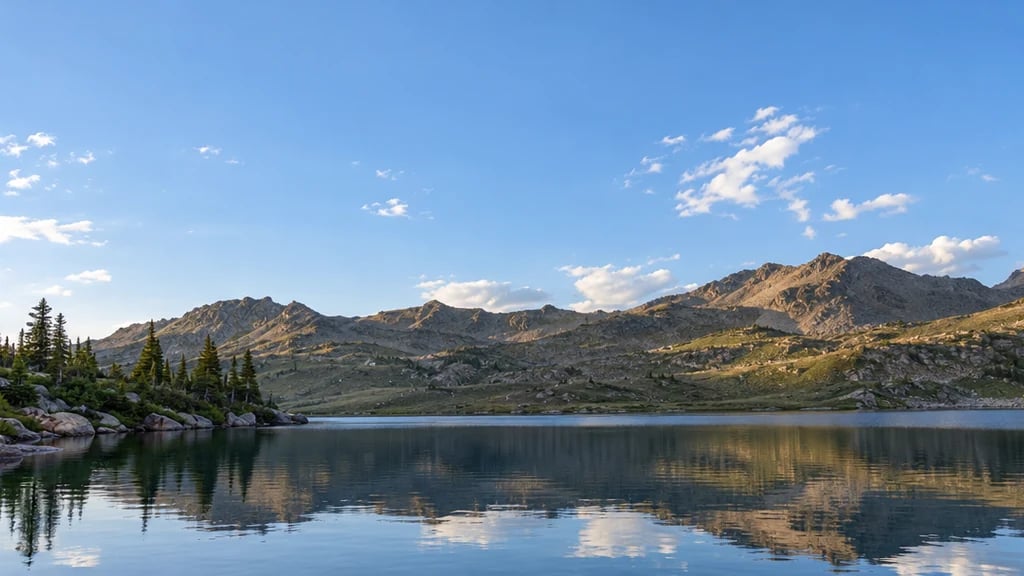
  • Quiet alpine lake · Desktop 16:9
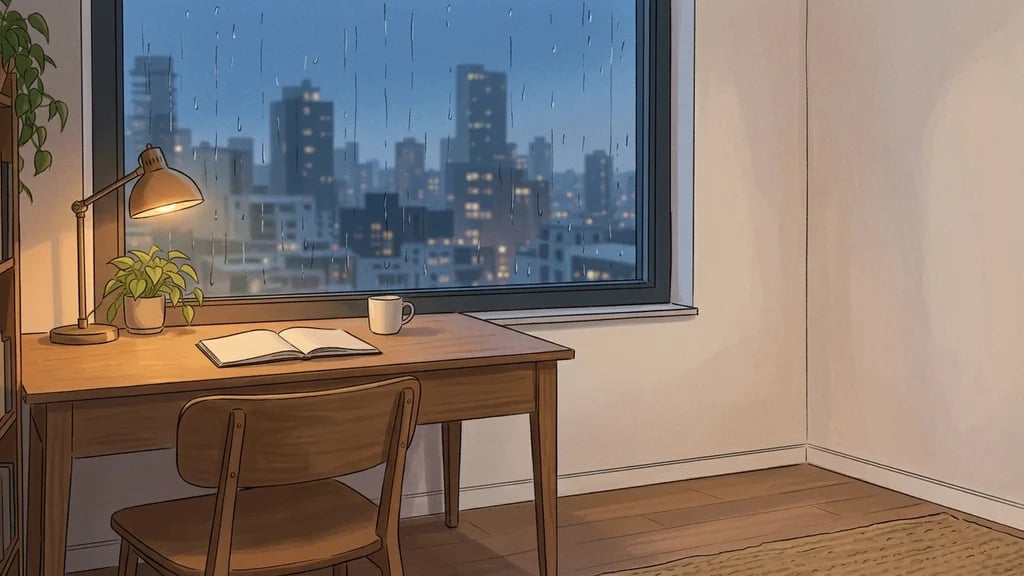
  • Rainy neon city · Desktop 16:9
  • Moonlit floating islands · Desktop 16:9

How it works

Make an AI Wallpaper in Three Steps

  1. Step 1

    Choose your screen and idea

    Select Phone 9:16, Desktop 16:9 or Ultrawide 21:9. Describe the subject, colors and mood, including any area you want to keep quiet for icons or the clock. One reference image can guide the visual direction.

  2. Step 2

    Generate your wallpaper

    Each run creates one 1K still image in your selected ratio for 8 credits. Start from a prompt, a reference image, or both. Changing the words or ratio does not spend credits until you generate.

  3. Step 3

    Preview it on your screen

    Download your chosen image and set it as your background in your device settings. Check how your device crops it and where icons overlap. Adjust your prompt or ratio if another composition would work better.

Wallpaper design

Compose a Background Around Your Screen

A shape for your display

Choose a tall phone composition, a wide desktop view or an ultrawide background before generating. Each ratio gives the scene a different frame. Check your display's proportions when choosing; your device may still crop an image to fill its screen.

Room around your icons

A wallpaper can have a clear focal point without filling every corner. Ask for a darker left side behind desktop icons, a simpler upper area near a phone clock, or softer detail around the main subject. Review the result with your actual screen layout.

A mood you want to return to

Try minimal flowing shapes, quiet natural scenery, a neon city or an imagined world. Specify a small color palette, lighting and detail level to give the background a coherent look. A reference can suggest those qualities without reproducing every object.

Prompt ideas

AI Wallpaper Prompts for Different Screens

Choose the matching ratio in the composer, then describe the scene, palette, lighting and where you need open space. Text inside the prompt does not change the selected ratio.

Calm desktop background

Smooth flowing blue forms with subtle cyan highlights against a deep navy background, one gentle focal curve on the right, spacious darker left side for icons, soft light and restrained detail, no text, border or logo.

Quiet phone lock screen

A small moon above a misty forest, muted green and blue palette, trees concentrated in the lower half, a calm dark upper area for the clock, soft atmospheric light, no text, interface elements or frame.

Expansive ultrawide scene

A distant futuristic city across a wide coastal horizon at blue hour, restrained amber lights, soft reflections and broad stretches of dark water, balanced detail across the scene, no readable signs, logos or borders.

Ways to use it

Personal Backgrounds for Your Everyday Screens

A calmer desktop

Create a background that suits your workspace, from subtle gradients to a quiet landscape. Ask for low-detail areas where shortcuts sit so the scene and your screen layout can work together.

Phone home and lock screens

Explore tall compositions for your phone. Place the subject lower in the frame or simplify the upper background when you want more room around the clock, widgets and notifications.

Room for a wider scene

Use 21:9 framing for an expansive composition with a long horizon or flowing abstract shapes. It gives you a wider source image; review the download on your monitor before deciding how to fit it.

A shared color mood

Keep a palette and theme in your prompts while making separate backgrounds for different screens. Generate each ratio as its own composition rather than expecting one crop to suit every device.

Create more with one YouArt membership

This generator uses 8 credits for one 1K image. Membership credits work across YouArt image, video, audio, and workflow tools.

Basic

For hobbyists and explorers

$9.99/mo
Select Plan
  • 1000 credits
  • Up to ~200 images/month
  • Up to ~332s video/month
  • Intelligent creative agent
  • Video editor
  • Latest image models, including GPT Image 2.5, GPT Image 2 and Nano Banana Pro
  • Latest video models, including Seedance 2
  • Realistic face uploads
  • Voice generation with ElevenLabs
  • No watermark
  • Unlimited template access

Pro

Most Popular

For creators and pro users

$29.99/mo
Select Plan
  • 3300 credits
  • Up to ~1000 images/month
  • Up to ~1100s video/month
  • Intelligent creative agent
  • Video editor
  • Latest image models, including GPT Image 2.5, GPT Image 2 and Nano Banana Pro
  • Latest video models, including Seedance 2
  • Realistic face uploads
  • Voice generation with ElevenLabs
  • No watermark
  • Unlimited template access

Max

For power users and teams

$149.99/mo
Select Plan
  • 18000 credits
  • Up to ~6000 images/month
  • Up to ~6000s video/month
  • Intelligent creative agent
  • Video editor
  • Latest image models, including GPT Image 2.5, GPT Image 2 and Nano Banana Pro
  • Latest video models, including Seedance 2
  • Realistic face uploads
  • Voice generation with ElevenLabs
  • No watermark
  • Unlimited template access

Team

For teams and studios

$329.99/mo
Select Plan
  • 36300 credits
  • Up to ~12000 images/month
  • Up to ~12100s video/month
  • Realistic face uploads
  • Share canvas, workflows, and assets with your team
  • Up to 10 members per team
  • Up to 5 teams
  • Role-based management
  • Team credit management and spending caps
  • Per-member usage tracking

Frequently asked questions

AI Wallpaper Generator FAQ

It creates a still image for a screen background from your words, a reference image, or both. Choose a visual direction such as abstract, nature, neon or fantasy, then describe the colors and composition. You download the image and set it as a wallpaper through your device settings.

Yes. Choose Phone 9:16, Desktop 16:9 or Ultrawide 21:9 in the composer before generating. These are aspect ratios rather than exact device pixel dimensions. Phones and monitors vary, so check your screen's proportions and preview any crop made by your wallpaper settings.

You can upload one reference image with or without a prompt. It can guide the palette, mood and broad composition while the generator creates a new image in your chosen ratio. This is a new interpretation, so individual objects and fine details may change. It does not simply resize the original file.

Name the area you want to keep simple, such as a darker left third for desktop icons or open sky at the top for a lock-screen clock. Describe the subject's position and avoid asking for detail everywhere. The generator does not know your device's interface layout, so preview the result on your screen and refine it if needed.

This page creates one 1K still image per run in the selected aspect ratio. It does not produce native 4K files, live wallpapers or animation. A wide ratio changes the shape of the image; it does not increase its resolution. Review the downloaded image at your display size before using it full screen.

Each generation costs 8 YouArt credits and creates one image. The three ratio options have the same cost. You can edit the prompt, replace the reference or change the ratio before generating; creating another result starts a new paid run.

Keep exploring

More AI art styles to try

The closest looks to this one. Each is a full generator with its own prompt studio and examples.

Browse all 114 AI generators

Build beyond one image

Turn your result into a complete creative workflow

Open YouArt's visual canvas to connect generation, editing, upscaling, animation, and sound in one reusable process.