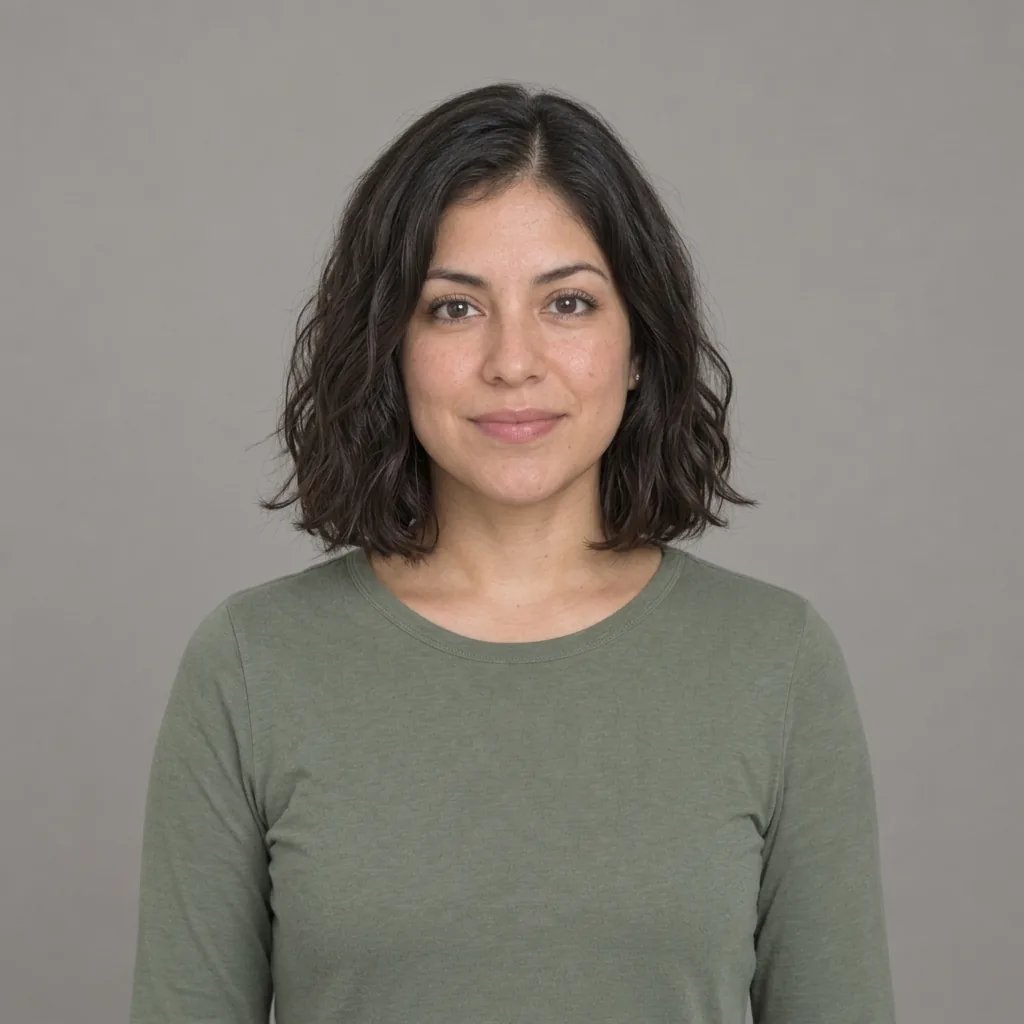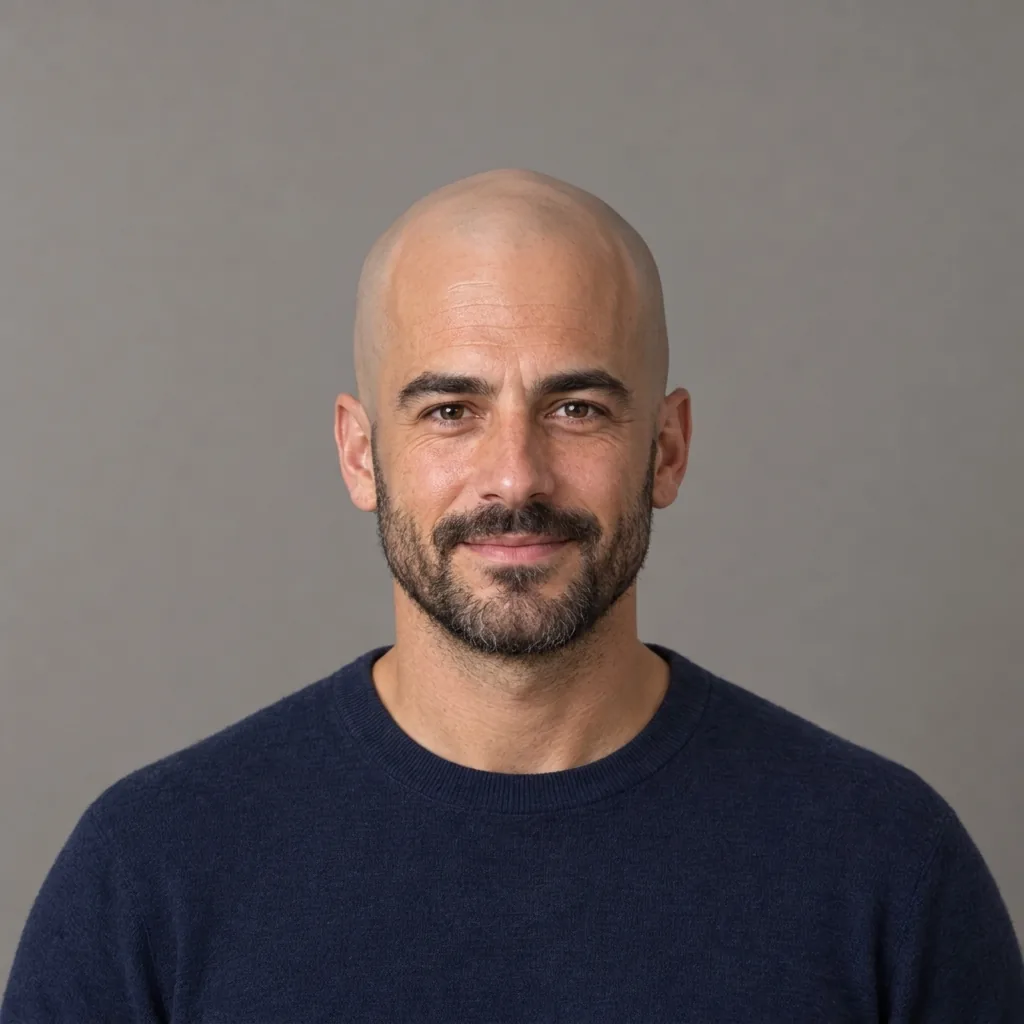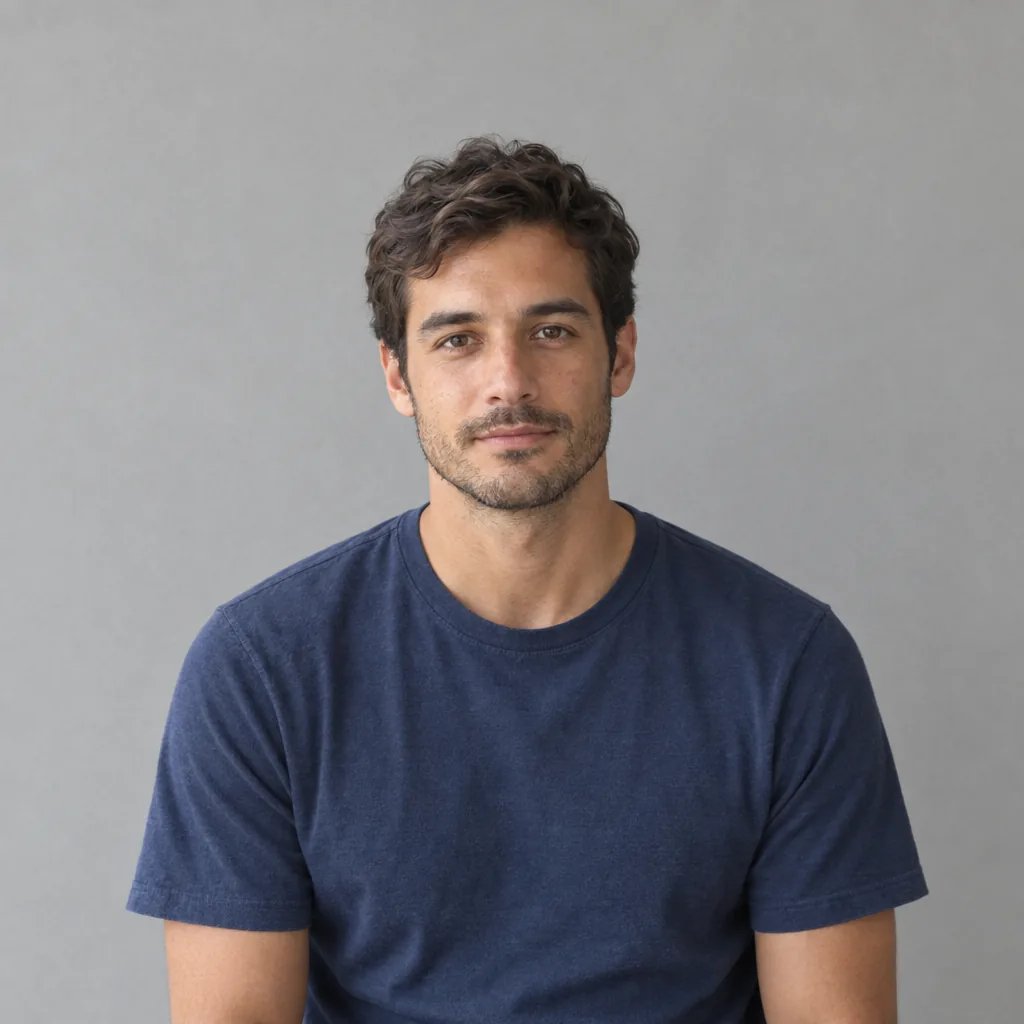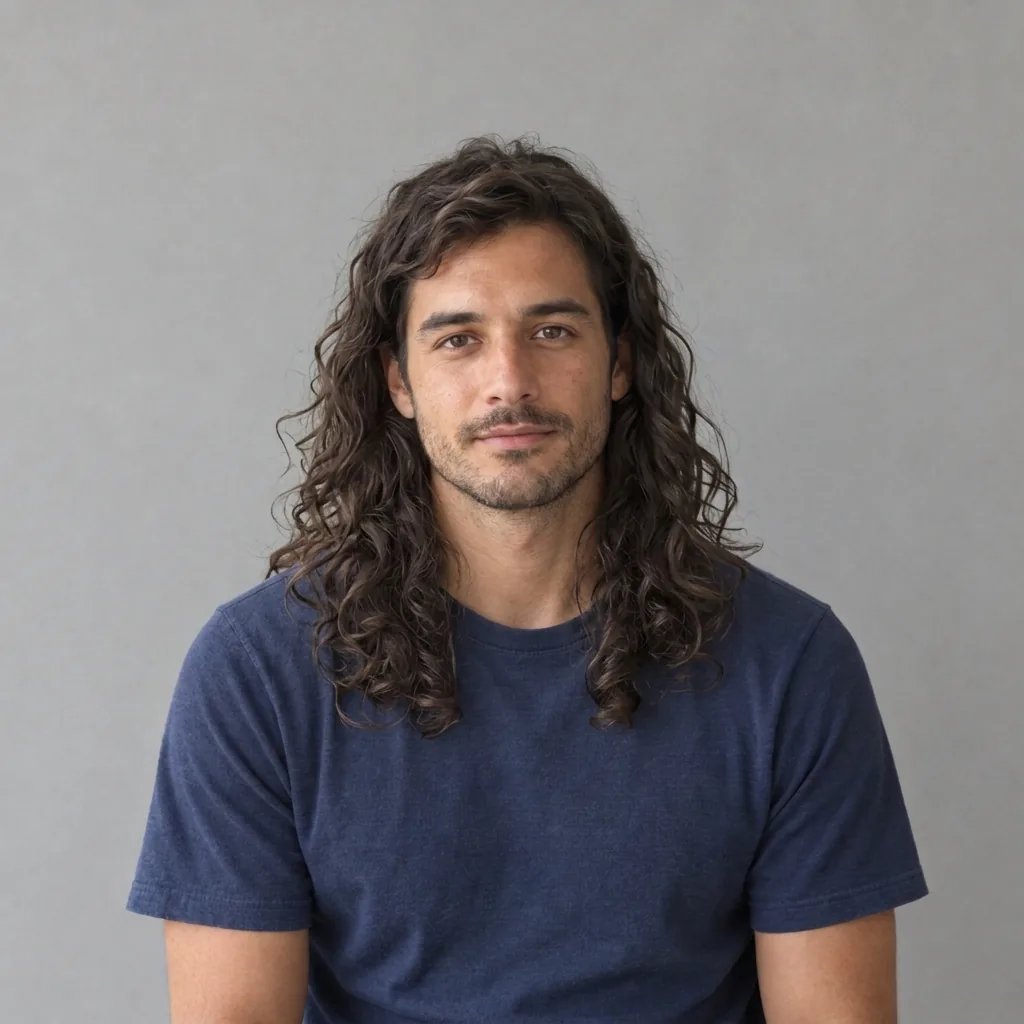
AI hairstyle preview

Curly Hair Filter: Try a New Curl Pattern

Wondering how curls might frame your face? Upload one clear portrait to try defined natural ringlets. Add a short note for loose waves or tighter curls, with your original hair color, face and surroundings guiding the edit.

8 credits
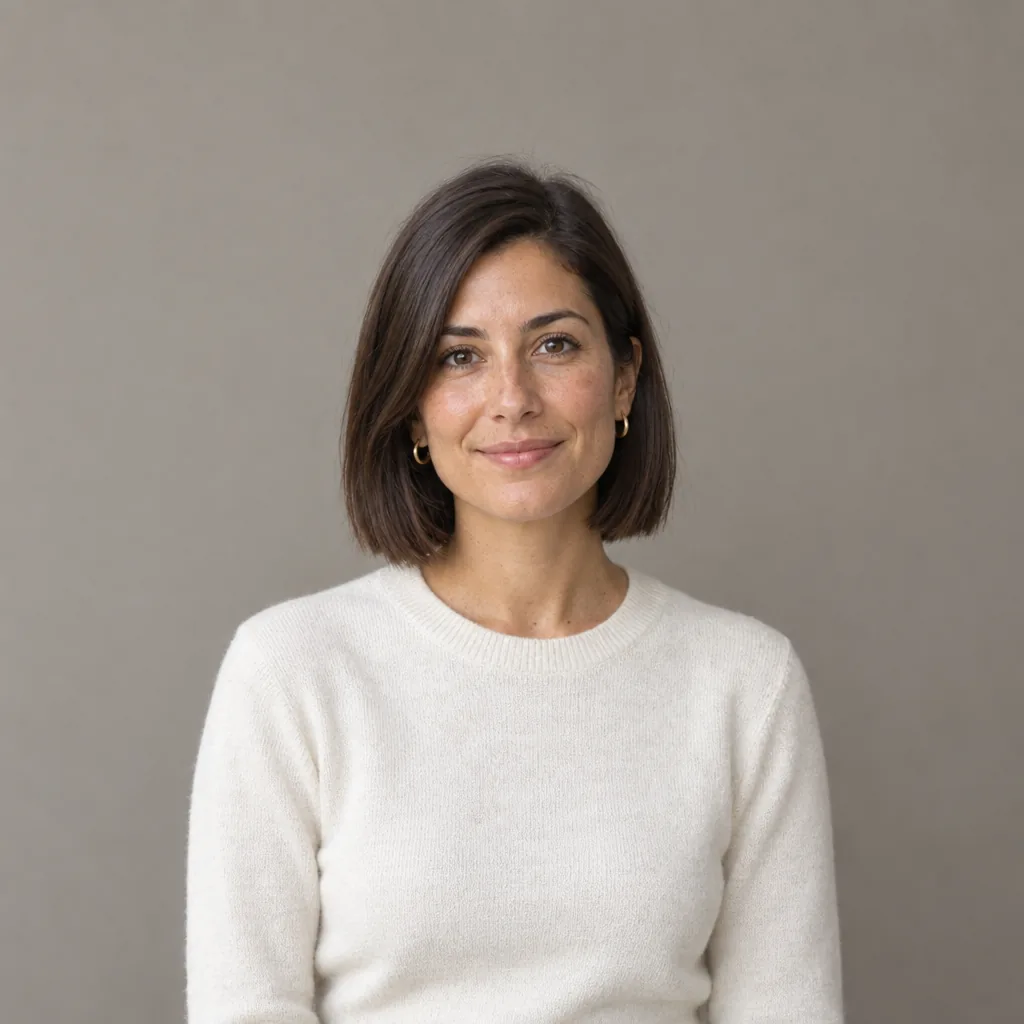
Woman with a straight brown bob and ivory sweater before the curly hair filter
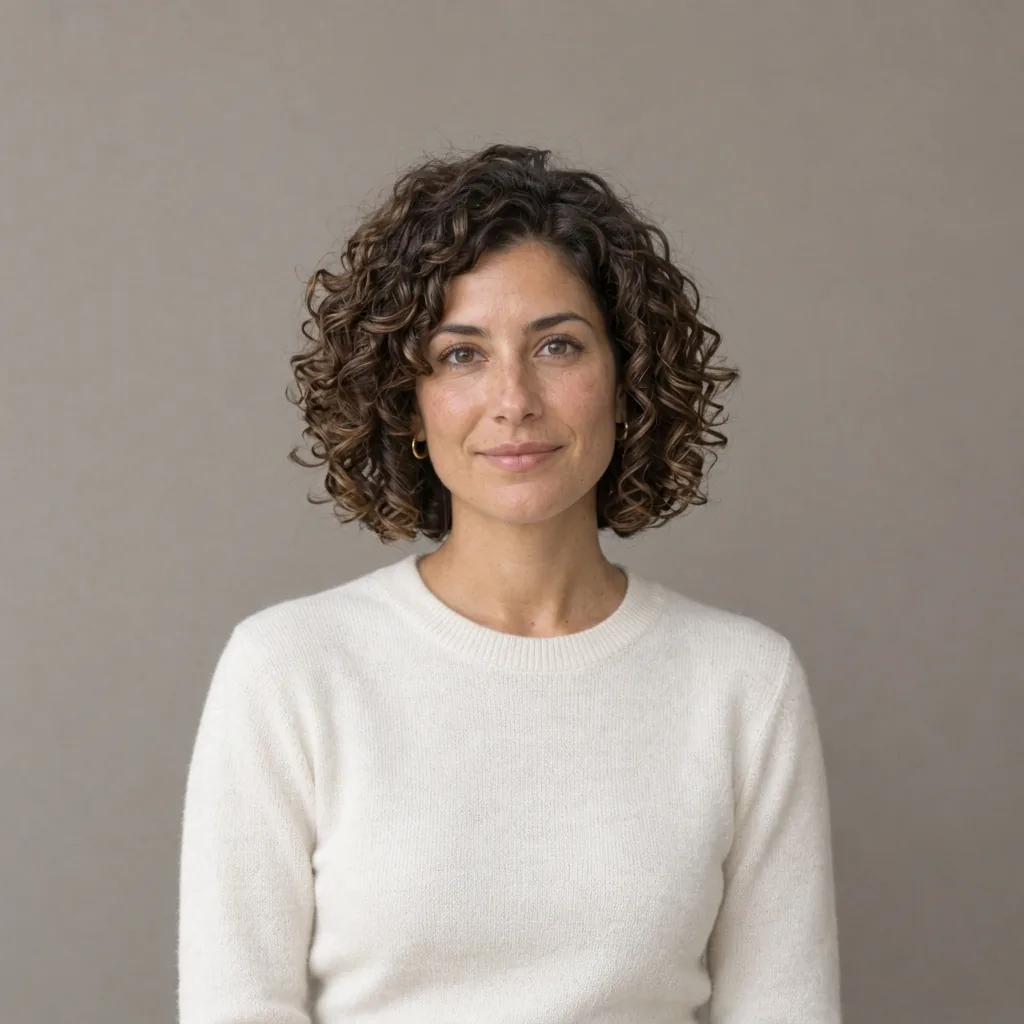
Curly hair filter result with brown ringlets framing the woman's face
Drag to compare a straight bob and defined curls.

Style ideas · GPT Image 2.5

Four Ways to Wear Waves and Curls

  • Soft shoulder-length waves
  • Defined dark ringlets
  • Short, tightly curled hair
  • A soft silver curly bob

How it works

Try the Curly Hair Filter in Three Steps

  1. Step 1

    Choose a clear portrait

    Upload a photo of one person with the hairline, sides and ends visible. A front view or gentle angle in even light gives the edit a useful starting point. Leave space above the crown and around the shoulders so the new volume has room in the square result.

  2. Step 2

    Describe your curl preference

    Leave the text empty for defined medium ringlets, or describe looser waves or tighter curls. Keep the request about hair texture rather than a new face or scene. One generation uses 8 credits and returns one 1K square image; a photo is required.

  3. Step 3

    Compare the whole hairstyle

    Check the curl pattern, hairline, ends and volume against the source. Review the face, ears and any glasses too. Download the result you like, or use a new generation to explore a different curl direction. Each variation is charged separately.

Find your curl direction

An AI Curly Hair Preview Built Around Your Photo

Choose the shape of the curl

Loose waves make broad bends; ringlets form more distinct spirals; tighter curls create a denser silhouette. A short description helps separate those looks. The default aims for medium natural ringlets with irregular strands, not a repeated pattern or a uniform helmet of hair.

Keep familiar details in view

The edit is directed at scalp hair. Your existing color, part, face, clothes and lighting remain its reference. Curls can alter the apparent outline and shorten how far the ends fall, so compare the shape as well as the texture. AI can still change nearby details.

Give new volume enough space

A tightly cropped selfie can hide the top or sides of a curly style. Choose a source with breathing room around the head and visible hair ends. Hair overlapping a busy background, deep shadows or a hat gives the AI less information about where the hairstyle begins and ends.

Optional directions

Simple Prompts for Waves, Ringlets and Coils

A photo alone is enough to start. Describe one curl pattern at a time so the difference is easier to judge.

Loose waves

Soft, loose S-shaped waves with a relaxed outline; keep my hair color, part and approximate haircut length.

Defined ringlets

Medium natural ringlets with separate strands and soft variation, keeping the face and original lighting recognizable.

Tighter curls

Tighter curls with believable volume around the same haircut, without adding length or changing the hair color.

Ways to explore

Compare a Curl Pattern Before Changing Your Look

Explore a different silhouette

See how curls frame a familiar face before choosing a styling direction. Treat the image as a visual idea, not a prediction of how your own hair will respond to a product or salon treatment.

Try curls on shorter hair

Use a clear bob or short-hair portrait to explore a rounder outline and more texture. Keep the ends in frame and ask for the same approximate length if you want to focus on pattern rather than extensions.

Explore longer hairstyles

Compare waves or ringlets through visible shoulder-length hair. Start with a wider portrait when the ends matter; a close face crop cannot show the complete shape of a longer style.

Build a style reference

Save a favorite look to explain the curl size and volume you have in mind. Compare it with your original photo and describe which details you like instead of assuming every strand can be recreated in real life.

Create more with one YouArt membership

This generator uses 8 credits for one 1K image. Membership credits work across YouArt image, video, audio, and workflow tools.

Basic

For hobbyists and explorers

$9.99/mo
Select Plan
  • 1000 credits
  • Up to ~200 images/month
  • Up to ~332s video/month
  • Intelligent creative agent
  • Video editor
  • Latest image models, including GPT Image 2.5, GPT Image 2 and Nano Banana Pro
  • Latest video models, including Seedance 2
  • Realistic face uploads
  • Voice generation with ElevenLabs
  • No watermark
  • Unlimited template access

Pro

Most Popular

For creators and pro users

$29.99/mo
Select Plan
  • 3300 credits
  • Up to ~1000 images/month
  • Up to ~1100s video/month
  • Intelligent creative agent
  • Video editor
  • Latest image models, including GPT Image 2.5, GPT Image 2 and Nano Banana Pro
  • Latest video models, including Seedance 2
  • Realistic face uploads
  • Voice generation with ElevenLabs
  • No watermark
  • Unlimited template access

Max

For power users and teams

$149.99/mo
Select Plan
  • 18000 credits
  • Up to ~6000 images/month
  • Up to ~6000s video/month
  • Intelligent creative agent
  • Video editor
  • Latest image models, including GPT Image 2.5, GPT Image 2 and Nano Banana Pro
  • Latest video models, including Seedance 2
  • Realistic face uploads
  • Voice generation with ElevenLabs
  • No watermark
  • Unlimited template access

Team

For teams and studios

$329.99/mo
Select Plan
  • 36300 credits
  • Up to ~12000 images/month
  • Up to ~12100s video/month
  • Realistic face uploads
  • Share canvas, workflows, and assets with your team
  • Up to 10 members per team
  • Up to 5 teams
  • Role-based management
  • Team credit management and spending caps
  • Per-member usage tracking

Questions answered

Curly Hair Filter FAQ

It creates a new version of your portrait with a curly hairstyle. Defined medium ringlets are the default. The edit uses your photo to guide the person, hair color and scene; optional words guide the curl pattern. Text alone cannot start a generation.

Yes. Describe the pattern in the optional text box, such as loose waves or tighter curls. These are text directions, not separate curl-size controls. Different sources can give different results, so try one clear request and compare it before generating another variation.

The instructions aim to keep the original color and approximate haircut length. Curling changes the apparent length because the strands bend and gather. This page is not a hair-color changer or a long-hair extension tool, and the preview does not predict real shrinkage or a perm result.

The filter aims to retain recognizable facial features, skin texture, clothes and background. AI can unintentionally alter details, especially near the hairline, ears or glasses. Compare those areas with the original before choosing an image.

Use a sharp, evenly lit portrait of one person with visible hair, a clear hairline and space around the head. Avoid hats, heavy motion blur and hands covering the hair. A bald or mostly hidden scalp gives the edit little texture or haircut information to follow.

Each generation uses 8 YouArt credits and returns one 1K image in a fixed 1:1 square frame. Uploading the photo or editing optional words does not start a paid run. Every generated variation uses another 8 credits, shown before generation.

Keep exploring

More AI art styles to try

The closest looks to this one. Each is a full generator with its own prompt studio and examples.

Browse all 117 AI generators

Build beyond one image

Turn your result into a complete creative workflow

Open YouArt's visual canvas to connect generation, editing, upscaling, animation, and sound in one reusable process.