Hairstyle try-on

AI Hairstyle Changer: Picture a New Haircut Before Your Appointment

Thinking about a bob, a pixie cut or a fade? Upload one portrait and pick a cut, or describe the one you have in mind. The new haircut is built in your own hair texture and color, with your face, clothes and background as the reference, so you can compare it with your original before you book.

Pick a haircut

The cut you pick is added to your words rather than typed into the box, so use the box for details such as length or parting. Pick one at a time and tap it again to clear it. With no cut and no words, the aim is a chin-length bob with soft layers for hair at or past your shoulders, and a textured crop, close at the sides with more length on top, for shorter hair. If it comes back too long or too close to your current cut, pick a cut and generate again.

8 credits
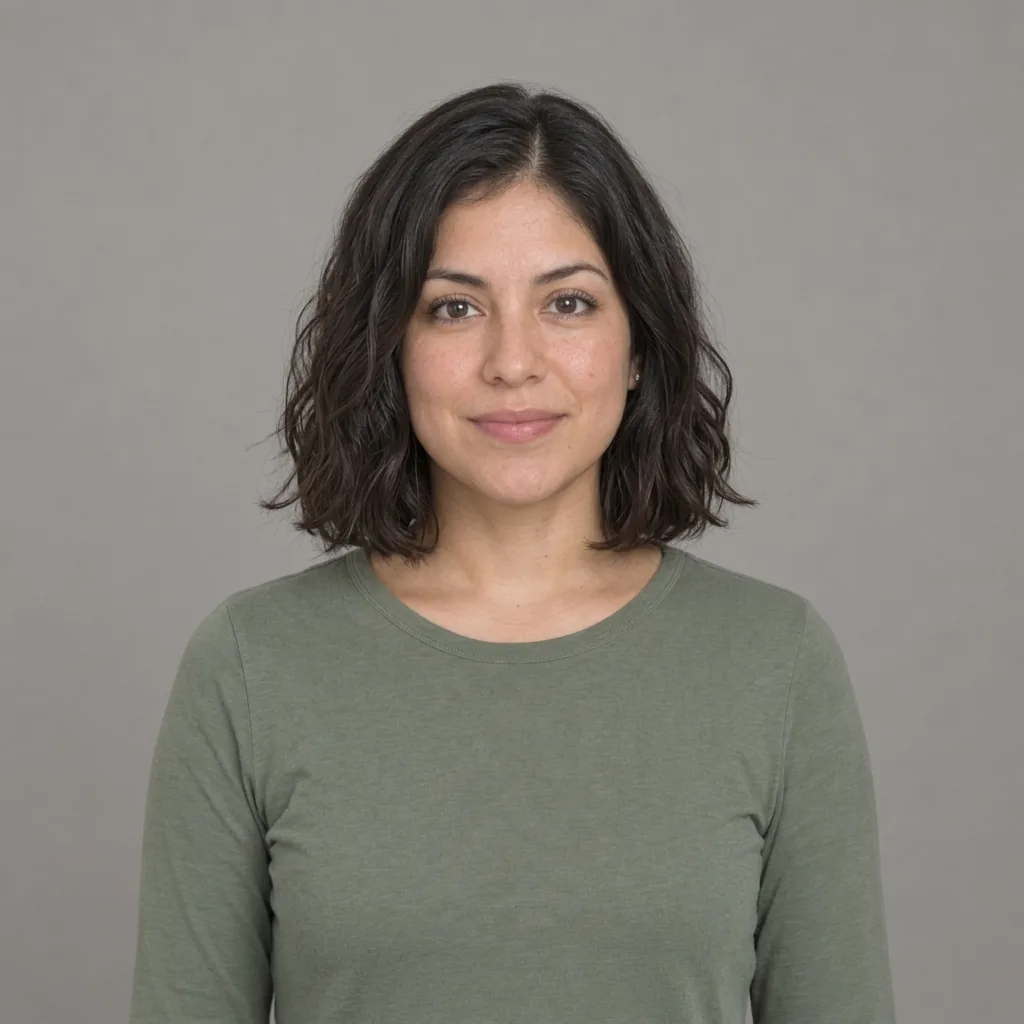
Woman in her early 30s with long dark-brown waves falling past her shoulders, a sage top and a plain warm-gray backdrop
AI hairstyle changer result: the same woman with her dark-brown waves cut into a bob with soft layers that ends just below the chin
Drag to compare long waves with the default bob.

Haircut examples

Haircuts to Try with the AI Hair Changer: Bob, Wolf Cut, Fade and Pixie

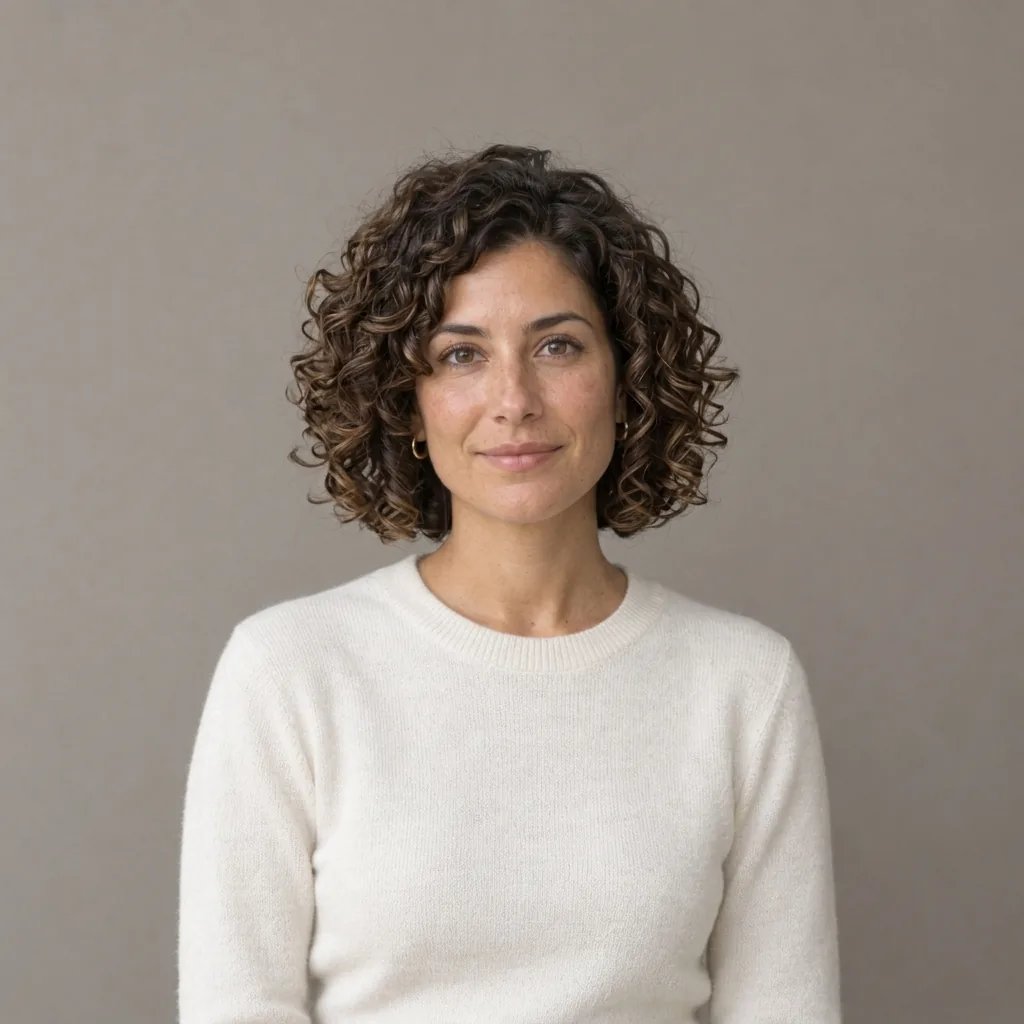
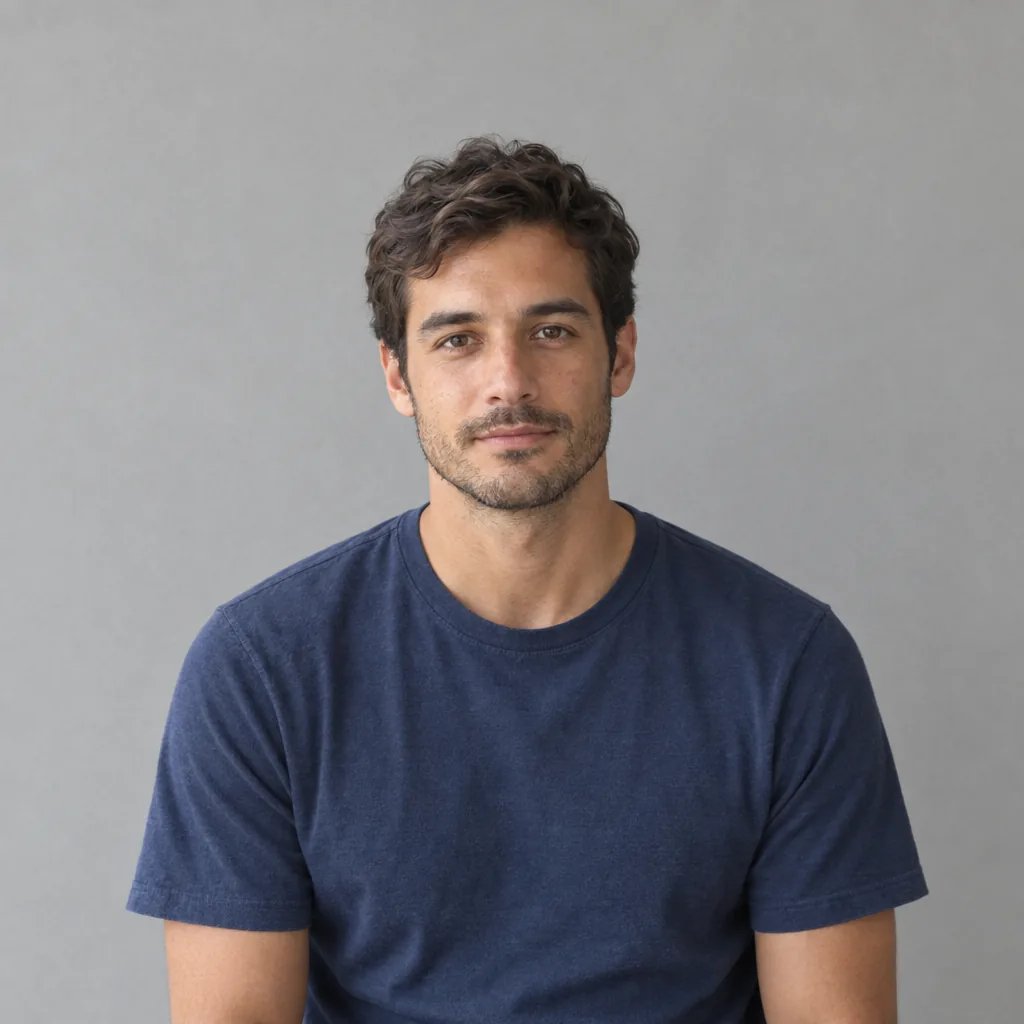
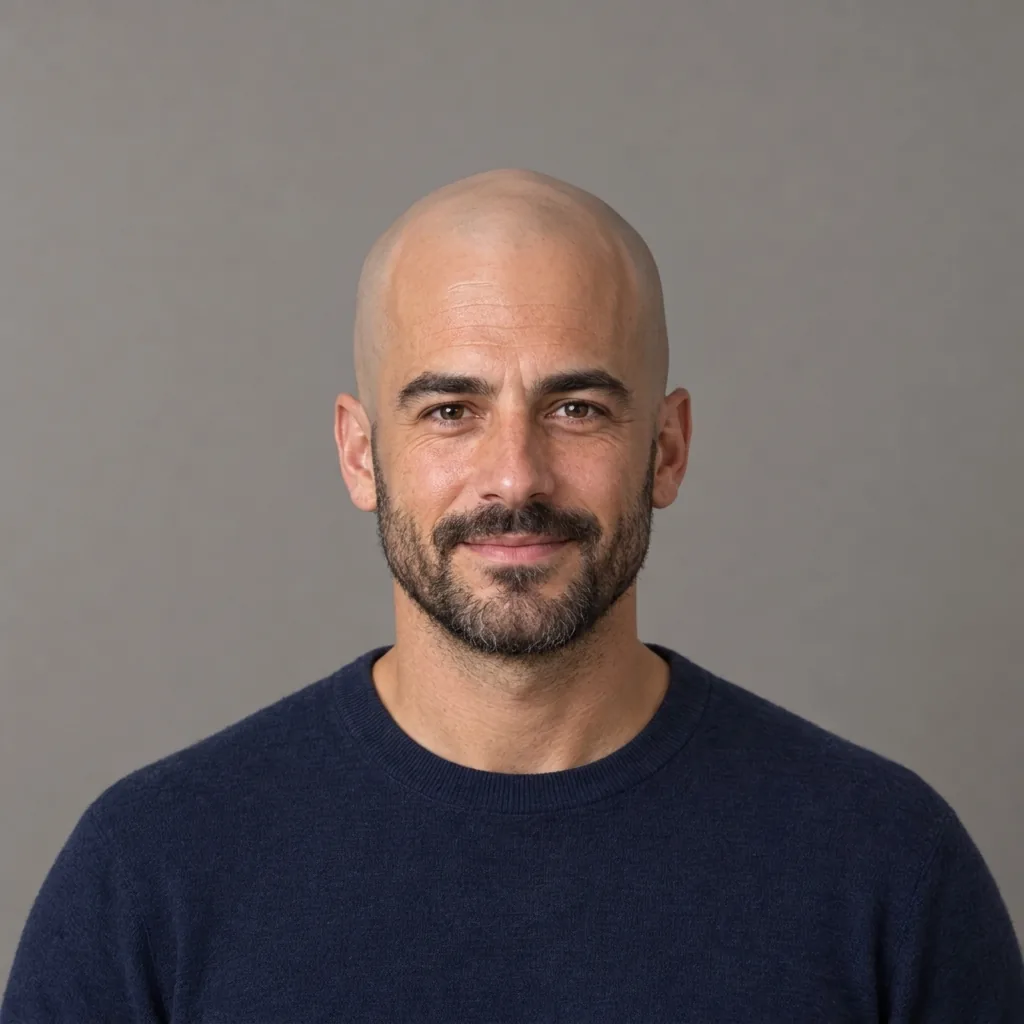
  • Blunt bob in straight black hair
  • Shaggy wolf cut in wavy brown hair
  • Textured crop and low taper fade, beard left as it is
  • Soft pixie cut with her gray temples kept

How it works

How the AI Hairstyle Changer Works

  1. Step 1

    Upload a clear portrait

    Choose a sharp, evenly lit photo of one person: yourself, or someone who has agreed to it. Face the camera or turn slightly, and keep the hairline, ears and shoulders in the frame so a new length has room to show.

  2. Step 2

    Pick a cut or describe it

    Tap one of the six cuts, write your own, or add details such as length or parting to a cut you picked. Leave both empty for the default: a chin-length bob for long hair or a textured crop for short hair. If the result looks too close to your current cut, pick a cut and generate again. One generation costs 8 credits and returns one 1K image in the same shape as your photo.

  3. Step 3

    Compare, then download

    Put the result next to your original and check the hairline, ears, glasses and beard, because the whole photo is redrawn and small details can shift. Download the one you like, or try another cut as a new generation.

What changes, what stays

A New Cut in Your Own Hair Texture and Color

Cut, length and shape

Name the haircut, where the ends should fall and how it is parted or styled, from a blunt bob or a shaggy wolf cut to a buzz cut or a taper fade. Each run makes one still image of one cut, so try other cuts as separate runs.

Built in your own texture

Straight, wavy, curly and coily hair each hold a cut differently, so the new style aims to keep the texture and color you already have. If a different texture or a new color is part of the idea, say so in your words.

The rest of the photo stays

The edit aims to leave your face, skin tone, expression, eyebrows, beard, glasses, earrings, clothes, background and lighting as they are, and to keep your photo's framing. The result keeps your photo's shape, so a portrait comes back as a portrait. Where a shorter cut uncovers the neck, ears or shoulders, they are filled in to match.

Optional words

How to Describe the Haircut You Want

A photo alone is enough to start. Describe one cut per run, and name a color only if you want your color to change as well.

Name the cut

Soft pixie cut with longer pieces on top; keep my own hair color and texture.

Set the length

Blunt bob that ends just below my chin, the back slightly shorter than the front; keep my natural waves.

Add the details

Textured crop with a low taper fade and a side part; keep my natural coils and leave my beard as it is.

Ways to use it

Bring a Clearer Idea to Your Stylist or Barber

Check a big change before you book

See long hair as a bob, or a grown-out cut as a buzz cut, on your own face before you commit. Treat it as a visual idea: the real result depends on your hair and the person cutting it.

Compare a few cuts

Run two or three cuts on the same photo and line them up next to your original. The page will not recommend a cut, so comparing is how you decide. Each cut is a separate 8-credit run.

Plan a grow-out

Growing a pixie into a bob, or a crop into a wolf cut? Picture the shape you are working toward so you know what to ask for at each trim. It shows a style, not how fast your hair will grow or how thick it will be.

Show your stylist or barber

Save the image to point at the cut, length and parting you mean, and bring your original photo too. Your stylist or barber can tell you how your texture and thickness will change the real result.

Create more with one YouArt membership

This generator uses 8 credits for one 1K image. Membership credits work across YouArt image, video, audio, and workflow tools.

Basic

For hobbyists and explorers

$9.99/mo
Select Plan
  • 1000 credits
  • Up to ~200 images/month
  • Up to ~332s video/month
  • Intelligent creative agent
  • Video editor
  • Latest image models, including GPT Image 2.5, GPT Image 2 and Nano Banana Pro
  • Latest video models, including Seedance 2
  • Realistic face uploads
  • Voice generation with ElevenLabs
  • No watermark
  • Unlimited template access

Pro

Popular

For creators and pro users

$29.99/mo
Select Plan
  • 3300 credits
  • Up to ~1000 images/month
  • Up to ~1100s video/month
  • Intelligent creative agent
  • Video editor
  • Latest image models, including GPT Image 2.5, GPT Image 2 and Nano Banana Pro
  • Latest video models, including Seedance 2
  • Realistic face uploads
  • Voice generation with ElevenLabs
  • No watermark
  • Unlimited template access

Max

Best Value

For power users and teams

$149.99/mo
Select Plan
  • 18000 credits
  • Up to ~6000 images/month
  • Up to ~6000s video/month
  • Intelligent creative agent
  • Video editor
  • Latest image models, including GPT Image 2.5, GPT Image 2 and Nano Banana Pro
  • Latest video models, including Seedance 2
  • Realistic face uploads
  • Voice generation with ElevenLabs
  • No watermark
  • Unlimited template access

Team

For teams and studios

$329.99/mo
Select Plan
  • 36300 credits
  • Up to ~12000 images/month
  • Up to ~12100s video/month
  • Realistic face uploads
  • Share canvas, workflows, and assets with your team
  • Up to 10 members per team
  • Up to 5 teams
  • Role-based management
  • Team credit management and spending caps
  • Per-member usage tracking

Questions answered

AI Hairstyle Changer FAQ

It gives the person in one portrait a new haircut, changing the cut, length and shape of the hair on their head. Pick one of six cuts, describe a cut in words, or leave both empty: the aim is then a chin-length bob for hair at or past the shoulders and a textured crop for shorter hair. A photo is required.

The quick picks are Bob, Pixie cut, Wolf cut, Layered cut, Buzz cut and Textured crop, and you can describe others, such as a shag, a taper fade or slicked-back hair. Describe the cut itself rather than a celebrity's look. The page does not analyze face shape or recommend which cut suits you. For bangs, curls, extra length, a shaved head or braids on their own, use the Bangs Filter, Curly Hair Filter, Long Hair Filter, Bald Filter or AI Braids.

Yes. Name a color in your words and it is applied along with the new cut. Without one, the aim is to keep your own color. If you want a new color and no new cut, use the Hair Color Changer instead.

The edit is aimed at the hair, and your skin tone, features, age, expression, eyebrows, beard or mustache, glasses and earrings are meant to stay as they are. Because the whole photo is redrawn, small details can shift, especially around the hairline and ears, so compare the result with your original. For beard changes, use the Beard Filter.

A sharp, evenly lit photo of one person, facing the camera or turned slightly, with the hair, ears and shoulders in view. Use your own photo or one you have permission to use. Hats and hands over the hair hide what the edit needs, and if a headscarf, hijab, turban or other head covering hides the hair, the photo comes back unchanged.

Each generation costs 8 YouArt credits and creates one image. Picking a cut or editing your words uses no credits; each new cut you try is a new run.

Build beyond one image

Turn your result into a complete creative workflow

Open YouArt's visual canvas to connect generation, editing, upscaling, animation, and sound in one reusable process.