AI smile filter

Smile Filter: Add a Natural Smile to Your Photo

Give a serious portrait a softer expression. Upload one clear photo for a gentle closed-mouth smile, or add a short note about the warmth you want. The edit focuses on the expression, with your familiar features and the original scene as its guide.

8 credits
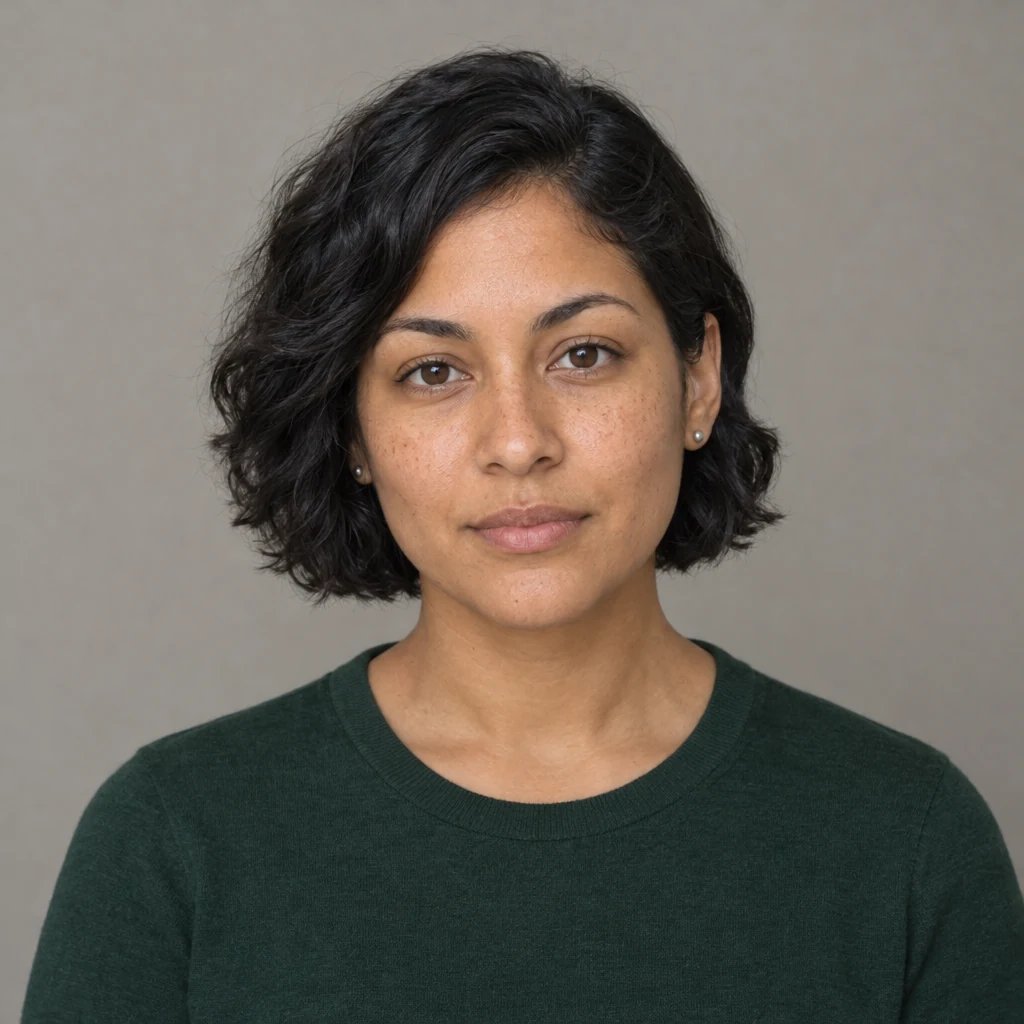
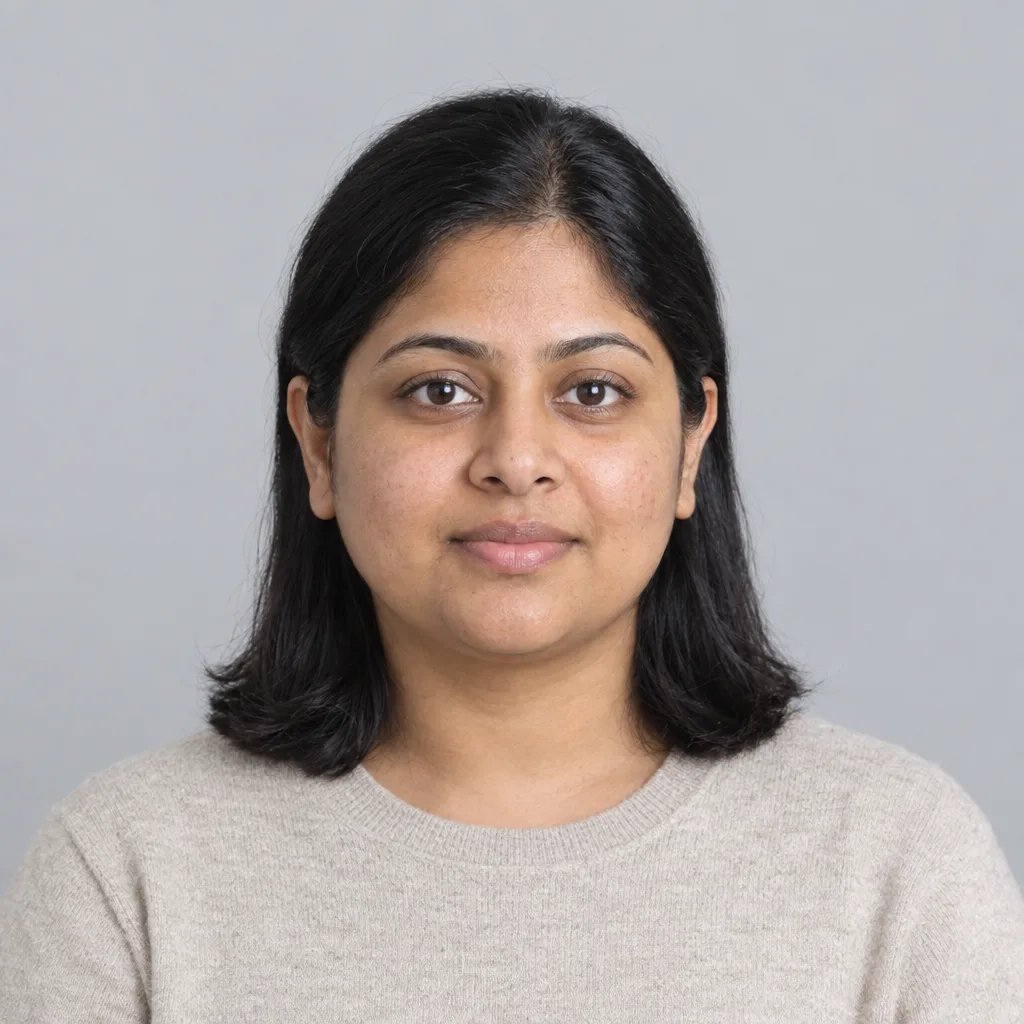
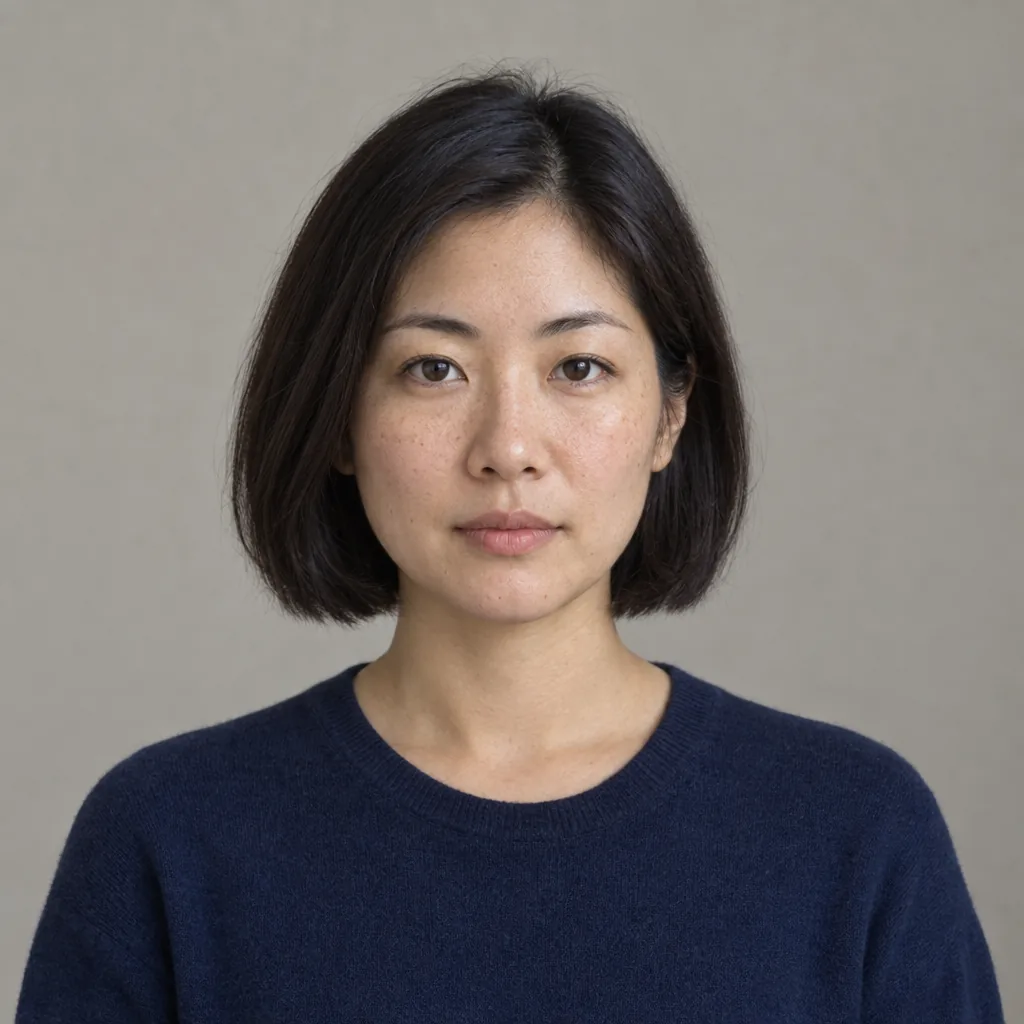
Portrait of an adult woman with a neutral expression before the smile filter
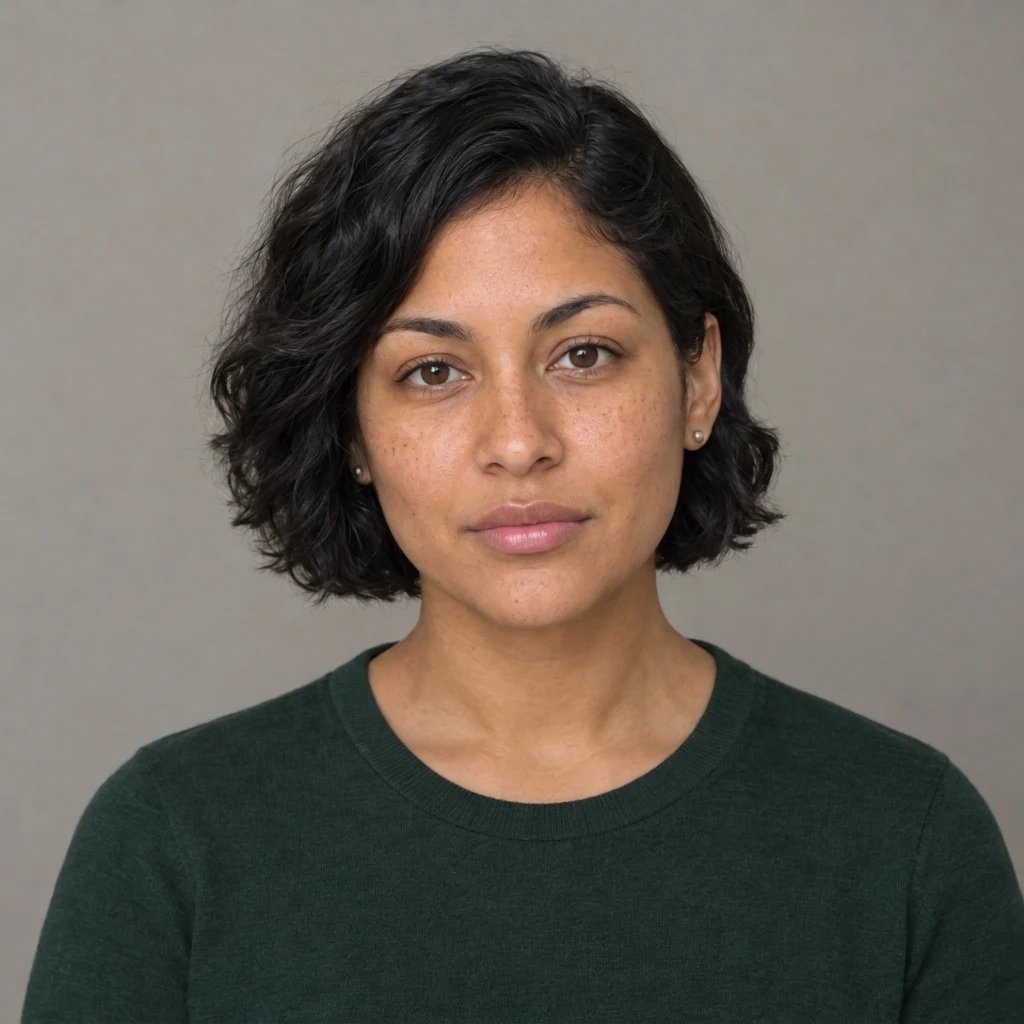
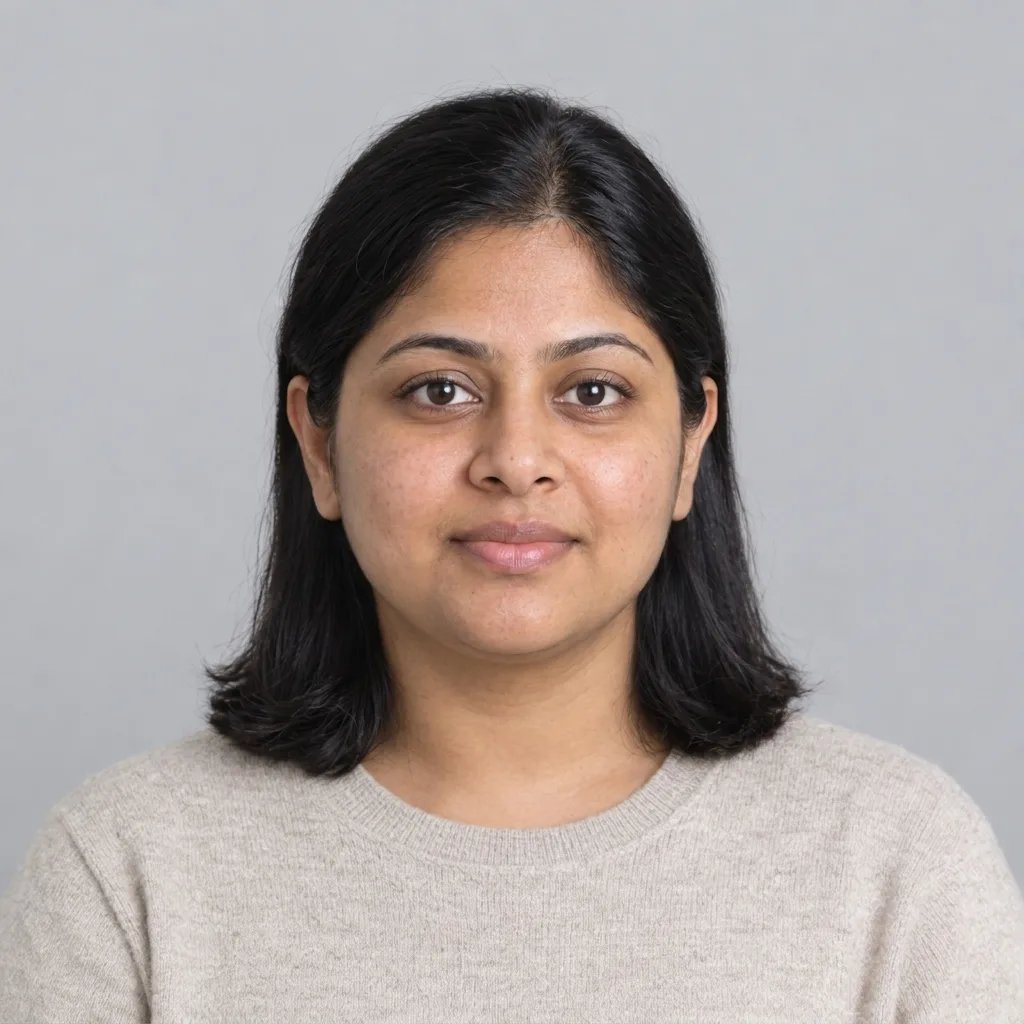
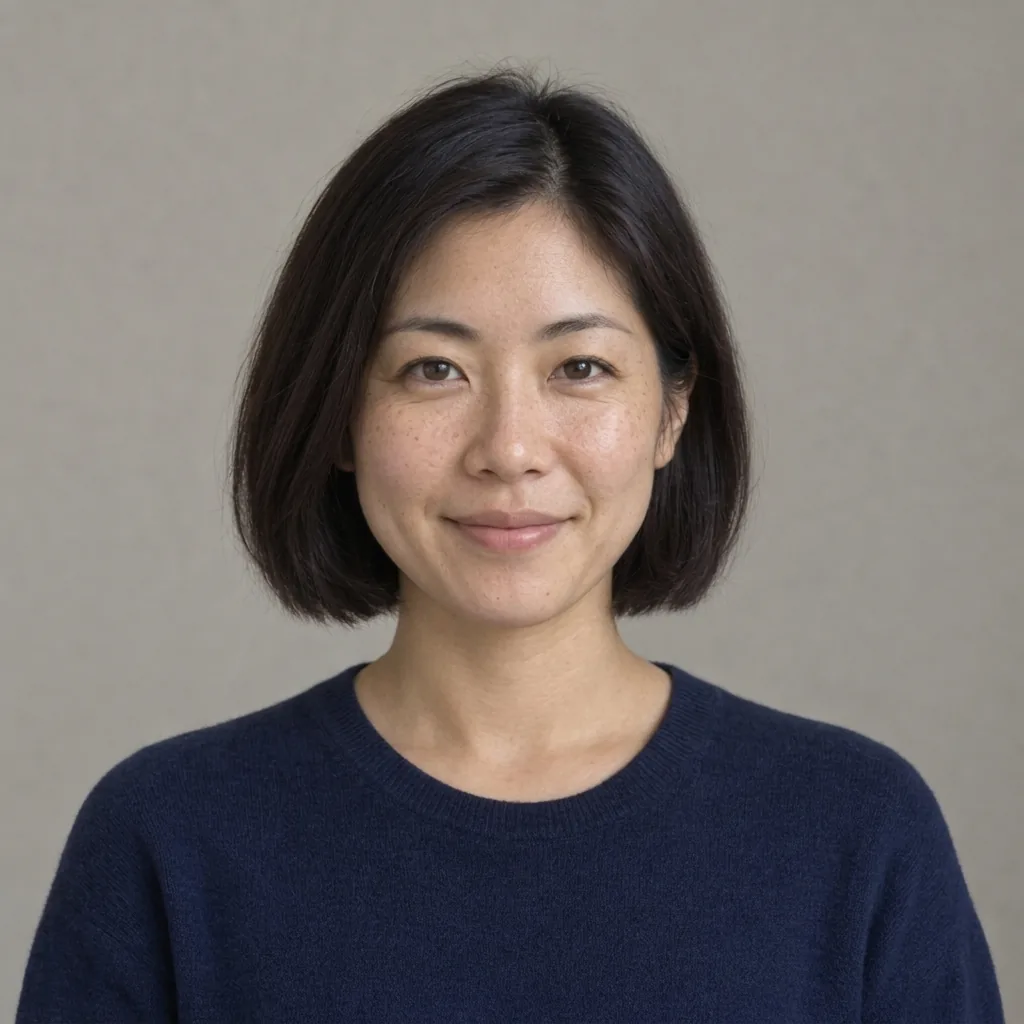
Smile filter result showing the adult woman with a gentle closed-mouth smile
Drag to compare a neutral expression and a gentle smile.

Smile ideas

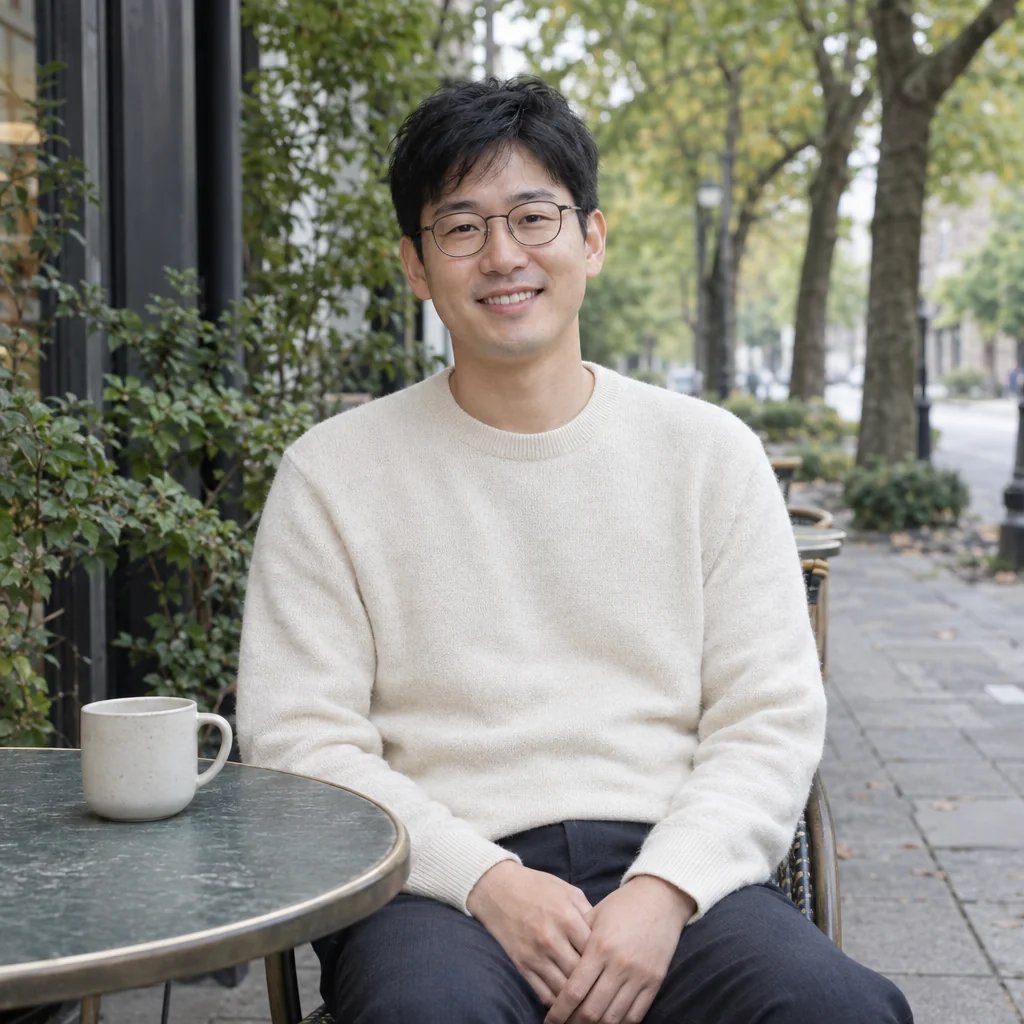
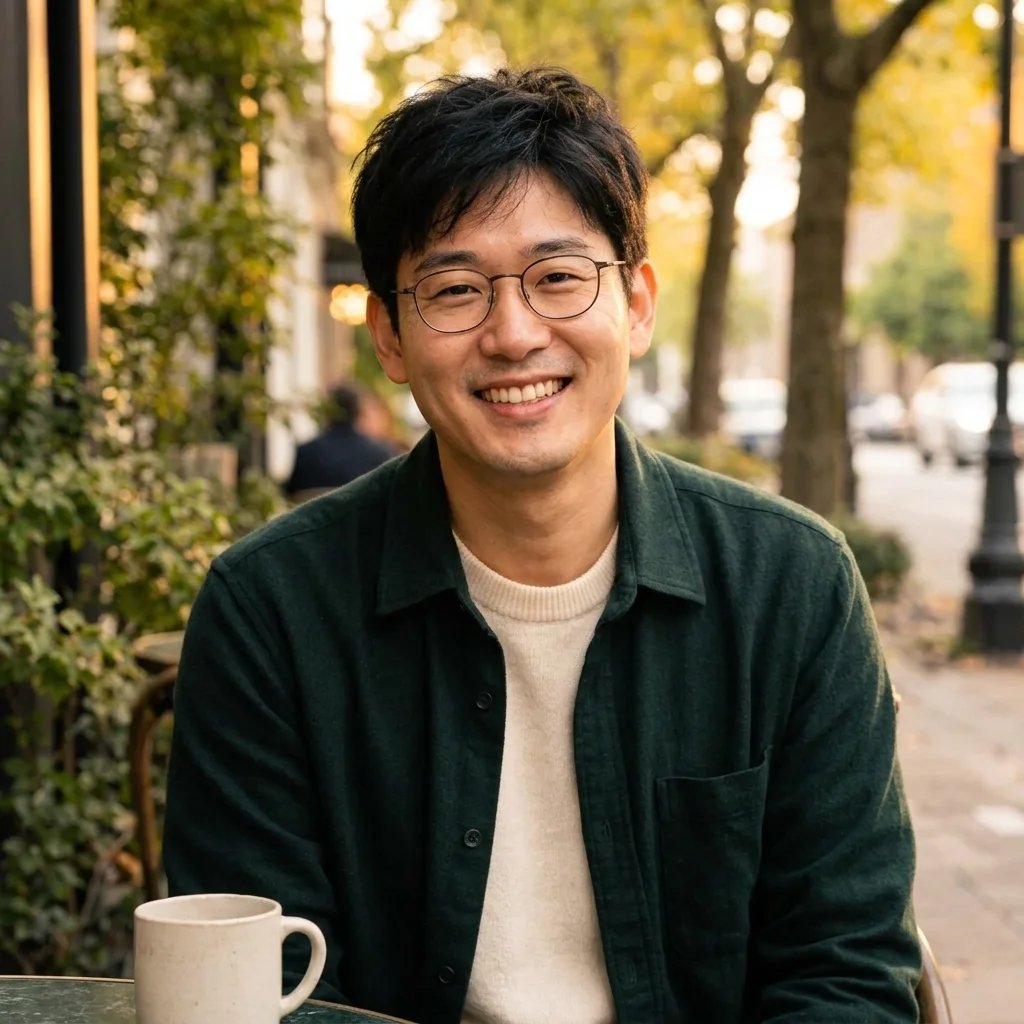
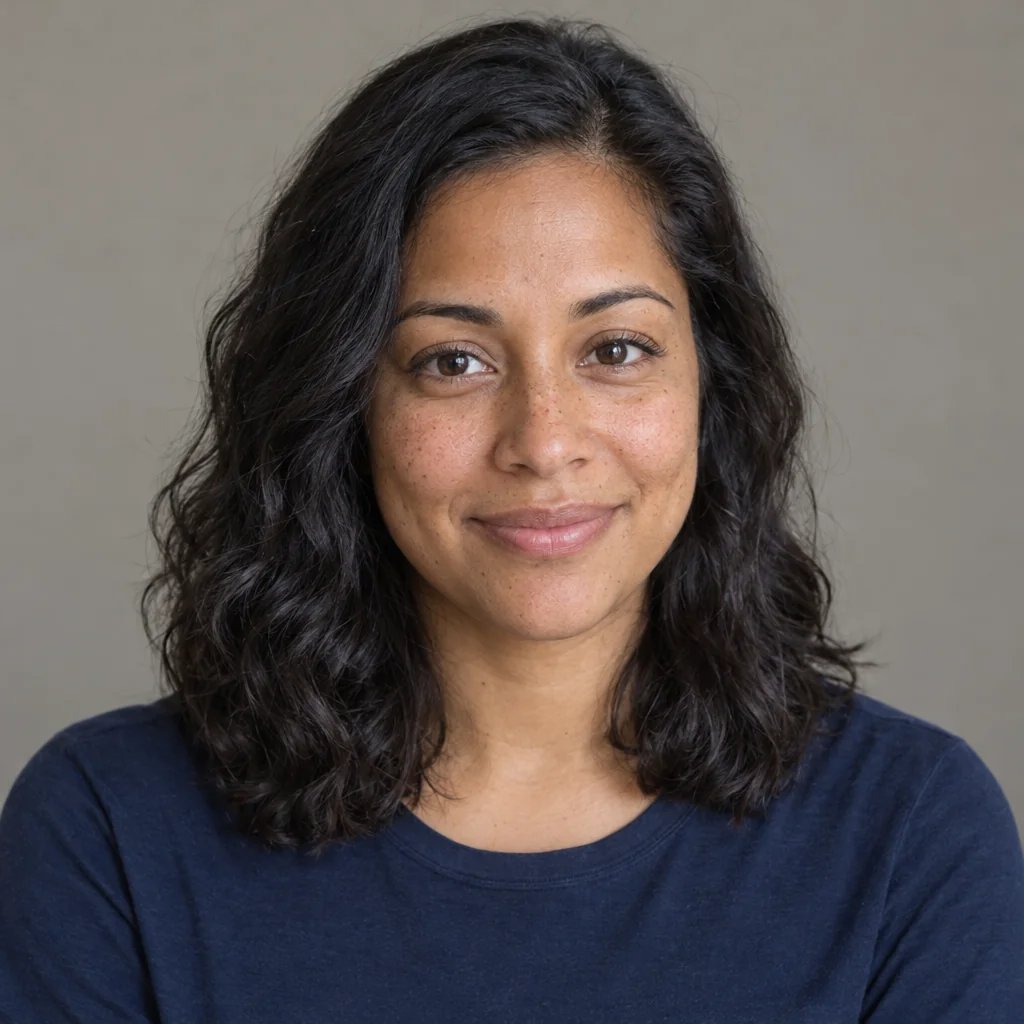
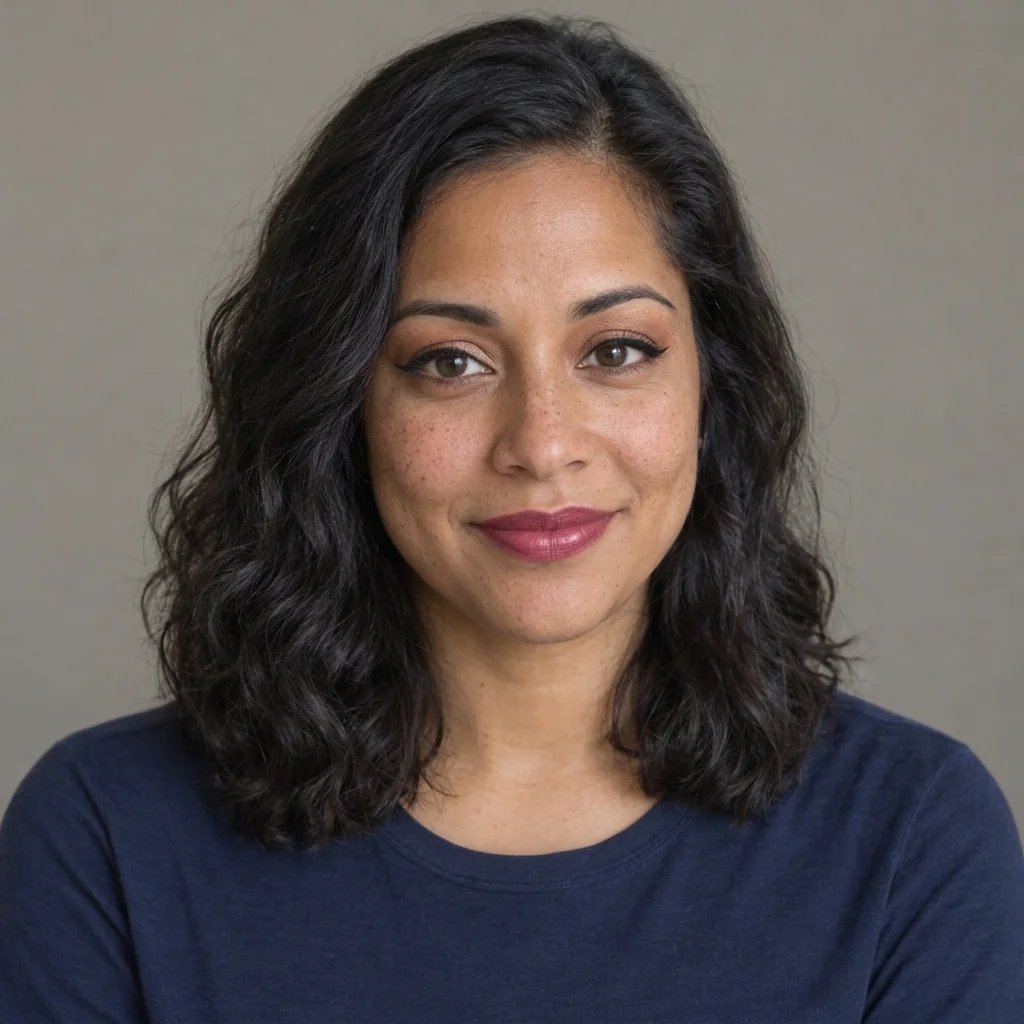
A Softer Expression in Four Portraits

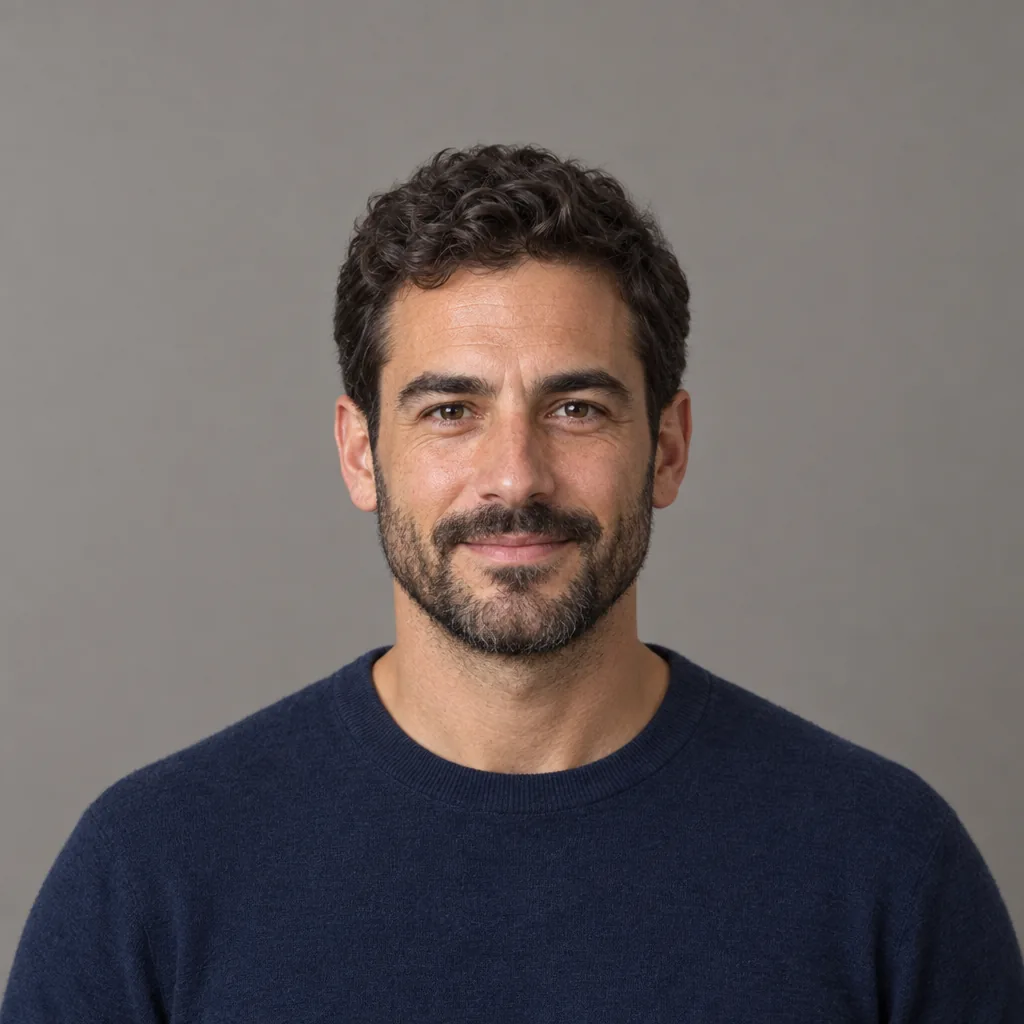
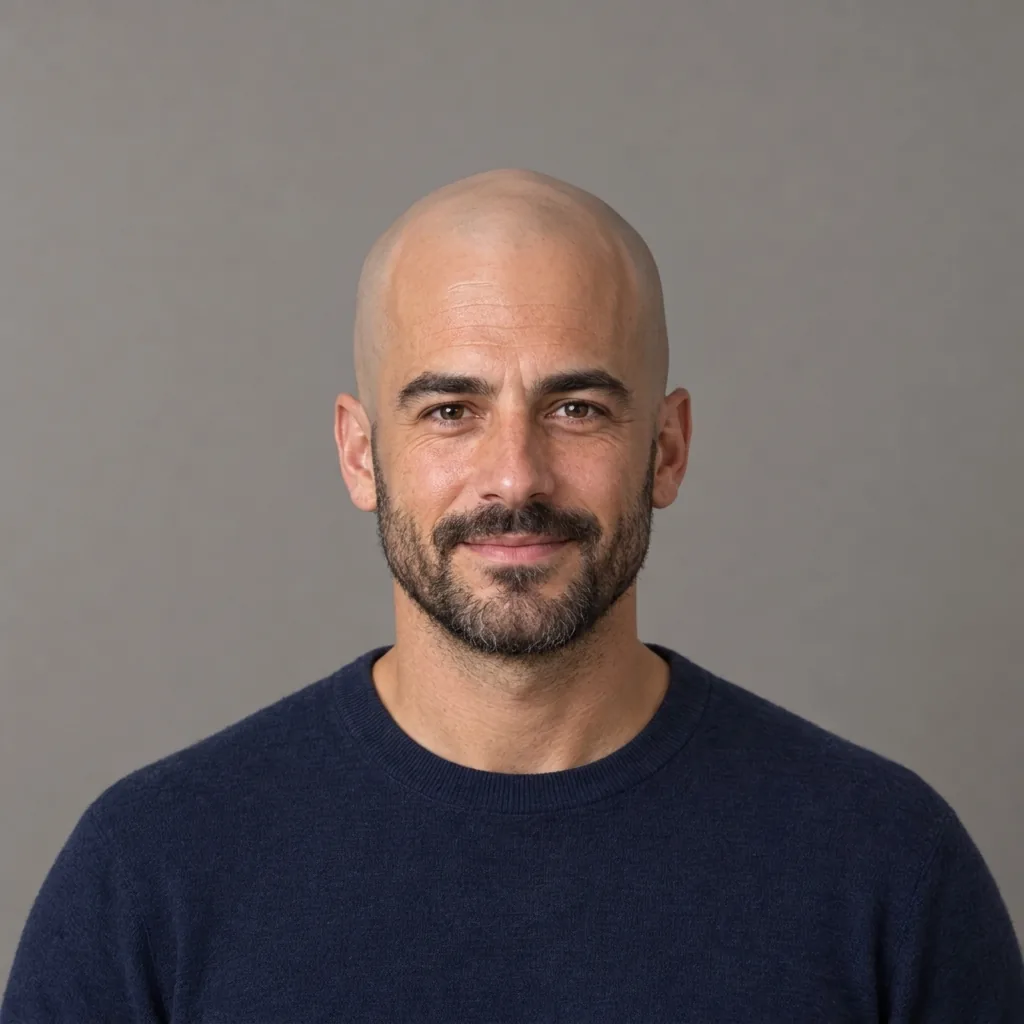
  • A welcoming professional portrait
  • A subtle smile with a short beard
  • Warmth with natural expression lines
  • A relaxed smile behind glasses

How it works

Add a Smile to a Photo in Three Steps

  1. Step 1

    Upload one clear portrait

    Choose a photo with one person facing the camera or turned slightly to the side. Keep the mouth, cheeks and eyes visible, with enough room around the face for a square composition. An evenly lit neutral expression gives you a clear starting point.

  2. Step 2

    Guide the expression

    Leave the text empty for a gentle closed-mouth smile, or add a brief preference such as subtle or warm. A photo is required. Each run uses 8 credits and returns one 1K square image.

  3. Step 3

    Compare and download

    Check the mouth corners, cheeks and eyes alongside your original. Review small details such as facial hair, glasses and skin texture, then download the version you like. A different source photo may help if the first expression looks strained.

The expression edit

A Photo Smile Editor for Subtle Changes

A gentle closed-mouth starting point

The default lifts the mouth corners while keeping the lips together. It gives you a restrained smile without asking the AI to invent visible teeth. Use a short note to explore a little more warmth or a smaller change, with the uploaded portrait guiding the result.

The cheeks and eyes matter too

A smile involves more than curved lips. Small movements around the cheeks and eyes help the expression read as a whole. The edit asks for that coordinated change without beauty smoothing, a reshaped jaw or a new pose; review the result for a balance that still feels familiar.

Keep the portrait recognizable

Your face shape, age, hair, clothes and setting anchor the request. The filter aims to retain those details as it changes the expression. This works best with a clear source, where the AI can see the lips, facial hair and nearby features instead of guessing through blur or deep shadow.

Optional details

Simple Prompts for Your AI Smile Filter

You can generate with the photo alone. When adding words, describe the expression you want rather than a different person, hairstyle or setting.

A barely-there smile

A very slight lift at the corners of my mouth, lips gently closed, relaxed cheeks, the same face and lighting.

A warm headshot

A warm closed-mouth smile for this headshot, with a small natural lift in the cheeks and a relaxed expression around the eyes.

Keep the familiar details

Add a small closed-mouth smile while keeping my existing facial hair, glasses, skin texture and pose as close to the original as possible.

Ways to use it

A Gentle Smile for Everyday Portraits

Professional headshots

Explore a friendlier expression for a team page, speaker profile or portfolio portrait. Keep your existing clothes and setting, and judge whether the expression suits the way you want to introduce yourself.

Personal profile photos

Try a softer look in a favorite profile picture without designing a new scene. The square result fits common avatar layouts; check the face at a small size as well as at full resolution.

Casual portraits

Revisit a clear solo photo from a walk, a trip or an afternoon with friends. A small smile can offer another version of the portrait while its clothes, light and background remain the visual starting point.

Compare expression choices

Use separate runs to compare a subtle smile and a warmer one on the same source. Short, specific instructions make the difference easier to evaluate. Each variation is a new image, so keep the original for comparison.

Create more with one YouArt membership

This generator uses 8 credits for one 1K image. Membership credits work across YouArt image, video, audio, and workflow tools.

Basic

For hobbyists and explorers

$9.99/mo
Select Plan
  • 1000 credits
  • Up to ~200 images/month
  • Up to ~332s video/month
  • Intelligent creative agent
  • Video editor
  • Latest image models, including GPT Image 2.5, GPT Image 2 and Nano Banana Pro
  • Latest video models, including Seedance 2
  • Realistic face uploads
  • Voice generation with ElevenLabs
  • No watermark
  • Unlimited template access

Pro

Most Popular

For creators and pro users

$29.99/mo
Select Plan
  • 3300 credits
  • Up to ~1000 images/month
  • Up to ~1100s video/month
  • Intelligent creative agent
  • Video editor
  • Latest image models, including GPT Image 2.5, GPT Image 2 and Nano Banana Pro
  • Latest video models, including Seedance 2
  • Realistic face uploads
  • Voice generation with ElevenLabs
  • No watermark
  • Unlimited template access

Max

For power users and teams

$149.99/mo
Select Plan
  • 18000 credits
  • Up to ~6000 images/month
  • Up to ~6000s video/month
  • Intelligent creative agent
  • Video editor
  • Latest image models, including GPT Image 2.5, GPT Image 2 and Nano Banana Pro
  • Latest video models, including Seedance 2
  • Realistic face uploads
  • Voice generation with ElevenLabs
  • No watermark
  • Unlimited template access

Team

For teams and studios

$329.99/mo
Select Plan
  • 36300 credits
  • Up to ~12000 images/month
  • Up to ~12100s video/month
  • Realistic face uploads
  • Share canvas, workflows, and assets with your team
  • Up to 10 members per team
  • Up to 5 teams
  • Role-based management
  • Team credit management and spending caps
  • Per-member usage tracking

Frequently asked questions

Smile Filter FAQ

It creates a new version of your uploaded portrait with a smiling expression. The default is a gentle closed-mouth smile, with small adjustments around the mouth and cheeks. Your photo supplies the person and setting; extra words are optional, and text alone cannot start a run.

Describe the expression in the optional text box. Start with a subtle or warm closed-mouth smile for a restrained edit. A request for visible teeth asks the AI to generate details the source may not show, so the result can differ from your real smile. There is no separate intensity slider.

The edit is instructed to retain your recognizable features, age, skin texture, hair, clothes and background. A smile naturally moves nearby facial features, and AI can also alter details unintentionally. Compare the eyes, nose, jawline, facial hair and any glasses before choosing the result.

Use a sharp, evenly lit photo of one person, facing forward or at a gentle angle. Keep the mouth and cheeks unobstructed and start with a neutral or relaxed expression. Strong profiles, motion blur, hands across the face and deep shadows leave more detail for the AI to infer.

This page is designed for a single-person portrait and has no face-selection control. Use a separate photo or crop of the person you want to edit. It does not offer reliable individual expression changes within a group photograph.

Each generation costs 8 YouArt credits and returns one 1K image in a fixed 1:1 square frame. Uploading a photo or changing optional words does not start a paid run. Each generated variation uses another 8 credits, shown before you generate.

Keep exploring

More AI art styles to try

The closest looks to this one. Each is a full generator with its own prompt studio and examples.

Browse all 114 AI generators

Build beyond one image

Turn your result into a complete creative workflow

Open YouArt's visual canvas to connect generation, editing, upscaling, animation, and sound in one reusable process.